 Download Online Help
 Print
|
|
|
|
|


If any damage or defect is discovered on the aircraft while working on the scheduled W/O Task Card, a Non-Routine Task Card can be created to address the issue. These N/R Task Cards work similarly to Engineering's scheduled Task Cards in that required materials, labor, and finances can be tracked, but N/R Task Cards are considered unplanned maintenance events.
This damage may be discovered at the beginning of a check. During the check, some routine Task Cards may find specific problems that may need some rectification action, which must be recorded on another card. These Non-Routine Task Cards are allocated a sequential number unique to each Work Order for tracking purposes. They do not have their own 'named' reference as the Task Cards do.
Non-Routine Task Cards can be added and created from other places within the System (not necessarily just from this window). An example of this is when the Non-Routine Task Cards are created in the Work In Progress Window and the Defect Report Window.
Users may add Non-Routine Task Cards to this list.
Select the New  button to add a new record to the list. Fill in the required fields and any optional fields desired. Select the Save
 button.
The Non-Routine Task Card  button takes the user to the W/O Non-Routine Task Card window. In this window, the user may populate information for Non-Routine Task Cards.
Select an existing record from the list of records located at the bottom of the window.
The following tabs and buttons are available.
Work Order Non-Routine Task Card Tabs |
Work Order Non-Routine Task Card Buttons |
|---|---|
|
Work Accomplished Tab Optional 4 Tab Add/Historical Work Accomplished Tab Authorization Tab Follow Up Requirements Tab |
Print Functions
Sub-Functions
PK/REQ Sub-Functions
|
 Reset button
 Delete button

 Find button


 New Defect button

 Audit button


 Attachment button
 Picklist Query button


Materials:
Users can add or remove the parts required for the Non-Routine Task Card from the Materials section.
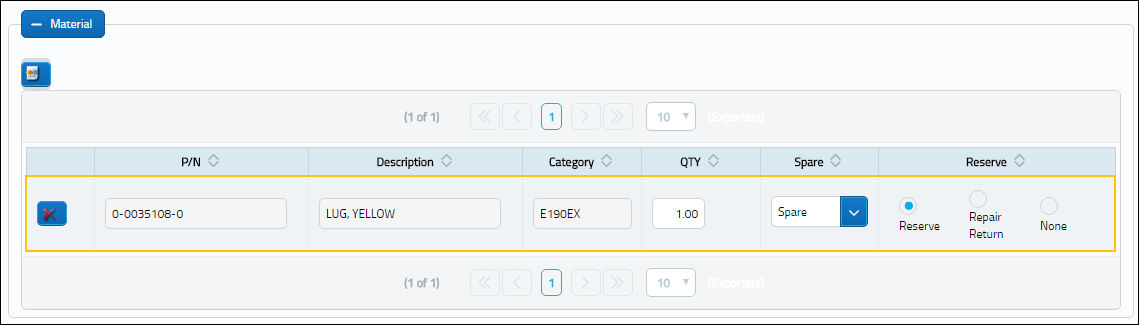
The following options are available in this window:
_________________________________________________________________________
Expand  / Collapse
 buttons
The Expand _ button displays all of the information for the section. The Collapse _ button hides the same information.
Add/Delete Record  button
Select this button to add or remove parts that are associated to the Non-Routine Task Card. When selected, the Task Card P/N window pops up. The same fields in that window are also available in the Materials Section. From this window, however, users are able to set up System Notifications for the specific Task Card P/N by selecting the Notification  button.
New Record button
Select this button to add a new line item to the section.
Delete Record  button
Delete the selected line item entry.
P/N
The Part Number reference for the aircraft part. This is the Part Number required for the N/R T/C. A part number may be specified only one time per Item Number. However, the same part number may be specified on each unique item number if needed. Users can select into this field or select the Add/Delete Record button to add a P/N.
Description
The description of the part.
Item
The specific item number on the Non-Routine Task Card that this record is to be associated with. Leave default '0' to have this record associated with all item numbers on the Non-Routine Task Card.
Category
The category of the part as defined in Settings/ Explorer/ System Transaction Code Explorer/ Settings/ P/N Category (e.g. Rotable, Consumable, Repairable) and entered for the particular part in the P/N Master.
QTY
The quantity of items/parts required.
Spare/Tool drop down
Select Spare if the item required is a spare; this can be either an Expendable or a Rotable part. Select Tool if the item required is a tool; the P/N must be configured as a Tool in P/N Master via Settings/Update/P/N Master.
Reserve radio button
Select this button to reserve the spare or tool when W/O P/N reservation is applied. When a Picklist Reservation is made via a Work Order, only parts that have the Reserve radio button checked will be reserved. For more information regarding picklist creation, please go to Production/Update/Work Order/Picklist _ button.
Repair Return radio button
Select this button to repair/return the spare when W/O P/N reservation is applied. When a Picklist Repair/Return is made via a Work Order, only parts that have the Repair/Return radio button checked will be repaired or returned.
None radio button
Select this button if no spare or tool has been reserved or repaired.
_________________________________________________________________________
For more information on the options available in this section, refer to the P/N Button from the Engineering - T/C Training Manual.
Zones:
Users can add or remove the specific work zones for the Non-Routine Task Card in the Zones section of the window.
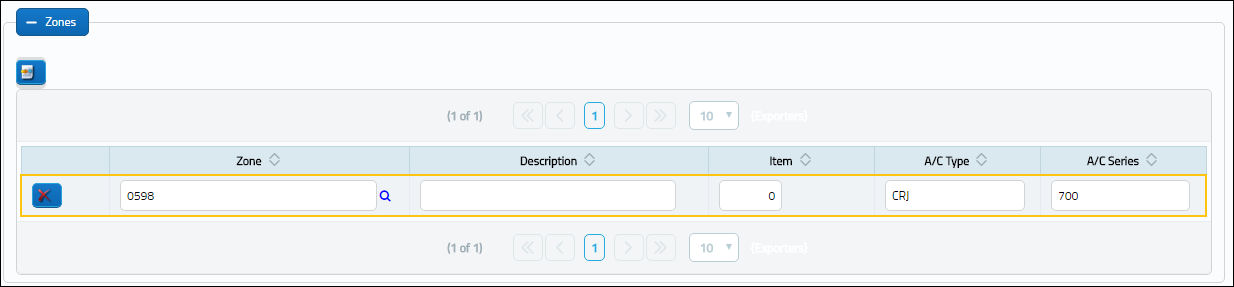
The following options are available in this window:
_________________________________________________________________________
Expand / Collapse buttons
The Expand _ button displays all of the information for the section. The Collapse _ button hides the same information.
Add/Delete Record  button
Select this button to add or remove the Zones that are associated to the Non-Routine Task Card. When selected, the W/O N/R Task Card Zone window pops up. The same fields in that window are also available in the Zones Section.
New Record button
Select this button to add a new line item to the section.
Delete Record button
Delete the selected line item entry.
Zone
The Zone area for the Non-Routine Task Card (selected from Task Card Control Master).
Description
The Zone description for the Non-Routine Task Card.
Item
The specific item number on the Non-Routine Task Card that this record is to be associated with. Leave default '0' to have this record associated with all item numbers on the N/R Task Card.
A/C Type/Series
The aircraft Type and Series / Fleet assignment.
_________________________________________________________________________
For more information on the options available in this section, refer to the Zone Button via the Engineering - T/C Training Manual.
Panels:
Users can add or remove the specific panels that are required to be removed in order to carry out the Non-Routine T/C work in the Panels section of the window.
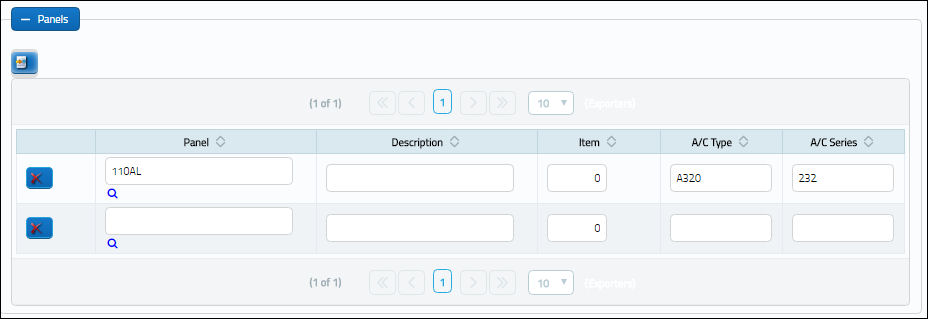
The following options are available in this window:
_________________________________________________________________________
Expand / Collapse buttons
The Expand _ button displays all of the information for the section. The Collapse _ button hides the same information.
Add/Delete Record  button
Select this button to add or remove the Panels that are associated to the Non-Routine Task Card. When selected, the Non-Routine Task Card Zone window pops up. The same fields in that window are also available in the Zones Section.
New Record button
Select this button to add a new line item to the section.
Delete Record button
Delete the selected line item entry.
Panel
The Panel reference to be removed for access.
Description
The Panel description information.
Item
The specific item number on the Non-Routine Task Card that this record is to be associated with. Leave default '0' to have this record associated with all item numbers on the Non-Routine Task Card.
A/C Type/Series
The aircraft Type and Series / Fleet assignment.
_________________________________________________________________________
For more information on the options available in this section, refer to the Panel Button via the Engineering - T/C Training Manual.
Note: If the 'Allow N/R Creation' checkbox is deselected via the Work Order Header, Optional tab, users will be prevented from creating a Non-Routine Task Card for the W/O.
Download Online Help
Print
|
©1997-2018 Trax USA Corp. All rights reserved. This manual may not be copied, photocopied, reproduced, translated, or converted to any electronic or machine-readable form, in whole or in part, without prior written approval from Trax USA Corp. |
 |