 Download Online Help
 Print
|
|
|
|
|


The MPD Data Loader option is used to load the Maintenance Planning Document (MPD) Data Records into the system. The MPD is a publication that has the requirements for maintenance from the maintenance review board and from manufacturer recommended maintenance requirements for a specific aircraft type and series.
The MPD file is an Excel file that is imported into the system. Once this file has been imported, the contents of the file can then be imported into the system through TraxDoc. For information on how to prepare the .xsl file, refer to Preparing the MPD file.
When uploading a document into TraxDoc, the file that is being uploaded must be in a location where the eMRO server will recognize it. See below instructions:
- The IT department on user side must select a directory to work as a repository for all the OEM manuals that would be uploaded to eMRO via the TraxDoc module.
- This directory must be accessible from the application server (Wildfly).
- Create a way for users to provide the OEM manual revisions to be placed in the repository.
- The path for the repository directory will be defined by the traxdoc_manual variable on the data.source.properties file. This can be found under the application server (/%WILDFLYHOME%/deployments/emro.war/WEB-INF/classes/resources/).
Note: Please refer to Preparing the MPD File to access a link to the MPD Template which is necessary to create the .xsl file.
The following topic will detail the following:
- How to create a TraxDoc for the MPDLDR doctype
- How to Load an MPD into TraxDoc
- How to Import the MPDLDR into the system
TraxDoc Set Up (MPDLDR):
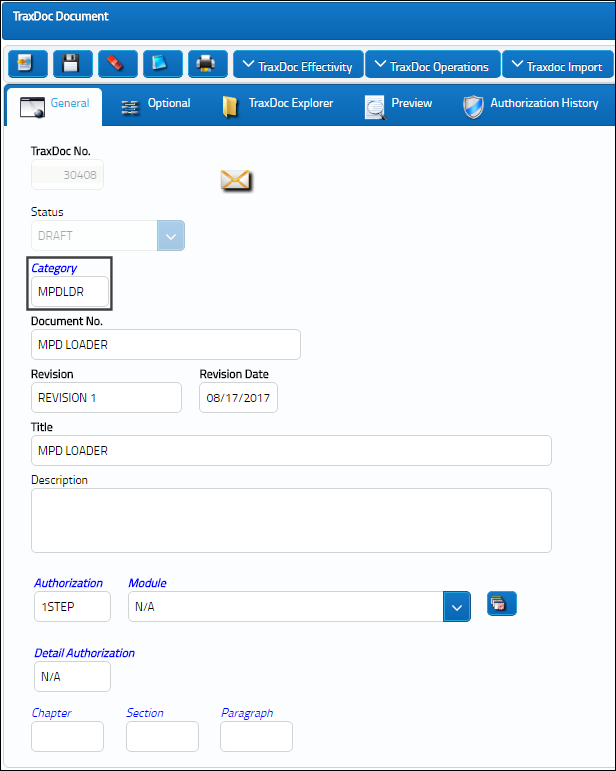
Create a TraxDoc. Be sure the specify the appropriate Category. In this example, the user has selected MPDLDR.
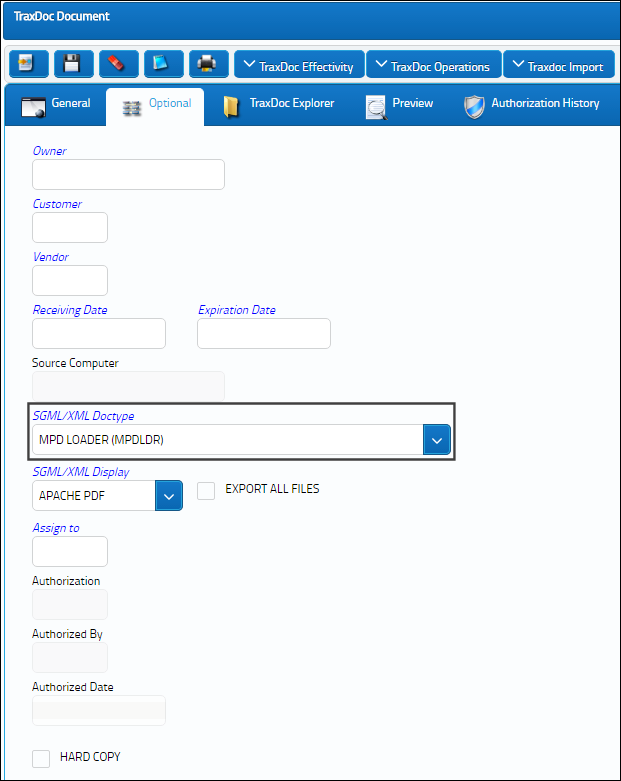
Specify the SGML/XML Doctype in the TraxDoc Document Detail, Optional tab. In this example, select MPD Loader (MPDLDR).
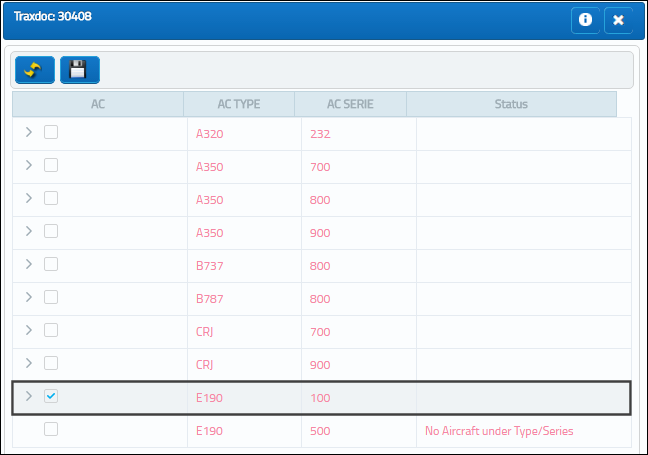
Select the Effectivity  button to apply Effectivity to the TraxDoc.
Loading MPD XSL into TraxDoc:
To load the MPD XSL into TraxDoc, follow the steps below.
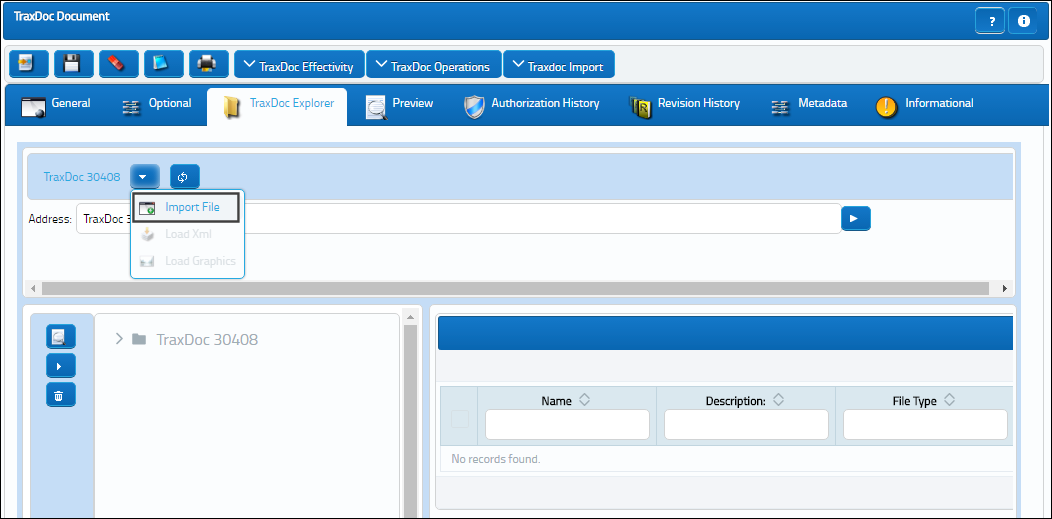
From the TraxDoc Explorer, select the Import File  button.
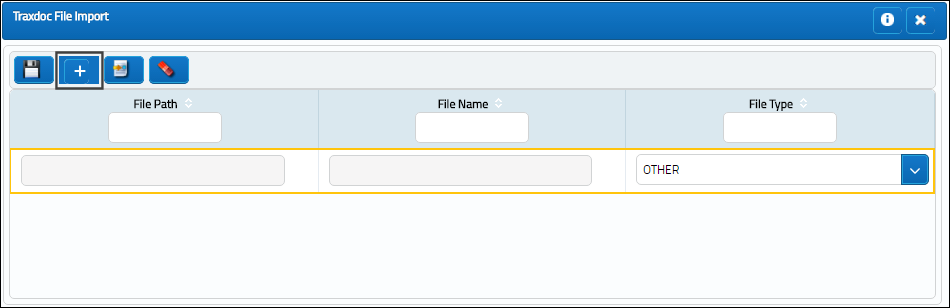
The Traxdoc File Import window pops up.
Select the Add File button.
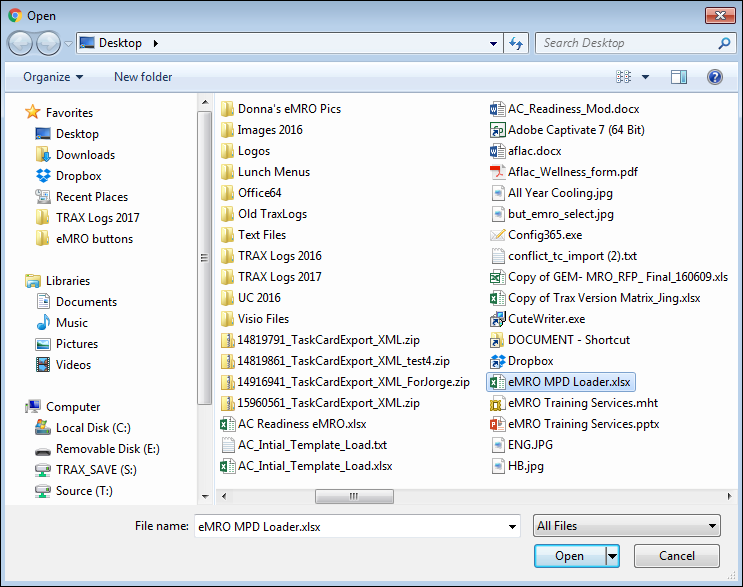
Locate and select the desired .xlsx file.
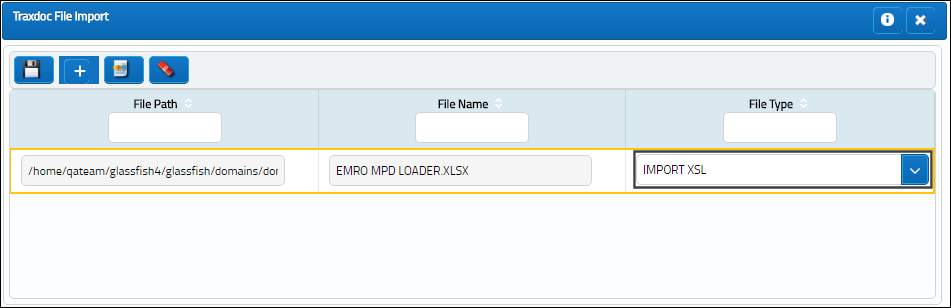
Once the file has been selected, specify the File Type as 'IMPORT XSL' and save.
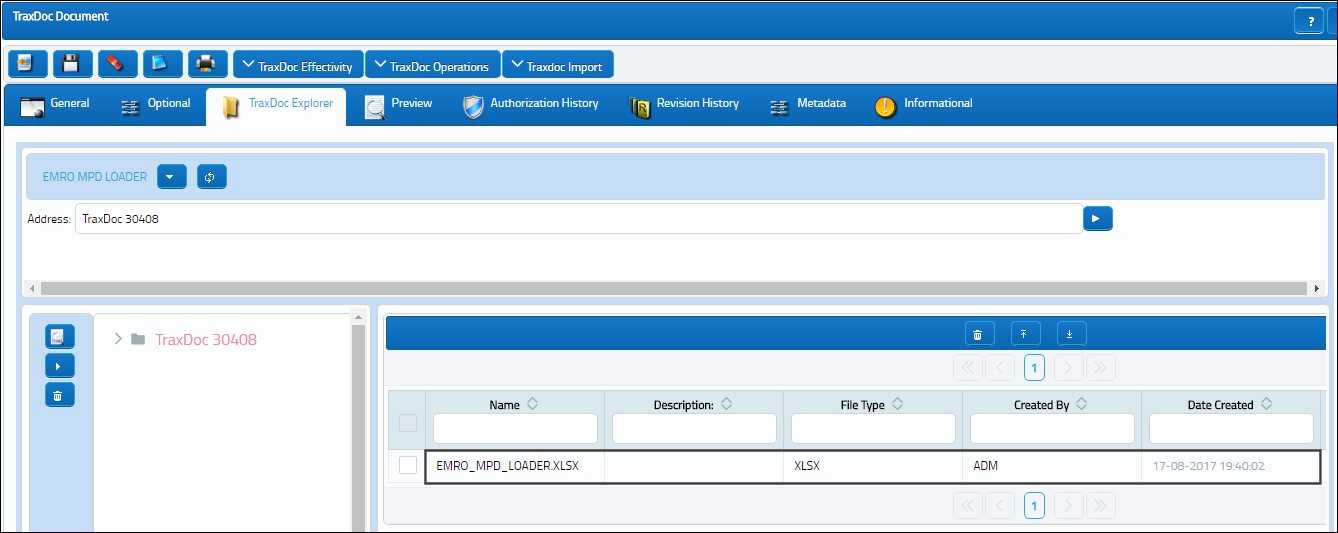
The file has been loaded as shown below.
Save the TraxDoc Master record once more.
Importing the MDP Loader Data into the System:
From the TraxDoc Import drop down, select the Import Data  button.
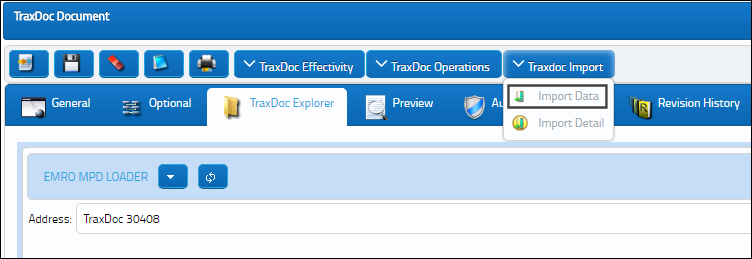
The MPD Loader To Import window pops up. Populate all necessary information and select the Run  button.
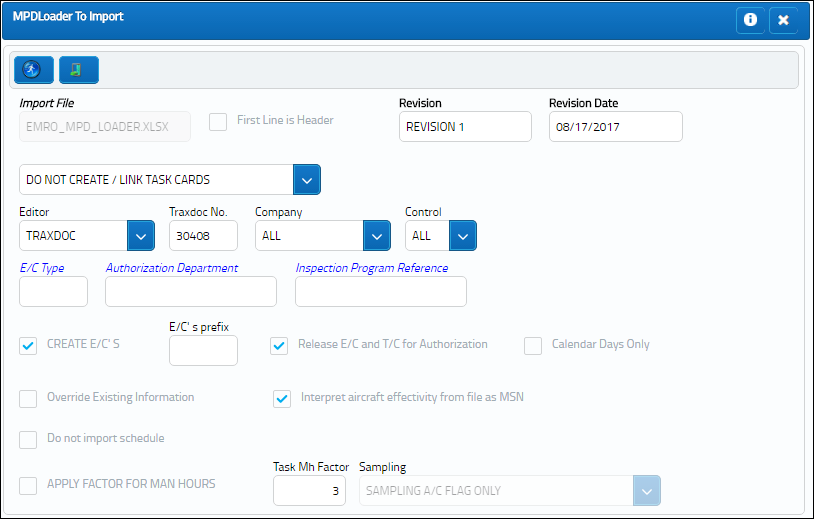
The following options/information is available in this window:
_________________________________________________________________________
Import File
Select into the field to select the location of the MPD text file to be loaded.
Note: The text file must be a tab delimited file that meets the specifications for loading into the system.
First Line is Header checkbox
Select this checkbox if the first line of the Import File is a header and should not be imported.
Revision
Enter the revision of the MPD document.
Revision Date
Enter the revision date of the MPD document.
Note: For the initial revision of the E/C, the E/C's Effective Date will default to the Aircraft's In Service Date. The Service Date is specified in the A/C Master, General tab.
Drop Down Selection
Do Not Create / Link Task Cards drop down - Select this option to load E/Cs and not T/Cs. Only E/Cs will be loaded.
Create a shell / header Task card record per E/C - This option will create and link T/Cs to the E/Cs with the option of assigning a specific prefix:
Link E/C to AMM task cards - Select this option to link the E/Cs being loaded to AMM Task Cards.
Editor drop down
The application that will be used to edit the information. The application will also be used to edit the information throughout the system. Selectable formats include: Word ®, Framemaker ®, TASKCARD, or the default Powerbuilder ® RTF (i.e. NONE).
Note: This Editor functionality is only supported when using Oracle ® version 8i and up. Also, this functionality is compatible with Microsoft ® Word 2000 and later versions.
Traxdoc No.
The TraxDoc Document ID number, which is automatically generated by the system.
Company drop down
The specific Company associated to the MPD.
Note: For more information, refer to the Multi Company Functionality.
Control drop down
Users can choose between the two Control types: A/C or P/N. When A/C is chosen, users can specify the Aircraft by selecting into the field.
E/C Type
The Engineering Control Type associated to the MPD. By default, this field is populated by 'Task E/C.'
Authorization Department
Select a department that will authorize the newly created E/Cs and Task Cards. If a department is not selected the authorization can be done by all departments.
Inspection Program Reference
This field allows users to set a reference for all MPD tasks during the import process.
Create E/Cs checkbox
Select this checkbox to create E/Cs from the Airbus MPD Loader records.
Override Existing Information checkbox
Select this checkbox to replace any existing Task Cards or E/Cs. Specifically, the information that will be overridden is as follows:
- E/C Category (via Engineering Control, General Tab)
- E/C Description (via Engineering Control, General Tab)
- E/C Schedule (Threshold and Interval) (via Engineering Control Authorization, Schedule Tab)
- A/C Effectivity (via Engineering Effectivity Override)
- Task Card Category (via Task Card, General Tab)
- Task Card Description (via Task Card, General Tab)
- Skill (Task Card Item, Skills Tab)
- Man Hours (Task Card Item, Skills Tab)
- Men Required (Task Card Item, Skills Tab)
- Item Text Description (Task Card Item, Skills Tab)
- A/C Effectivity (via Task Card Effectivity)
Note: If this the Override Existing Information checkbox is selected, and Switch
 MPDLNROE is set to Yes, aircraft effectivity will not be removed if the aircraft is no longer in the new revision. Instead, the E/C will be set to N/A.
Do not import schedule checkbox
When this checkbox is selected, the E/Cs First and Repeat Schedule will not be imported to the Engineering Control, Schedule Tab.
APPLY FACTOR FOR MAN HOURS checkbox
Select this checkbox to override the Man Hours in the Task Card Item window.
E/Cs prefix
Enter a prefix in front of the E/C. For example, the user may enter 'Lease' or 'B737' in front of the E/C. This is to locate the load with ease or pre-define the load.
Release E/C and T/C for Authorization checkbox
Select this checkbox to allow the newly created E/Cs and Task Cards to go directly to the Authorization Queue. If this checkbox is unselected the newly created E/Cs and Task Cards will go to Engineering Authorization Management and Task Card Authorization Management where they will have to released to authorization.
Interpret aircraft effectivity from file as MSN checkbox
This is a customized checkbox and is completely dependent on the file being imported. If the file does not have a S/N(s), the selected load will take the A/C information as the S/N information and will lose effectivity.
Note: This checkbox is selected by default.
Task Mh Factor
This number multiplied by the Task Mh number (in the MPD file) equals the number of Man Hours in the Task Card Item window.
(i.e. Task Mh Factor x Task Mh = Man Hours)
Sampling drop down
This drop down lists the option of whether or not to apply a sampling schedule of the Engineering Controls being imported to a fleet. This functionality can be utilized through selecting the 'Sampling A/C Flag Only' option, or the import can be conducted without utilizing the functionality through the blank option. This drop down is contingent with the Sampling aircraft registered via A/C Master, Optional 1 tab. The options are as follows:
Sampling A/C flag Only - Only Sampling Aircraft, as indicated in the A/C Master, Optional 1 tab, will be made effective and have the Sampling Override Schedule applied.
blank/null - Does not apply the sampling schedule of the Engineering Control being imported to the fleet.
For more information, refer to the Override Sampling Schedule button, via Engineering Control Schedule tab.
Calendar Days Only checkbox
Select this checkbox to ensure that A/C E/Cs that have Calendar Days Schedules only (no hours or cycles schedules) will use the Aircraft Manufacture Date instead of the In-Service Date in the Engineering Effectivity Override when the E/C does not have any compliance (i.e Complete No. = 0).
_________________________________________________________________________
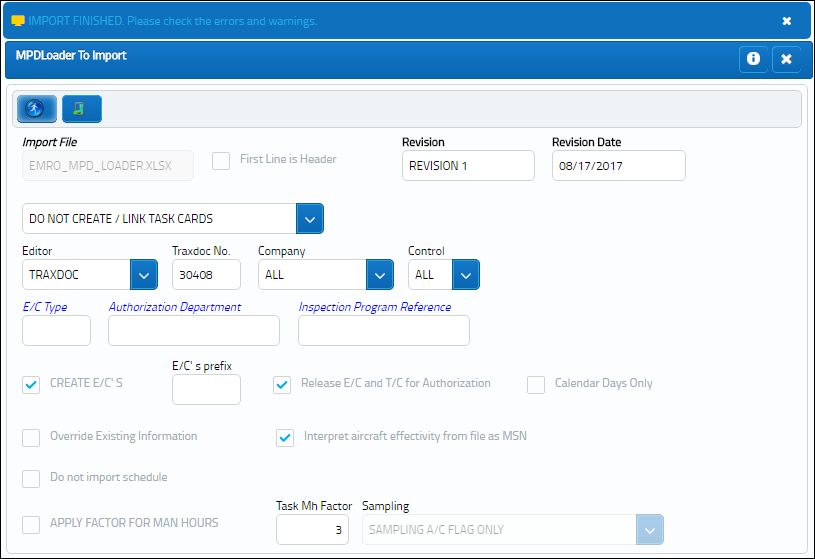
Once the import is completed, this will be indicated as shown below:
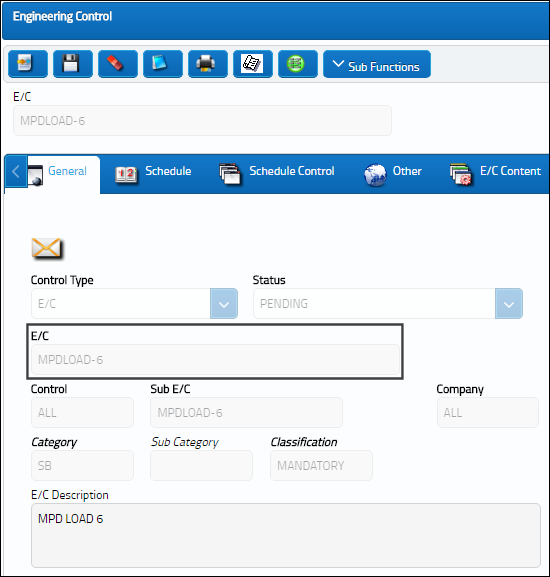
As shown below, the information from the MPD Load has been imported into the system.
The following E/C was created. The schedule and effectivity were also copied over.
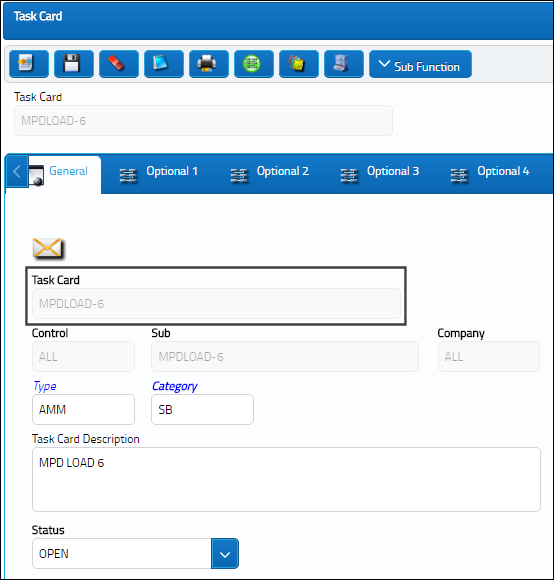
The Task Cards were created. This includes the panels, zones, and manuals.
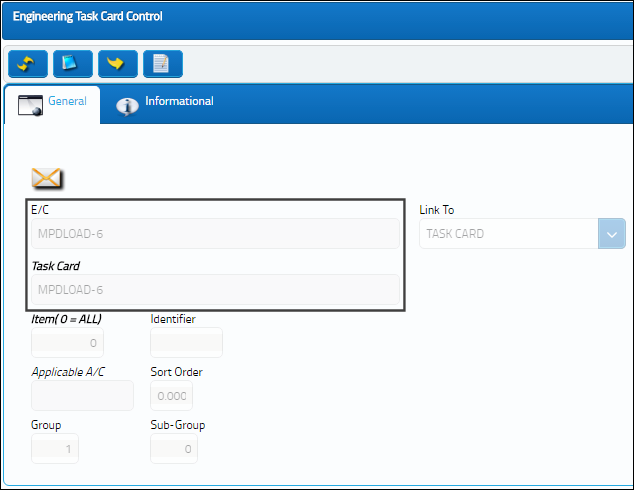
The system also created the E/C T/C relationship.
Download Online Help
Print
|
©1997-2018 Trax USA Corp. All rights reserved. This manual may not be copied, photocopied, reproduced, translated, or converted to any electronic or machine-readable form, in whole or in part, without prior written approval from Trax USA Corp. |
 |