 Download Online Help
 Print
|
|
|
|
|


Shift Management Tab, via Shifts Button
Select the Shift Management tab to allow users can mark themselves absent for the day.
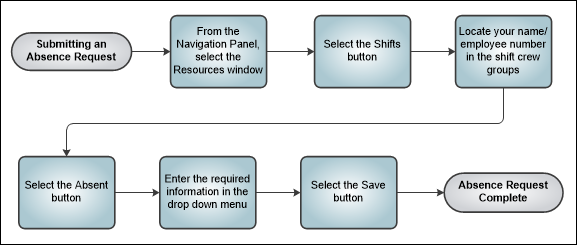
How to request an absence:
Locate the group you belong to.
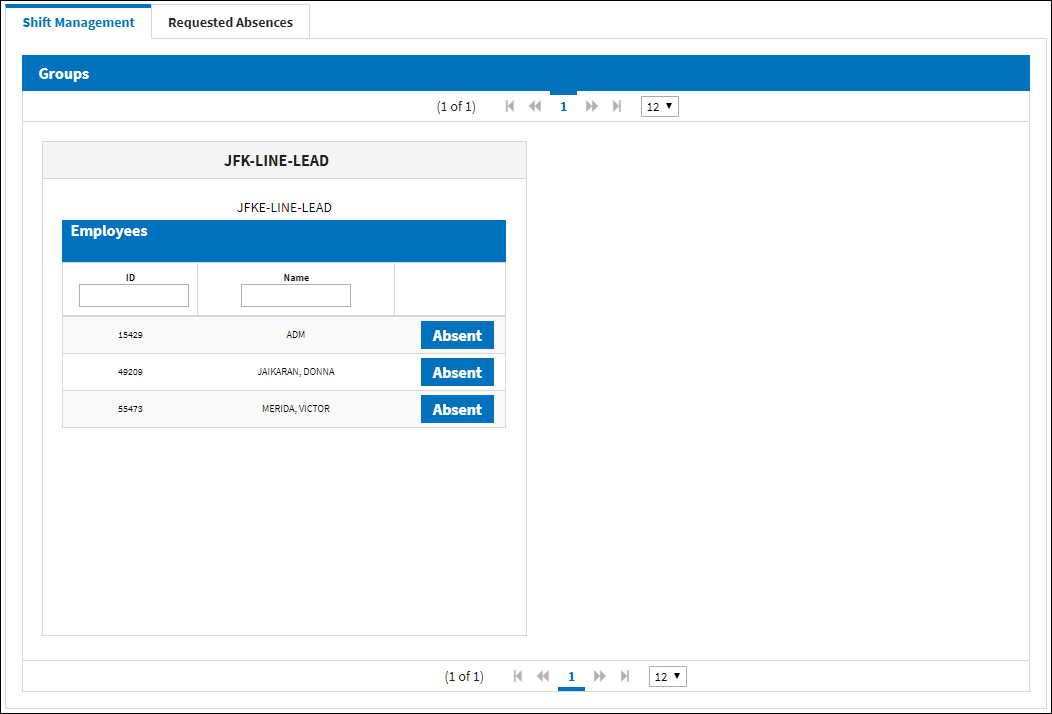
The following options/information is available in this window:
_________________________________________________________________________
ID
Employee Identification number. This number may be different from the Employee field.
Name
The name of the employee submitting the absence request.
_________________________________________________________________________
Once you have located your name, select the Absent button. Populate the following fields and select the Save button.
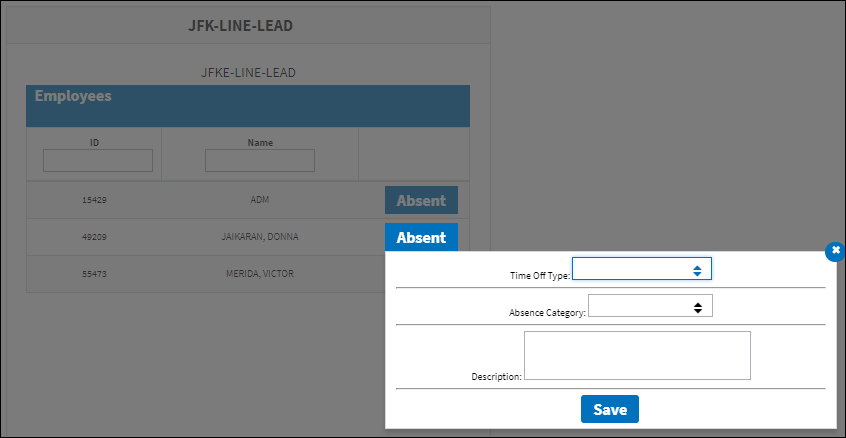
The following options/information is available in this window:
_________________________________________________________________________
Time Off Type
Type of time off (i.e. personal, sick).
Absence Category
The Absence Category is used to determine the type of absence an employee will be submitting (i.e. vacation, training, sick leave, etc.).
Description
A description of the absence (i.e. doctors appointment, sick day, etc.).
_________________________________________________________________________
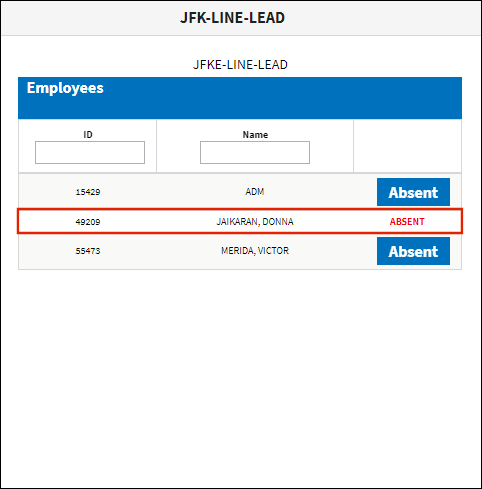
Once the absence request has been saved, the blue 'Absent' button will be displayed in red text. The absence will then be available in the Requested Absences tab for the review of a lead or crew chief.
Download Online Help
Print
|
©1997-2018 Trax USA Corp. All rights reserved. This manual may not be copied, photocopied, reproduced, translated, or converted to any electronic or machine-readable form, in whole or in part, without prior written approval from Trax USA Corp. |
 |