 Download Online Help
 Print
|
|
|
|
|


Navigation Panel
The Navigation Panel appears on the left side of the applications framework. This panel remains open throughout the use of the application and stands as a reference point when opening different windows in the system. The Navigation Panel displays the user currently logged in to the application.
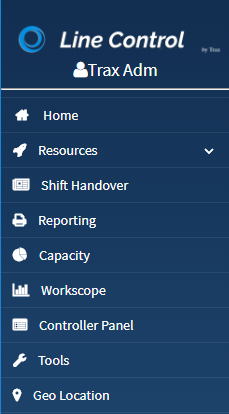
The following options are available in the navigation:
_________________________________________________________________________
Home window
Select this tab to return to the homepage.
Resources window
The Resources tab contains contains the Employee Configuration, Flight Assignment, and Shifts options. These buttons help line controllers view and organize the Location's personnel. See below.
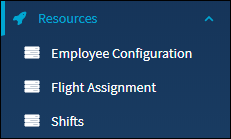
Employee Configuration option - Select the Employee Configuration option to enable which A/Cs, Locations and/or Gates an employee is authorized to view on the QuickTurn application on their mobile device which impacts the data that the user is able to access. For more information, refer to the Employee Configuration Option.
Flight Assignment option - Select the Flight Assignment option to assign one or multiple groups or a shift to a flight. For more information, refer to the Flight Assignment Option.
Shifts option - Select the Shifts option to enter and review daily absences. This button facilitates the tracking of daily absences to ensure that line maintenance remains moving. For more information, refer to the Shifts Option.
Shift Handover window
Select the Shift Handover window to create a report listing all notes added during the previous shift. These notes can include information regarding specific Work Order, Tasks, Aircraft, parts, personnel information, etc. The reports can be filtered for different sorts of information and then printed or emailed as needed. Notes can be added from various windows in the app, including from the Site Notes section of the homepage. For more information refer to the Shift Handover Window.
Reporting window
Select the Reporting window to generate various reports containing maintenance information for the specific Location/Site. For more information refer to the Reporting Window.
Capacity window
Select the Capacity window to view all of the Site capacities for a Location. For more information, refer to the Capacity Window.
Workscope window
The Workscope window displays all Task Cards for each Work Order for the selected Location. The Task Cards are organized by A/C Type/Series. This tab allows the user to assign a Work Order Task Card to a technician, as well as request to bust a task from the package. For more information, refer to the Workscope Window.
Controller Panel window
Select the Controller Panel window to quickly view the status of all aircraft in the fleet along with any pending discrepancies. From the A/C Controller Panel, the Line Controller can record reported Defect Reports, notify mechanics of work that needs to be performed as well as any other tasks. For more information, refer to the Controller Panel Window.
Tools window
Select the Tools window to view all of the tools checked out for a specific Work Order. For more information, refer to the Tools Window.
Geo Location window
The Geo Location window provides a graphical view of the physical geographic location of an employee on shift that logged in through an iPad. This window also provides the last time the employee logged in and from which application. For more information, refer to the Geo Location Window.
_________________________________________________________________________
Download Online Help
Print
|
©1997-2018 Trax USA Corp. All rights reserved. This manual may not be copied, photocopied, reproduced, translated, or converted to any electronic or machine-readable form, in whole or in part, without prior written approval from Trax USA Corp. |
 |