 Download Online Help
 Print
|
|
|
|
|


Flight Assignment Button
Select the Flight Assignment option to assign one or multiple groups or a shift to a flight. These groups could be mechanics, technicians, etc. This dynamic window also allows the planner to create new groups, assign employees to these groups and unassign employees from a group. Leads, supervisors, and managers to only see those groups and shifts that apply to their schedule.
Before a group can be assigned to an aircraft, the user must first either create a new group or add employees to an existing group. Upon creation, a new group and schedule will be available immediately, but only if the generated schedule for that specific group is applicable when the user is logged in to Line Control. For example, if Group A is generated at YUL with a morning shift schedule (6am-4pm) from 08/01/2018 to 09/01/2018, the logged in user will only be able to see the assignments available for Group A during that specific date range. If a user logs in to Line Control anytime after 4pm, Group A and the shift assignments for Group A will not be available.
The following process will outline how to create a new group.
Note: If the ManHours Schedule option is not being utilized to create groups in the main application, the 'Add New Group option will be available in Line Control. Otherwise, groups created in the main application will be migrated to Line Control.
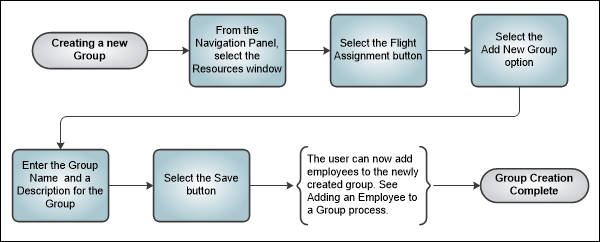
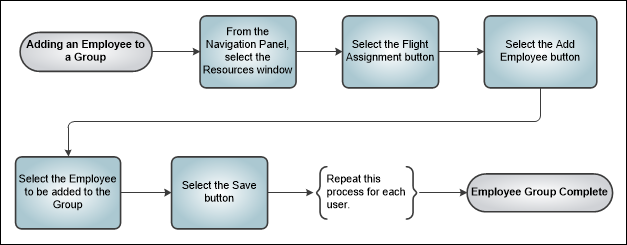
Once a new group has been created, the user can add employees to this group.
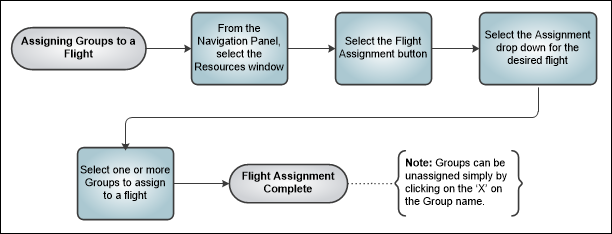
Once a group has been created or completed, the user can now assign this group to a flight.
 This button is security controlled via Line Control/ Update/ Flight Assignment. For additional information, refer to the Security Explorer.
From the Navigation Panel, select the Resources window/ Flight Assignment button.
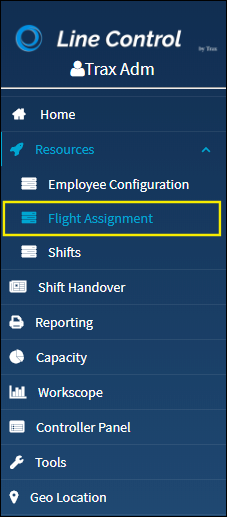
When selected, the Flight Assignment window is displayed as follows. The list can be sorted and filtered by column and keywords (see below).
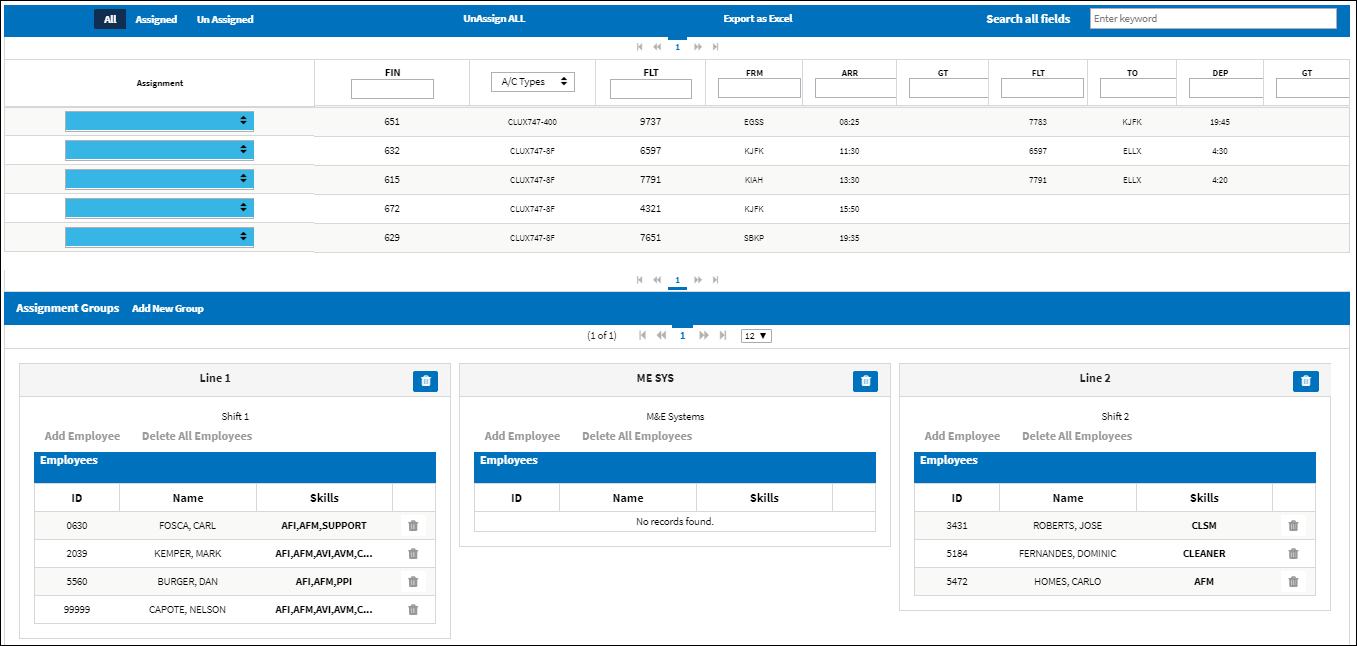
Assign Groups To Flight Area
The following options/information is available in this window:
_________________________________________________________________________
All button
Select this button to filter for all flight assignments (assigned and unassigned).
Assigned button
Select this button to filter for flight assignments that have been assigned one or more groups.
UnAssigned button
Select this button to filter for flight assignments that have not yet been assigned a group(s).
UnAssign ALL button
Select this button to unassign groups that have been assigned to a flight.
Export as Excel
Select this button to export the information in this tab into an Excel spreadsheet. This excel file can be saved for later use.
Search all fields
The Search all fields option allows the user to enter any key word(s) to filter for a specific flight assignment.
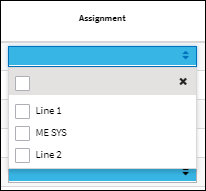
Assignment
Select the Assignment button to select one or multiple groups to assign to a flight.
FIN
The individual Aircraft tail number.
A/C Types
The aircraft Type and Series / Fleet assignment.
FLT
The flight reference number/information. (outbound flight).
FRM
The airport code the flight is departing from.
ARR
The arrival time.
GT
The arrival gate number.
FLT
The flight reference number/information. (return flight)
TO
The airport code the flight is arriving at.
DEP
The departure time.
GT
The departure gate number.
_________________________________________________________________________
Assignment Groups Area
The following options/information is available in this window:
_________________________________________________________________________
Add Employee
Select this option to add employees to the group.
Delete All Employees
Select this option to delete all employees from the group.
ID
The User ID of the employee who is assigned to the flight.
Name
The name of the employee who is being assigned to the group.
Skills
The skills of the employee which are necessary for the job of the flight assignment.
Delete  button (Group)
Select this button to delete the specified group. Once deleted, the group will be removed from the Flight Assignment window.
Delete  button (Employee)
Select this button to delete a specific employee from the specified group. Once deleted, the employee will be removed from the group and will no longer be visible in that group in the Flight Assignment window.
_________________________________________________________________________
Download Online Help
Print
|
©1997-2018 Trax USA Corp. All rights reserved. This manual may not be copied, photocopied, reproduced, translated, or converted to any electronic or machine-readable form, in whole or in part, without prior written approval from Trax USA Corp. |
 |