 Download Online Help
 Print
|
|
|
|
|


Employee Configuration Button
Select the Employee Configuration option to enable which A/Cs, Locations and/or Gates an employee is authorized to view on the QuickTurn application on their mobile device which impacts the data that the user is able to access.
Note: Any changes made to a User assignment regarding the Aircraft, Location or Gate will result in a User notification in the QuickTurn application. For additional information, refer to QuickTurn Notifications via the Quick Turn training manual.
System Notifications Include:
- When an Aircraft is selected or deselected
- When a Defect is created (for an aircraft that is selected)
- When a Delay is entered (for an aircraft that is selected)
- When a Location is selected or deselected
- When a Schedule is changed (for A/C tail changes, or time changes)(for Locations that are selected)
- When a Gate is selected or deselected
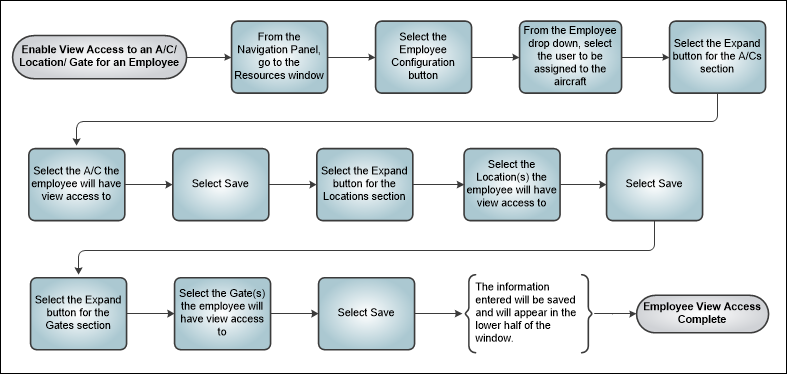
How to Enable an Employee to View Access to an A/C/ Location/ Gate
To access the Employee Configuration  button, select the Resources tab from the Home Toolbar.
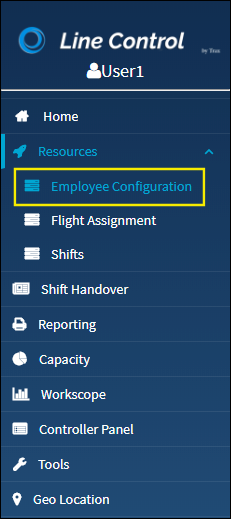
 This button is security controlled via Line Control/ Update/ Employee Configuration. For additional information, refer to the Security Explorer.
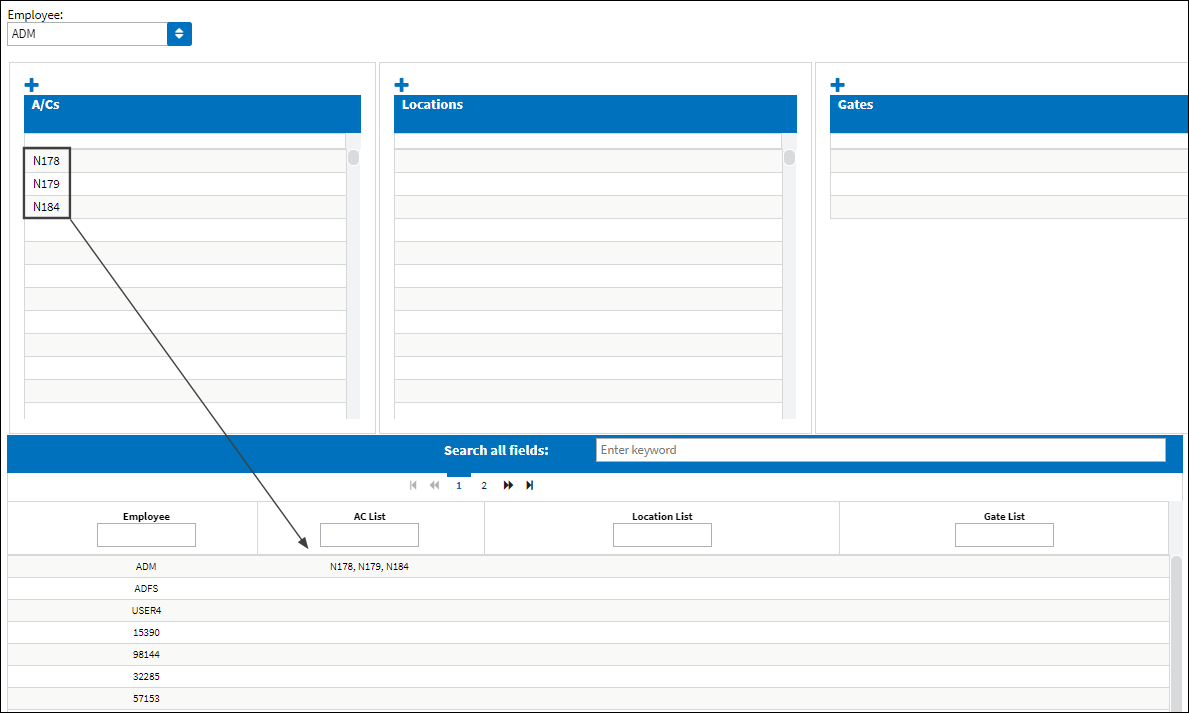
When selected, the Employee Configuration window appears as follows. At the top of the window, users can select the employee who will be granted view access to A/Cs, Locations and Gate via the Employee drop down. In the lower half of the window, a list of employees along with the A/C, Location and Gates they have been granted view access to is available. This information can be filtered though the Employee, A/C List, Location List and Gate List fields.
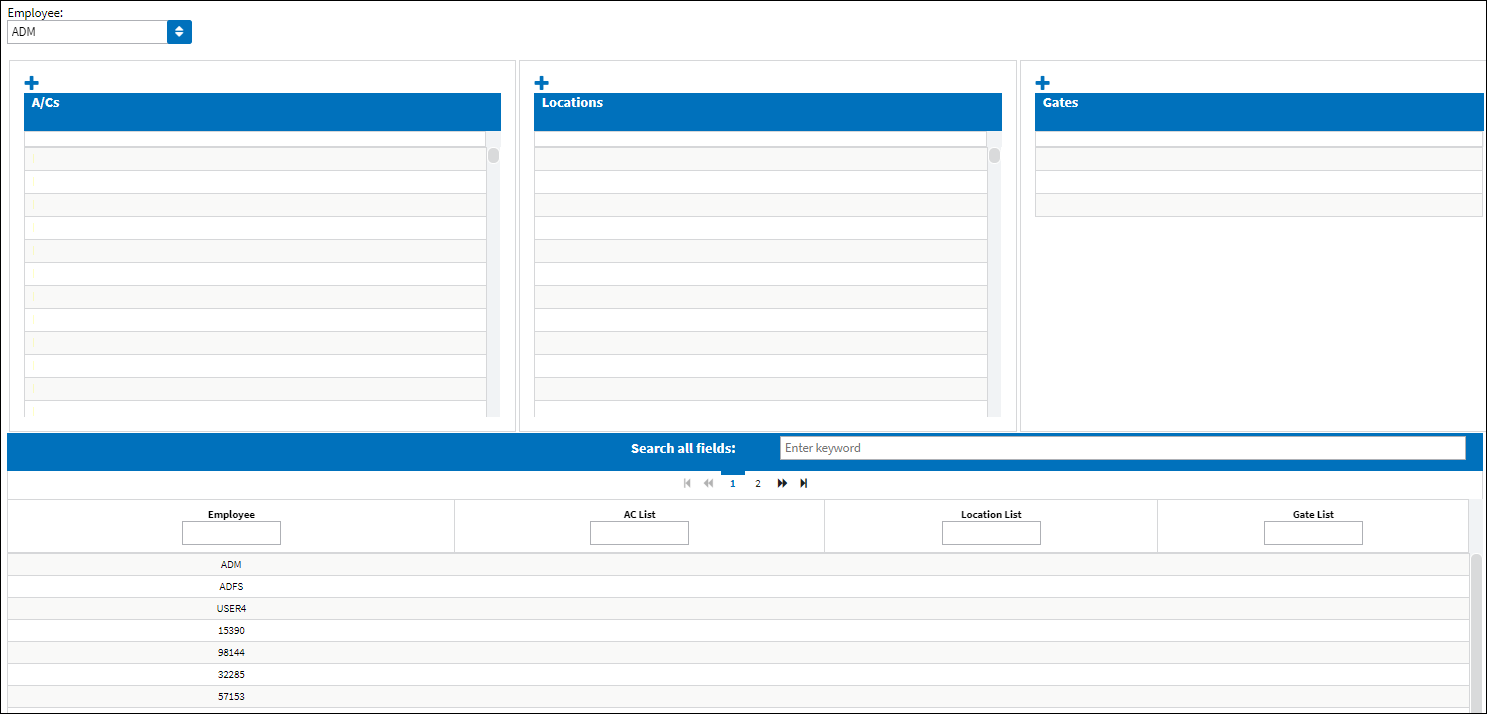
The Expand  button is used to grant view access one or multiple A/C, Location and Gate to an employee. Once the employee is selected, click on the Expand
 button to access a drop down menu where the user can select their options.
In the following example, employee ADM will only have view access to the selected A/C.
Select the Save button.
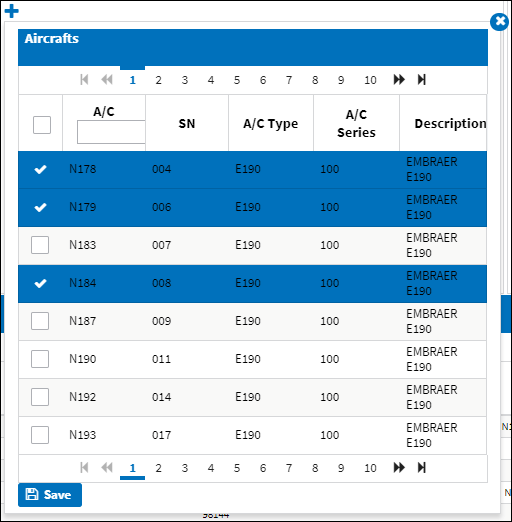
Employee ADM has view access to the selected A/C.
Repeat the same process to grant view access to Locations and Gates to an employee.
Download Online Help
Print
|
©1997-2018 Trax USA Corp. All rights reserved. This manual may not be copied, photocopied, reproduced, translated, or converted to any electronic or machine-readable form, in whole or in part, without prior written approval from Trax USA Corp. |
 |