 Download Online Help
 Print
|
|
|
|
|


W/O View
At the bottom half of the homepage, each 'Short Term Visit' Site containing a Line Work Order for the Location are displayed along with pending labor requirements. These Work Orders can be selected to access detailed information.
The following screenshot is an example of the W/O View section of Line Control.
- Notice that there are three W/Os listed - this is because the selected Site has three W/Os that have the 'Long Term Visit Site' checkbox de-selected (via the Site Button of the Location Master).
- Each Work Order is displayed for the Aircraft currently located at that particular worksite. If there is currently not a W/O scheduled at one of these Sites for the selected Location, then the W/O and information will be greyed out and will contain the text, 'No Work Orders at this Time.' If there are multiple W/Os available for a site, then the W/O with the earliest scheduled start date is listed for this site.
From this section of the homepage, each Work Order contains a bird's-eye-view of the Labor requirements associated to the W/O's Task Card Items along with current part, tool, and engineering indicators (see below for more information on these indicators).
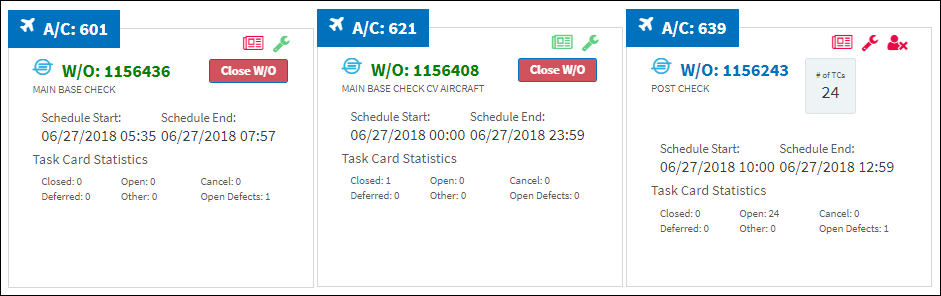
The W/O View section of the homepage contains the following W/O-specific icons and information for each applicable Work Order:
_________________________________________________________________________
A/C
The specific aircraft that is being worked on via a Work Order.
Defect  icon
Indicates if there are open defects for the Work Order.
 - Indicates that there are no Open defects on the Work Order.
 - Indicates that their are Open defects on the Work Order.
Tool  icon
Indicates if tools have been checked out for the Work Order.
- Indicates that no tools have been checked-out for the Work Order.
- Indicates that one or more tools have been checked-out for the Work Order.
Work Assigned  icon
- Indicates that at least one of the tasks associated to the Work Order has been assigned.
- Indicated that none of the Work Order tasks have been assigned.
W/O information 
The Work Order subsection includes the Work Order reference and W/O description right below it. Users can click on the W/O hyperlink to access the W/Os details window. (see below for more information on the detail window)
 - A Work Order that appears in blue at the top of the subsection indicates that the Work Order is in 'Open' status.
 - A Work Order that appears in green indicates that the Work Order is in 'Completed' status and is ready to be closed. Work Orders that are in 'Completed' status include the Close W/O button. This button allows the user to close the Work Order by entering the Start and Completed Date/Time information. Once a Work Order is closed, it will be removed from the W/O View section of the Homepage.
Number of TCs
The total number of Task Cards for the specified Work Order.
Close W/O  button
Select this button to close a Work Order. Only Work Orders that are in 'Completed' status (green) can be closed. Once selected, the following Work Order Control Sheet is available to review the details regarding the tasks against the Work Order will be displayed. The user must enter the Start and Completed Date/Time information in order to close the Work Order.
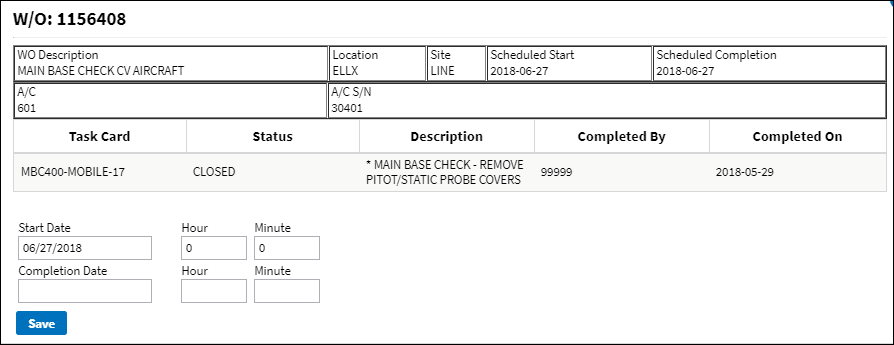
Once a Work Order is closed, it will be removed from the W/O View section of the Homepage.
 This button is security controlled via Line Control/ Update/ Close W/O. For additional information, refer to the Security Explorer.
W/O Description
Under the The W/O reference is the current Work Order's Description.
Schedule Start Date
The date/time that the work is scheduled to begin. The Start Date does not affect whether the Work Order may be deleted or not. However, if the work has been started, the Work Order may not be deleted.
Schedule End Date
The date/time that the work is scheduled to be completed.
Task Card Statistics
A quick view of detailed information regarding the Task Cards on the Work Order. This information includes the number and status of Task Cards that are Closed, Open Cancelled, Deferred and In Progress/Pending RII, as well as Open Defects against the Work Order.
_________________________________________________________________________
For detailed information regarding a W/O and tasks, click on a W/O to access the details page. This detail window includes the Work Order schedule, Aircraft information, and W/O Task Card tabs (to the bottom of the window).
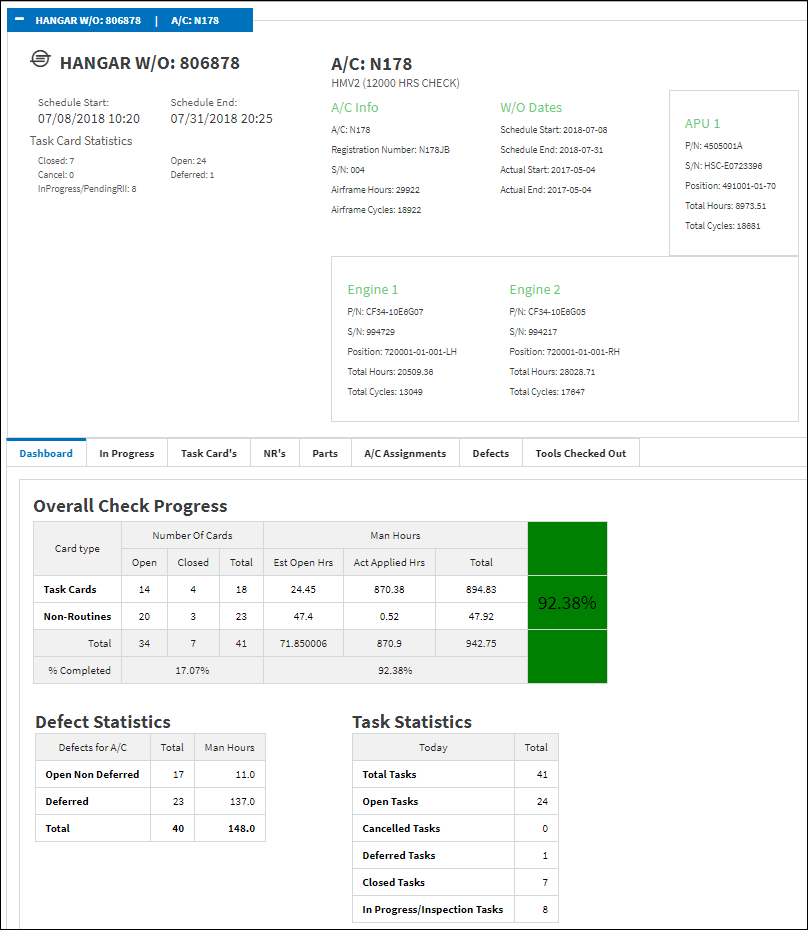
For more information on this window, refer to W/O View Detail.
Download Online Help
Print
|
©1997-2018 Trax USA Corp. All rights reserved. This manual may not be copied, photocopied, reproduced, translated, or converted to any electronic or machine-readable form, in whole or in part, without prior written approval from Trax USA Corp. |
 |