 Download Online Help
 Print
|
|
|
|
|


W/O View Detail
When a Work Order is selected from the W/O View in the Line Control homepage, the following detail window appears.
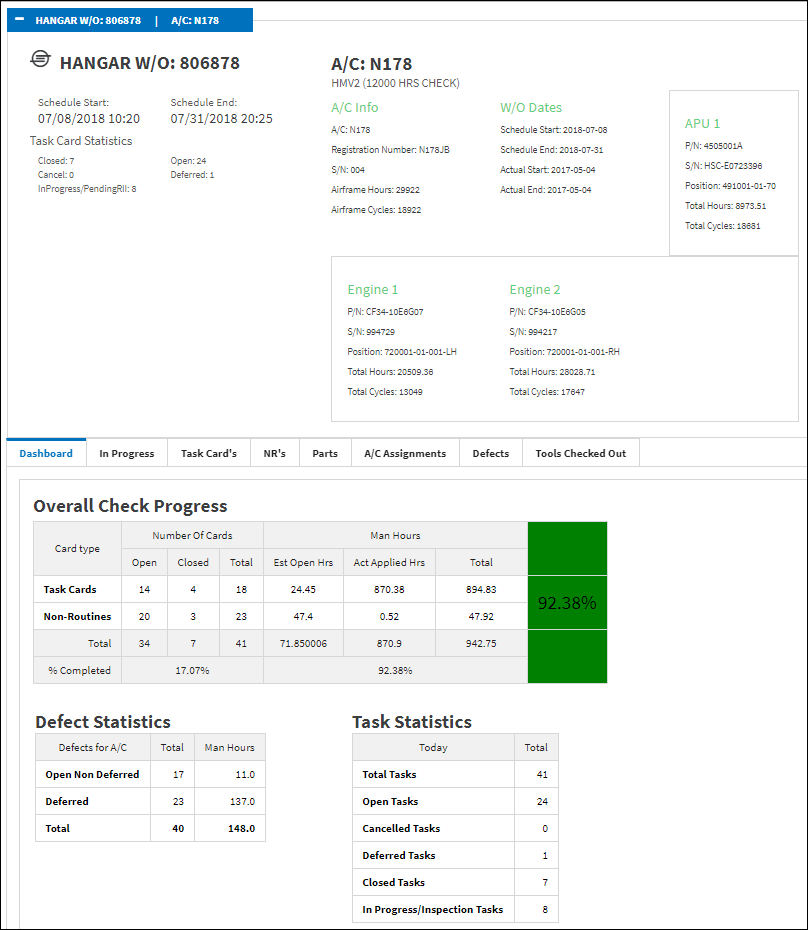
The first half of the detail window includes information regarding the Work Order such as aircraft information, and Work Order schedule information.and a variety of W/O Task Card tabs (to the bottom of the window).
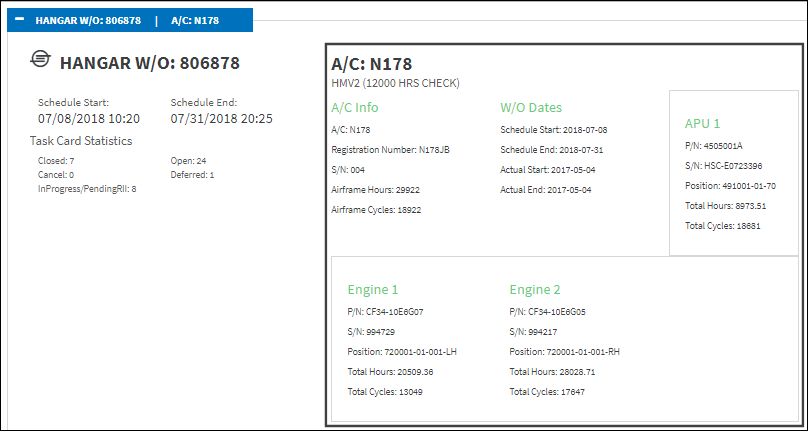
The following W/O information is displayed to the top right of this window:
_________________________________________________________________________
A/C
The specific aircraft that is being worked on via a Work Order.
W/O Description
The description of the Work Order.
A/C Info
This section covers some of the W/O Aircraft's basic information:
A/C - The individual Aircraft tail number.
Registration Number -
S/N - The Aircraft's Serial Number which is provided by the manufacturer. This serial number is like a registration number, but it is not dependent on a country code and therefore never changes.
Airframe Hours - The total amount of flight hours flown by the aircraft.
Airframe Cycles - The total amount of flight cycles flown by the aircraft.
W/O Dates
This section covers the W/O's scheduled and actual start/end dates.
Schedule Start - The date/time that the work is scheduled to begin. The Start Date does not affect whether the Work Order may be deleted or not. However, if the work has been started, the Work Order may not be deleted.
Schedule End - The date/time that the work is scheduled to be completed.
Actual Start - The date that the W/O is actually started. This may differ from the previously scheduled date. If work has been started, this date cannot be deleted.
Actual End - The date that the W/O is actually completed. This date may differ from the previously scheduled date. This date will be the same as the scheduled date when the W/O is created but will be automatically overridden when the W/O is closed.
APU 1
This section covers basic information for the A/C's installed APUs.
P/N - The APU's part number.
S/N - The APU's serial number.
Position - The position that the specific APU is installed on.
Total Hours - The total number of flight hours accumulated on the specified APU.
Total Cycles - The total number of flight cycles accumulated on the specified APU.
Engine 1 and 2
This section covers basic information for the A/C's installed engines.
P/N - The engines's part number.
S/N - The engine's serial number.
Position - The position that the specific engine is installed on.
Total Hours - The total number of flight hours accumulated on the specified engine.
Total Cycles - The total number of flight cycles accumulated on the specified engine.
_________________________________________________________________________
Under the W/O Details section, is a bird-eye-view of the Overall Check Progress of the Task Cards and Non-Routine Task Cards on Work Order. There is also a Statistics section that details the status of all tasks against the Work Order.
Note: Select the Expand  and Collapse
 buttons to hide the first half of the window.
There are tabs that contain information for the W/O's Task Cards and Non-Routine Task Cards.
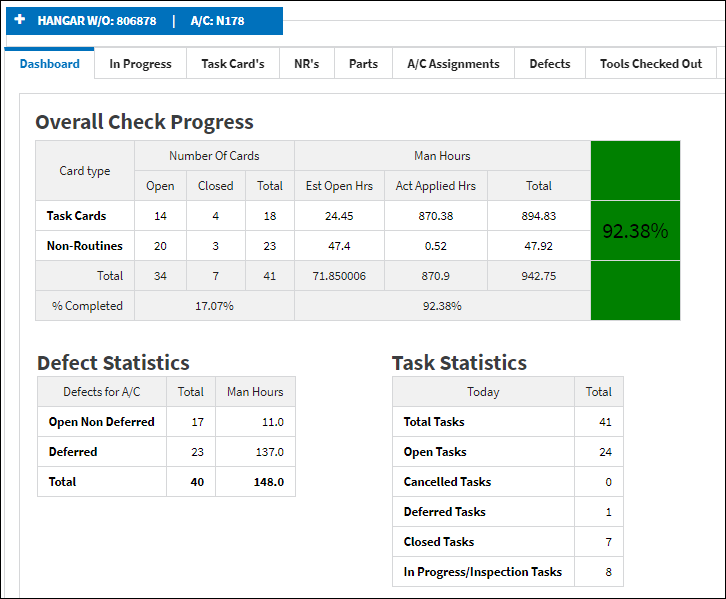
The following tabs are available from this window:
_________________________________________________________________________
Dashboard tab
The Dashboard tab provides three sections that provide additional information regarding tasks against a Work Order at a glance. The Overall Check Progress table covers the current progress of all tasks that are linked to the Work Order. This also includes current Status and Man Hours progress. The Defect Statistics table displays all Open and Deferred defects including the Man Hours progress. The Task Statistics table covers a birds-eye view os statistical data of all Task Cards that are linked to the Work Order. For more information refer to the Dashboard Tab.
In Progress tab
The In Progress tab lists the required Task Card Items and charts their progress. This table includes each Item's overall percentage of completion, the amount of accumulated man hours vs the amount of required man hours, and the amount of man hours remaining. For more information refer to In Progress Tab.
Task Cards tab
The Task Card's tab contains a list of all scheduled Task Cards linked to the W/O. This listing includes basic information regarding the Task Card, including the total amount of required Man Hours, and allows users to add notes against the T/C for the next Shift Turnover. For more information refer to the Task Cards Tab.
NRs tab
The NR's tab contains a list of all Non-Routine Task Cards that came up throughout the completion of the W/O. This listing includes basic information regarding the N/R T/C, including the total amount of required Man Hours, and allows users to add notes against the N/R T/C for the next Shift Turnover. For more information refer to the NRs Tab.
Parts tab
The Parts tab lists all parts that are required for the Work Order's Task Cards and Non-Routine Task Cards. This listing includes the part's basic information along with the required Quantity, linked Task Cards and Requisitions, and the part's availability. Users can also add notes regarding the part for the next Shift Turnover. For more information refer to the Parts Tab.
A/C Assignments tab
The A/C Assignments tab allows a supervisor to assign individual employees and/or groups of employees to aircraft tasks. Once an employee or group has been assigned to the aircraft tasks, these employees will be listed in the 'Assigned' field in the Task Card tab and the NR tab. For more information, refer to the A/C Assignments Tab.
Defects tab
The Defect tab allows a technician to link defects that have been created using the QuickTurn application to Line Work Orders. Once a defect has been linked to the specified Work Order, a Non-Routine Task Card will be created. A crew chief or lead can then specify the Skill, Man Hours, and Men Required to complete the task. For more information, refer to the Defects Tab.
Tools Checked Out tab
The Tools Checked Out tab displays a list of all tools checked out for a specific Work Order. For more information, refer to the Tools Checked Out Tab.
_________________________________________________________________________
Download Online Help
Print
|
©1997-2018 Trax USA Corp. All rights reserved. This manual may not be copied, photocopied, reproduced, translated, or converted to any electronic or machine-readable form, in whole or in part, without prior written approval from Trax USA Corp. |
 |