 Download Online Help
 Print
|
|
|
|
|


Defects Tab
The Defect tab allows a technician to link defects that have been created using the QuickTurn application to Line Work Orders. Once a defect has been linked to the specified Work Order, a Non-Routine Task Card will be created. A crew chief or lead can then specify the Skill, Man Hours, and Men Required to complete the task.
The information in the Defect tab is displayed in two sections. On the left, a list of all defects can be found. Once a defect is selected, it will be highlighted and the details of the defect will appear on the right.
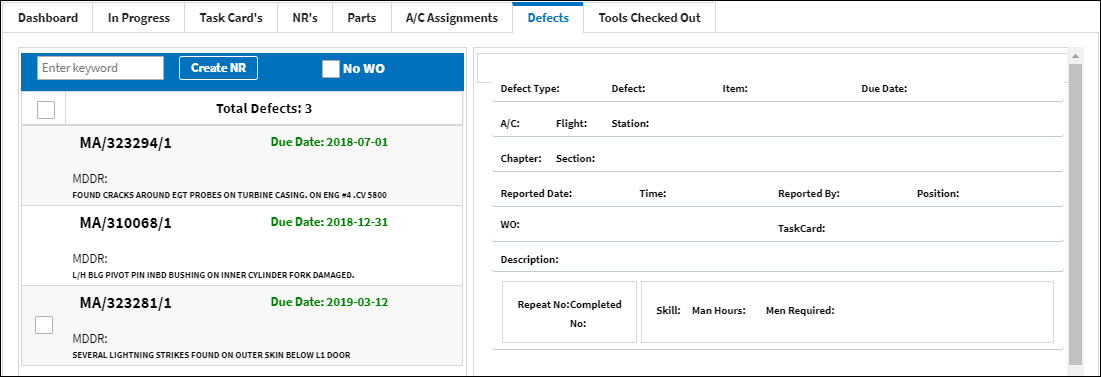
The following options/information is available in this window:
_________________________________________________________________________
Enter keyword
Enter a keyword to quickly filter for a specific defect.
Create NR button
Select this button to link a defect to a Work Order and create a Non-Routine Task Card.
No W/O checkbox
Select this checkbox to filter by defects that have not yet been linked to a Work Order.
Defect Type
The type of defect found on the aircraft (for example, Pilot Report, MX Report).
Defect
The defect number (or log book number).
Item
The defect log item number.
Due Date
The date that the Defect is being deferred to. Based on system configuration, this date may be used in the calculated defect Due Date. If a Defect Report is associated to a W/O Task Card, when the W/O Task Card is closed, the Defer Date of the Defect Report will be changed to the closing date of the W/O Task Card. Additionally, when the Defect Report is attached to a W/O Non-Routine Task Card and is then deferred, the Defer Date and time is updated to match the Defer Date and Time of the W/O N/R Task Card. When the prompt appears, select Yes to update the Defer Date and Time.
A/C
The individual Aircraft tail number.
Flight
The inbound flight number associated with the Defect Report.
Station
The Station where the Defect was reported.
Chapter/Section
The ATA Chapter/Section classification of the Defect.
Reported Date
The Date the Defect was reported on.
Reported Time
The reported time of the Defect.
Reported By
The user reporting the Defect.
Position
The Aircraft position of the item.
W/O
The Work Order used to categorize, manage, and schedule work requirements for aircraft maintenance.
Task Card
The Task Card / Job Card that details the scheduled maintenance work.
Description
The Description of the Defect which describes the problem found or notes the service being performed.
Repeat No
The number of times that a Deferred Defect is to be performed in order to reach closed status. The repeat field is used for defining watch items or repeat inspections. This field works with the Completed field. When this field is greater than '1' the Repeat Schedule fields appear. The Complete Number will only increment when the Non-Routine Task Card associated to the defect is closed. It will not increment if the Non-Routine Task Card is closed with the 'Ongoing trouble shooting checkbox' flagged against the closing action.
Completed No
The number of times that a Deferred Defect was performed in order to reach closed status. The Completed field must match the Repeat field in order to close the Deferred Defect. To use the Troubleshooting Tab directly on the Deferred Defect to increment the Completed Number, the user must flag the Troubleshooting checkbox on the Resolution Tab. The proper system configuration must be defined in order to use the Troubleshooting tab. This tab will track all of the Completed records as the Deferred Defect is added to the Work Order Non-Routine Task Card.
Skill
Enter the mechanical skill required to close the Deferred Defect.
Man Hours
The total number of hours (per person) required to close the Deferred Defect.
Men Required
The total number of people required to close the Deferred Defect.
Update button
Select this button to update any changes made to the Skill, Man Hours, and Men Required fields to the main application.
_________________________________________________________________________
Select a defect from the left panel. Once a defect is selected, notice that all of the information for that defect is displayed in the right panel.
Select the Create NR button.
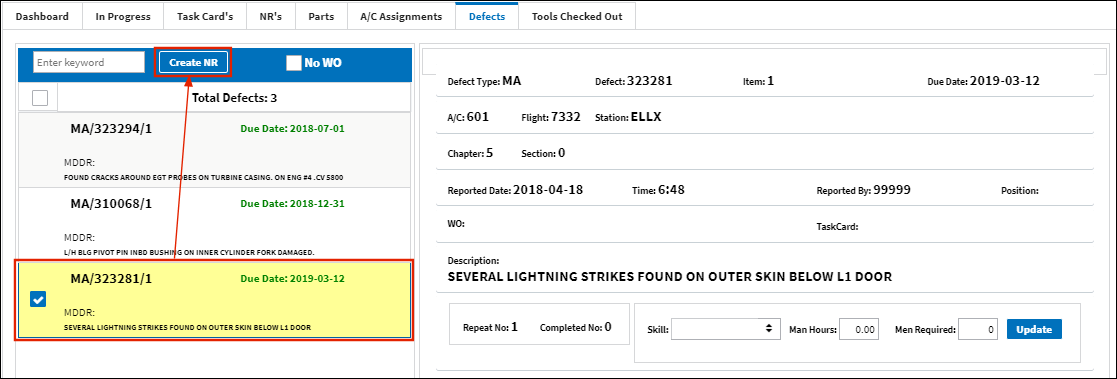
The defect is now linked to the specified Work Order and a Non-Routine Task Card has been created.
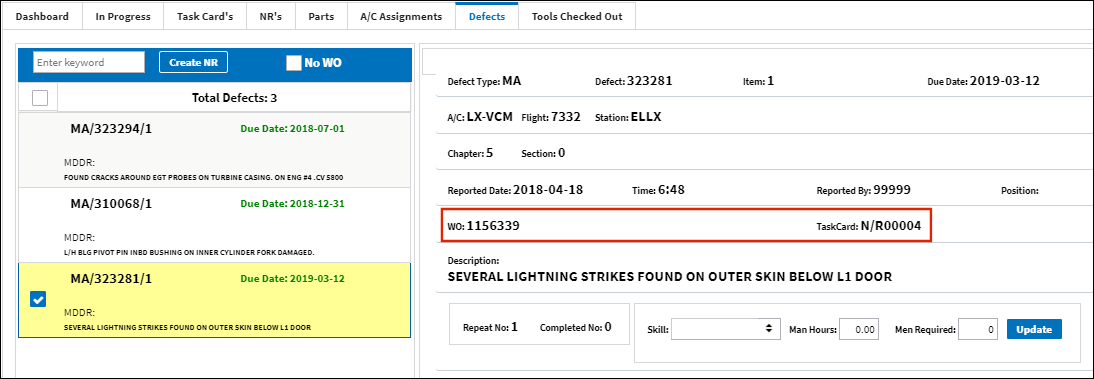
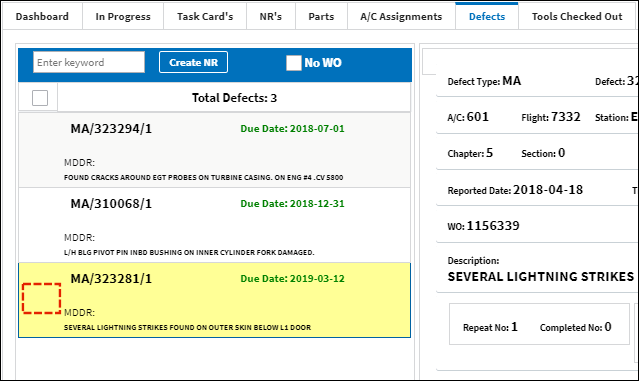
Once the window has been refreshed, the checkbox is no longer available for selection since the defect has been linked to the Work Order and a Non-Routine Task Card has already been created.
Download Online Help
Print
|
©1997-2018 Trax USA Corp. All rights reserved. This manual may not be copied, photocopied, reproduced, translated, or converted to any electronic or machine-readable form, in whole or in part, without prior written approval from Trax USA Corp. |
 |