 Download Online Help
 Print
|
|
|
|
|


Task Cards Tab
The Task Card's tab contains a list of all scheduled Task Cards linked to the W/O. This listing includes basic information regarding the Task Card, including the total amount of required Man Hours, and allows users to add notes against the T/C for the next Shift Turnover.
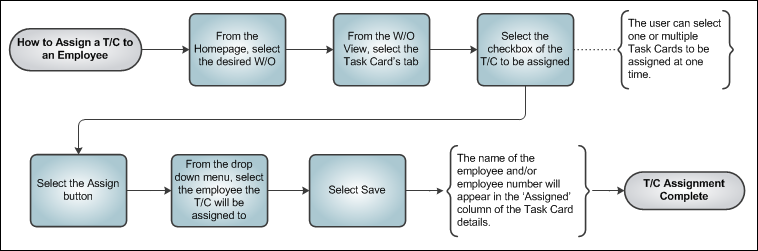
How to Assign a Task Card to an Employee
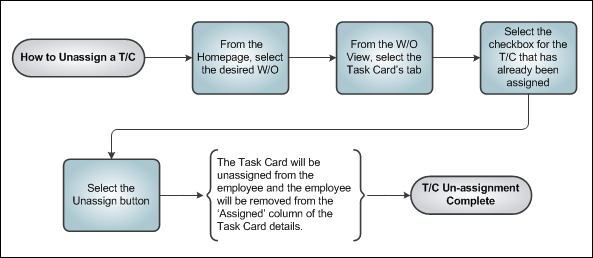
How to Unassign a Task Card
 This tab is security controlled via Line Control/ Update/ Task Cards. For additional information, refer to the Security Explorer.
When selected, the Task Cards tab is displayed as follows. The list can be sorted and filtered by column and keywords. Notes can also be added for specific T/Cs from this tab (see below).
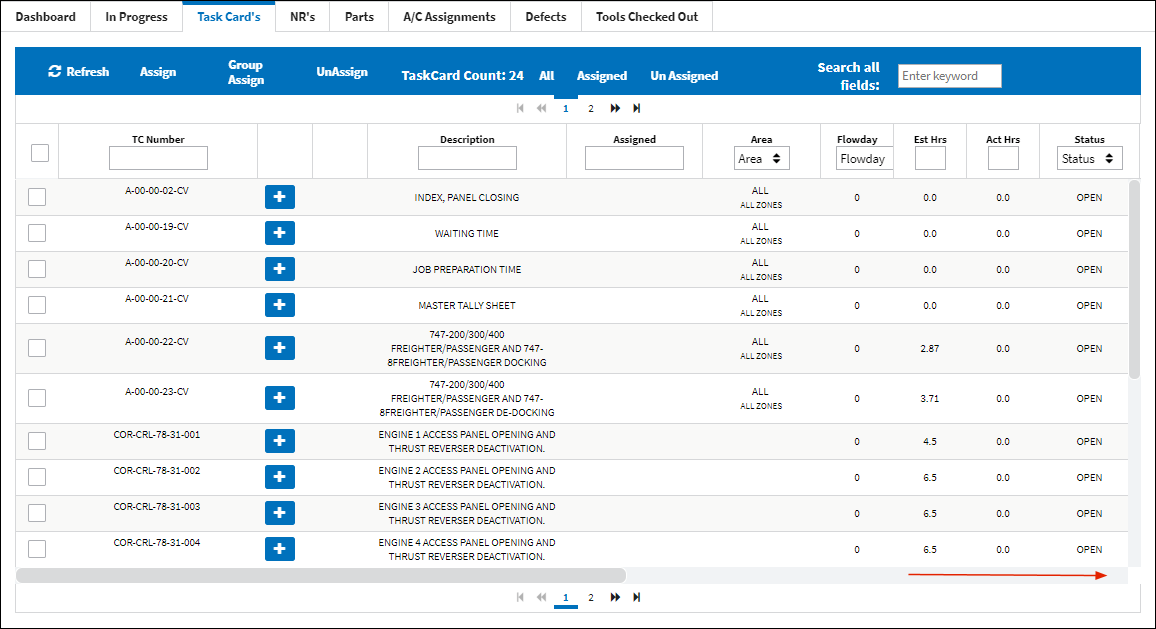
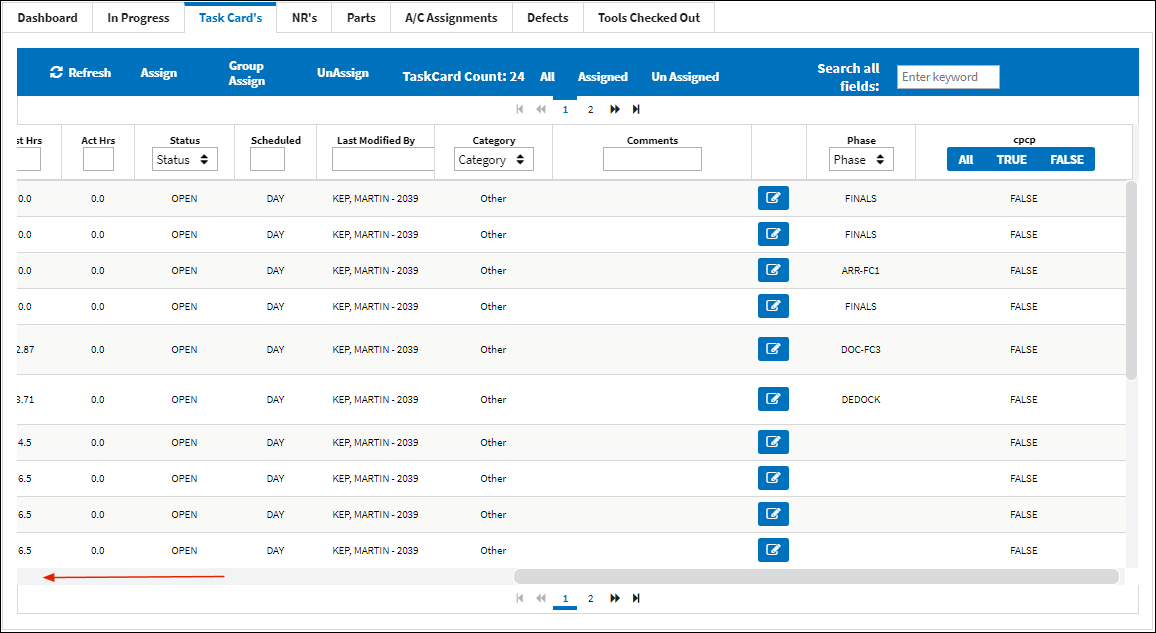
The following Task Card information is listed:
_________________________________________________________________________
Refresh  button
Select the Refresh button to refresh any of the Task Card information in this window.
Assign button
Select the Assign button to assign one or multiple Task Cards to an employee. Select the Task Card(s) to be assigned by checking the checkbox to the left of the Task Card.
Group Assign button
Select this button to assign one or multiple Task Cards to a group.
UnAssign button
Select the UnAssign button to unassign Task Cards that have been assigned to an employee.
Task Card Count
The total number of Task Cards against the Work Order.
All button - Select this button to view all of the Task Cards against the Work Order.
Assign button - Select this button to view only the Task Cards that have assigned.
UnAssign button - Select this button to view only the Task Cards that have been unassigned.
Search all fields
The Search all fields option allows the user to enter any key word(s) to filter for a specific Task Card.
TC Number
The Task Card / Job Card that details the scheduled maintenance work.
Expand  button
Select this button to access more detailed information for each Task Card.
Parts  button
Select this button to open a detail window that displays the quantity for all parts for the Task Card. The color of this icon indicates the availability status for all required parts on the day's W/O T/Cs.
 - Parts' estimated delivery GREATER than scheduled outdate of the W/O - 3 days
 - Parts' estimated delivery LESS than scheduled outdate of the W/O - 3 days
 - Parts' estimated delivery LESS than scheduled outdate of the W/O - 5 days
Description
A description of the Task Card.
Assigned
The employee the Task Card is assigned to.
Area
The aircraft Area applicable to the W/O T/C.
Zone
The aircraft Zone applicable to the W/O T/C.
Flowday
This is the day during the W/O schedule where the T/C or N/R T/C is scheduled to begin. For instance, if the W/O schedule starts January 4, and the T/C is scheduled to begin Jan 5, then that T/C's Flowday is '2.'
Est Hrs
The estimated amount of man hours required to complete the task.
Act Hrs
The amount of actual labor hours accumulated against the task.
Status
The W/O Task Card's current status.
Scheduled
The shift linked to the task (e.g., 'DAY' and 'NIGHT').
Last Modified By
The last user who modified the W/O T/C.
Category
This is the Skill Category for the W/O T/C. Each Skill can be linked to a larger Skill Category that helps group certain Skills in different windows and applications in the system. This selection is informational. These categories are hard-coded in the system. Each Skill Category can be linked to W/O Task Cards and Non-Routine Task Cards through the Skill field of the W/O Task Card, Optional 2 Tab. The following options are available: Mechanical, Avionics, Structures, Propulsion, Interiors, Composites, NDT, and Material Treatment/Coatings.
Comments
These are notes added to the W/O T/C through the Edit Note button. These notes are included in the Shift Turnover and applicable reports. See below.
Edit Note  button
Users can edit existing notes and add new notes to the W/O T/C by selecting the Edit Note button. Once added these notes appear in the Comment column (above), and in the Site Notes section with the W/O's and Task Card's information.
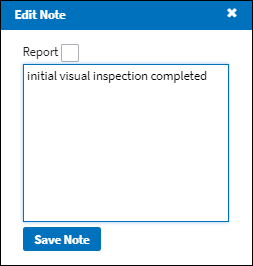
When selected, the following window pops up. Notes can be edited and saved by selecting the Update button or new notes can be created by selecting the New Note button. Select the Report checkbox to include this note in reports. Users can scroll through multiple notes by clicking on the buttons to the top right of this window.
This button is security-controlled via Line Control/ Update/ Task Card Add Note. For more information refer to the Security Explorer.
cmpltOnFlwday
The Flowday that the T/C or N/R T/C was completed on relative to the W/O's Flowdays schedule. For instance, if the W/O schedule starts January 4, and the T/C is completed on Jan 6, then that T/C's cmpltOnFlowday is '3'. (See Flowday field for more information.) This would be the final Flowday updated into the TC.
Phase
The particular phase of the work flow that this particular card pertains to.
cpcp
Indicates if the Corrosion Prevention/Corrosion Protection checkbox is selected for the W/O T/C. This column can be filtered by True, False, or All.
Created Date
The date that the Task Card was linked to the Work Order.
Linked TC
The Task Card linked to this W/O T/C.
_________________________________________________________________________
Download Online Help
Print
|
©1997-2018 Trax USA Corp. All rights reserved. This manual may not be copied, photocopied, reproduced, translated, or converted to any electronic or machine-readable form, in whole or in part, without prior written approval from Trax USA Corp. |
 |