 Download Online Help
 Print
|
|
|
|
|


Controller Panel Tab
Select the Controller Panel window to quickly view the status of all aircraft in the fleet along with any pending discrepancies.
 This tab is security controlled via Line Control/ Update/ Controller Panel. For additional information, refer to the Security Explorer.
The option allows the Maintenance Controller to:
- record reported Defect Reports
- notify mechanics of work that needs to be performed
- determine how outstanding Defect Reports will impact aircraft operation and flight scheduling
- monitor aircraft In/Out of Service Status
Information is obtained from the Technical Records and Production modules from the main application. Pending Defect Reports and Work Orders will appear in conjunction with each aircraft.
The user can create new Defect Reports to associate with each aircraft directly via the A/C Controller Panel. Alternatively, the user can create the Defect Report via Technical Records/Update/Defect Reports.
When the A/C, Type-Series, Flt fields, etc. appear in red, this means that the aircraft is OOS (Out Of Service). When these fields appear in green, it indicates that the aircraft is In-Service.
The A/C Controller Panel is a customized window. This window will not appear the same way for all customers, therefore the windows below may not contain all customer specific functionality. For additional information, consult a System Administrator.
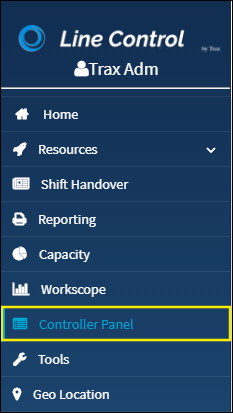
From the Navigation Panel, select Controller Panel.
The Controller Panel is displayed as follows. The information in the Controller Panel can be filtered by A/C, A/C Type and by column.
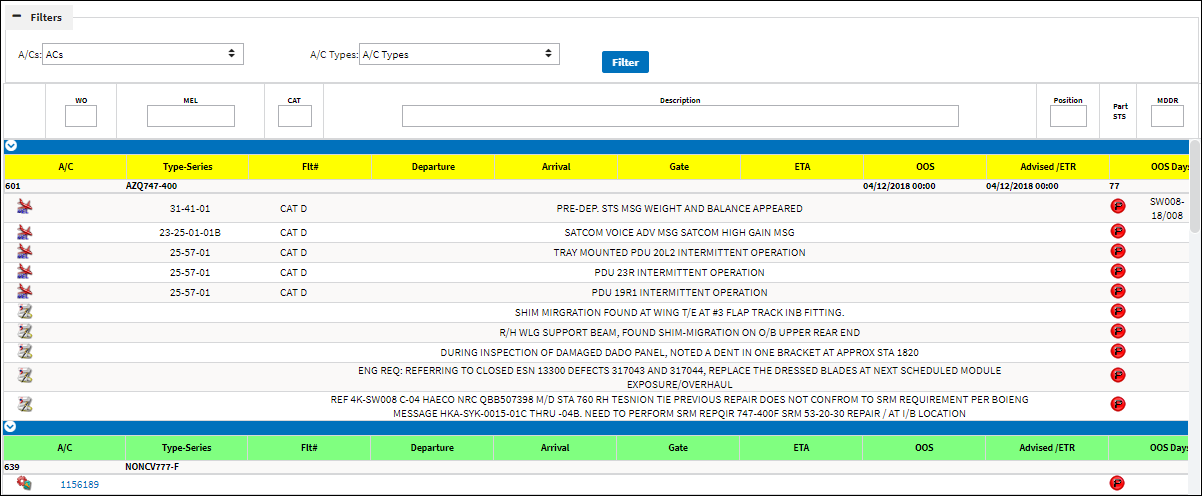
The following options/information is available in this window:
_________________________________________________________________________
W/O
The Work Order used to categorize, manage, and schedule work requirements for aircraft maintenance. Select the hyperlink for the Work Order. This will take the user directly to the Dashboard Tab of the W/O View Detail for that specific Work Order.
MEL
The Minimum Equipment List number.
CAT
The Category Rating as entered through the System Transaction Code Cat Rating via Settings. The CAT Rating is the description of the type of A/C landing system and is informational only. This field is typically for navigational parts.
Description
The description of the MEL. The description of each MEL will appear color coded depending the MEL Category selected and the Repeat Number of the Defect.

- No Category/Repeat Number = 1

- Category C/Repeat Number = 1
- Category D/Repeat Number = 1
- Category L/Repeat number = 1

- No Category/Repeat Number = 9999
- Category A/Repeat Number = 9999
- Category A/Repeat Number > 1

- Category A/Repeat Number = 1

- Category B/repeat Number = 1
Note: These color coded descriptions are hard coded and are a customized modification that may not be available for your company.
Position
The position the Defect is linked to.
Part STS
Indicates the availability of the part/tool required for the Service Event.
Part Status Indicator  button - The green status button indicates that all spares required are available in inventory.
Part Status Indicator  button - The yellow status button indicates that some, but not all spares required are available in inventory.
Part Status Indicator  button - The red status button indicates that no spares required are available in inventory.
MDDR
The MDDR of the MEL, also known as a Deferred Maintenance Item. This field shows the deferment of one Defect Report through using the MDDR number on another Defect Report so that the user may resolve the MDDR.
Cycles
The system automatically calculates based on the mean hours and cycles per day, the remaining hours, cycles, and/or days which can be flown on that Due Date without the maintenance event being overflown. If a parameter is overdue, it is listed as a negaive number (e.g., -5).
Days
The system automatically calculates based on the mean hours and cycles per day, the remaining hours, cycles, and/or days which can be flown on that Due Date without the maintenance event being overflown. If a parameter is overdue, it is listed as a negaive number (e.g., -5). This is also indicated when the Days field is highlighted in red.
Due Date
The Due Date is calculated based on the Defect Report's Defer Schedule information and the aircraft's mean hours and cycles per day. For additional information, refer to the Defect Report Detail, Defer Tab, via Defect Reports of the Technical Records Training Manual. The Due Date for a Work Order is calculated based on the Due Date of the last scheduled E/C for that Work Order.
After FLT/Due STA
The scheduled flight number of the aircraft and the station the aircraft will be at once the defect has come due. This information is calculated based on the Due Date of the Defect.
PAX
Indicates that Pax. Conv. Restrictions exist for the MEL.
OPS
Indicates the Operation Restriction that exists for the MEL.
MX
Indicates the Maintenance Restriction that exists for the MEL.
A/C
The individual Aircraft tail number.
Type/Series
The aircraft Type and Series / Fleet assignment.
Flt#
The aircraft's next scheduled flight number.
Departure
The departure time.
Arrival
The arrival time.
Gate
The arrival gate number.
ETA
The Estimated Time of Arrival. This information can assist the Maintenance Controller in planning gate activity along with providing advance notice to mechanics, as required.
Out Of Service
The date and time that the aircraft went out of service for required maintenance.
Advised/ETR
The advised estimated time of return (date/time).
OOS (Outside Of Service) Days
The number of days the aircraft has been out of service due to required maintenance.
OOS (Out Of Service) Hours
The number of hours the aircraft has been out of service due to required maintenance.
RON Station
The Remaining Overnight Station for the aircraft.
Defect  line item
When the Defect button appears in the A/C Controller Panel, this indicates that a Defect is currently associated with the aircraft. For additional information, refer to the Defect Report, General Tab, via Defect Reports of the Technical Records Training Manual.
MEL  line item
When the MEL  button appears in the A/C Controller Panel, this indicates that a MEL is currently associated with the aircraft. For additional information, refer to the eMRO Defect Report, General Tab.
Work Order  line item
When the Work Order button appears on the A/C Controller Panel, this indicates that a Work Order is currently associated with the aircraft. Double click on the Work Order button for additional information. Only Work Orders that hold the status of 'Open' or 'Line' will appear in the A/C Controller Panel. For additional information regarding the fields in a Work Order, refer to the Work Order, General tab via the Work Order section of the Production Training Manual.
_________________________________________________________________________
Download Online Help
Print
|
©1997-2018 Trax USA Corp. All rights reserved. This manual may not be copied, photocopied, reproduced, translated, or converted to any electronic or machine-readable form, in whole or in part, without prior written approval from Trax USA Corp. |
 |