
 Share
Share
 Print
Print
|
|
|
|
|


Find the kit to be received using the appropriate search parameters. As with the majority of the query selections on the system, it is better to select as many parameters as required to minimize search results.
Once the user has selected the criteria, click on the Find  button. The search result will appear.
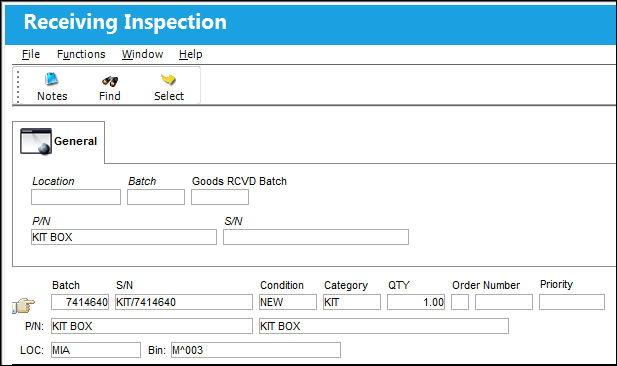
Confirm that the Hand  pointer is pointing to the vendor kit the user is receiving. Click on the Select
  button.
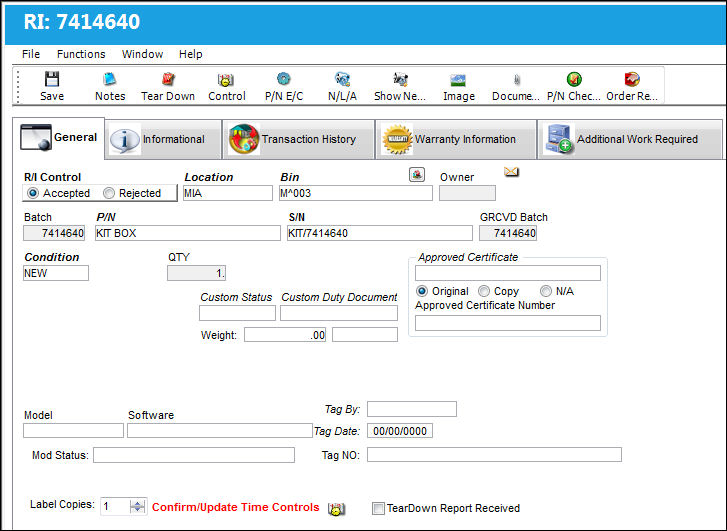
In the R/I Control field, choose the Accepted radio button and click on the Save  button.
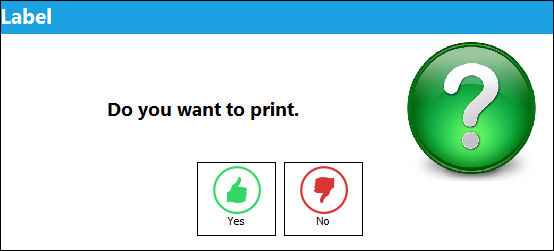
The user will have the option to print a part identification tag for the kit.
The vendor kit is now in stock and available in inventory.
To verify this, go to Inventory/Query/Inventory Query. Locate the kit.
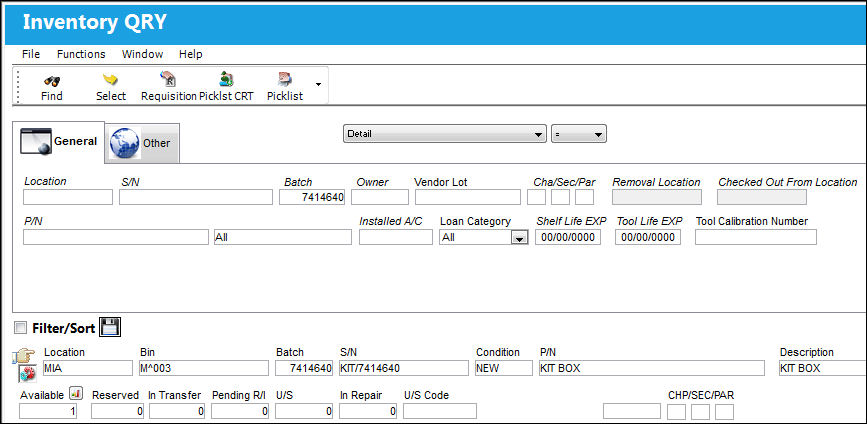
Confirm that the Hand pointer is pointing to the vendor kit with which you are working. Click on the Select button.
The Inventory Detail window appears.
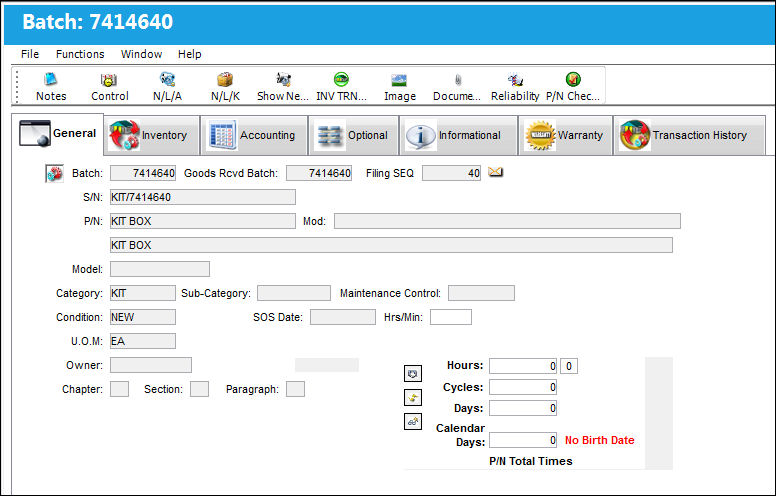
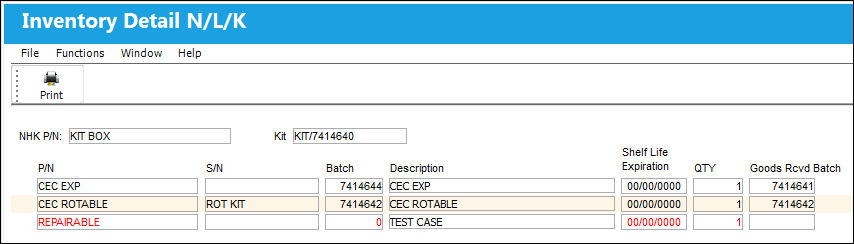
Click on any tab to view the related information regarding the transaction. Click on the Kit  button to view more detailed information regarding the kit.
Share
Print
|
©1997-2026 Trax USA Corp. All rights reserved. This manual may not be copied, photocopied, reproduced, translated, or converted to any electronic or machine-readable form, in whole or in part, without prior written approval from Trax USA Corp. |
 |