
 Share
Share
 Print
Print
|
|
|
|
|


Receiving a Vendor Kit
Before receiving the vendor kit into the system, a P/O for this vendor kit must be created, just as you would for any other item purchased from a vendor. Please refer to the Orders manual for information on creating a purchase order. Once the user has created the purchase order, the user will receive the kit. Upon receipt of the kit, go to Receiving/Update/Order Receiving.
Find the kit to be received using the appropriate search parameters. As with the majority of the query selections on the system, it is better to select as many parameters as required to minimize user search results. Once the user has selected the criteria, click on the Find  button. The search result will appear.
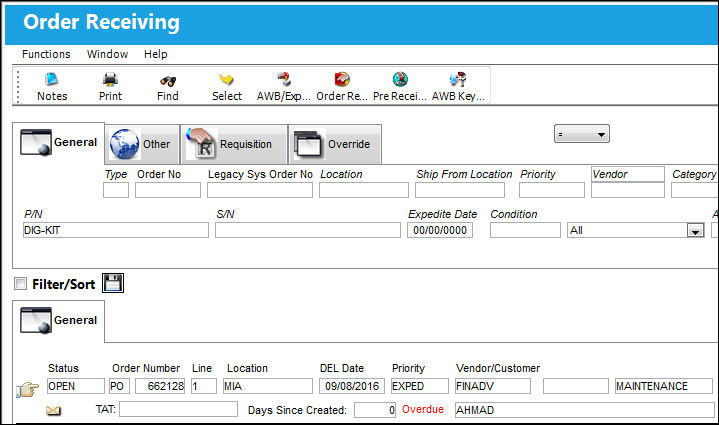
Confirm that the Hand  pointer is pointing to the vendor kit you are receiving. Click on the Select
  button.
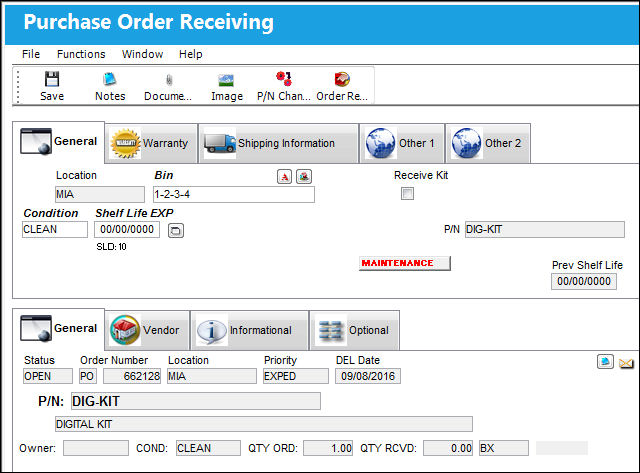
The following information/options are available in this window:
_____________________________________________________________________________________
Location
The Location for maintenance events, inventory stores, orders, transactions, or training events.
Bin
The specific storage bin within the inventory location.
Receive Kit checkbox
You must check the Receive Kit checkbox when receiving all kits into the system.
Condition
The Condition of the Kit.
_____________________________________________________________________________________
Upon selecting the Save  button, TRAX will automatically create a serial number for the kit. The serial number will be a combination of the word “KIT” and the goods received batch number (which is automatically created upon all order receiving). The serial number will appear on the P/N Kit window, which appears after save.
The P/N Kit window is displayed as follows:
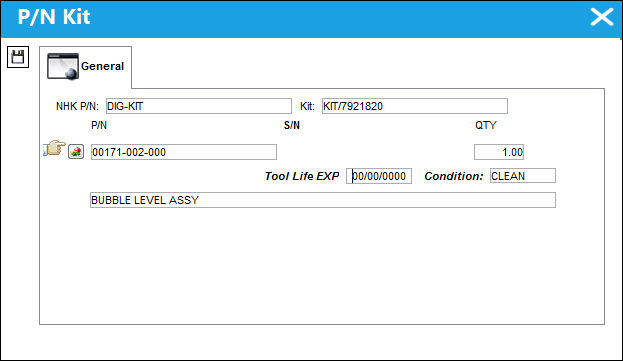
The following information/options are available in this window:
_____________________________________________________________________________________
NHK P/N
The Next Higher Kit part. This part is the principle part of the Kit. This part must contain P/N Category 'KIT.'
Kit
The next higher kit serial number.
P/N
The Part Number reference for the aircraft part. The P/N of the next higher kit being received.
S/N
The Serial Number for the specific serialized part. The S/N of the P/N of the next hIgher kit.
_____________________________________________________________________________________
All the rotables and/or expendables included in this kit will appear. The user will be asked to manually enter the serial number of any rotables in the S/N field.
Click on the Save button. The P/N Inventory Control Window will appear.
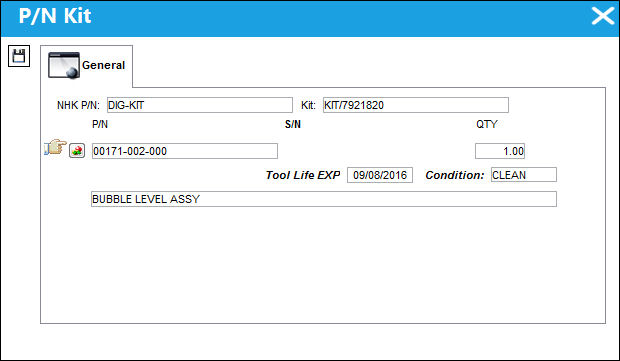
If this kit contains rotables, the P/N Inventory Control window will appear. Fill all fields accordingly for each rotable within the kit.
Click on the Save button after any modifications. Click on the Exit  button to close.
The user may then perform the receiving inspection of the kit. For more information, refer to the Receiving Inspection of a Kit.
Share
Print
|
©1997-2026 Trax USA Corp. All rights reserved. This manual may not be copied, photocopied, reproduced, translated, or converted to any electronic or machine-readable form, in whole or in part, without prior written approval from Trax USA Corp. |
 |