
 Share
Share
 Print
Print
|
|
|
|
|


Receiving a Tool Part
Receiving a tool part into inventory is much the same as receiving a part into inventory. The only difference is the additional fields and options that appear throughout the Order Receiving and Receiving Inspection process when receiving a tool into inventory.
Receiving can only be performed against an existing order in the system. It is not possible to perform receiving without connecting it to an order.
In the Order Receiving window, the following tool part will be received into inventory. Once the tool record is located, click on the Select  button.
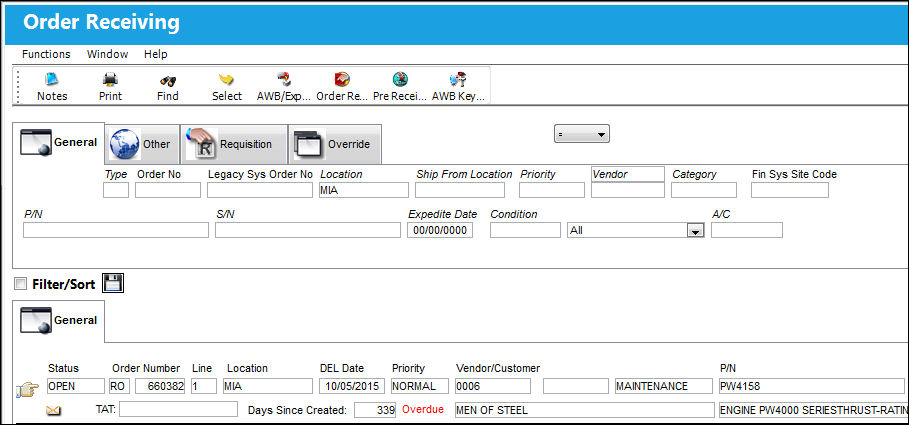
The Purchase Order Receiving window appears.
Note that the following fields are only available when receiving a tool part:
- Tool Area
- Tool Life EXP
- Tool Calibration Number
- Prev Tool Exp
Populate all mandatory and desired fields and save the transaction.
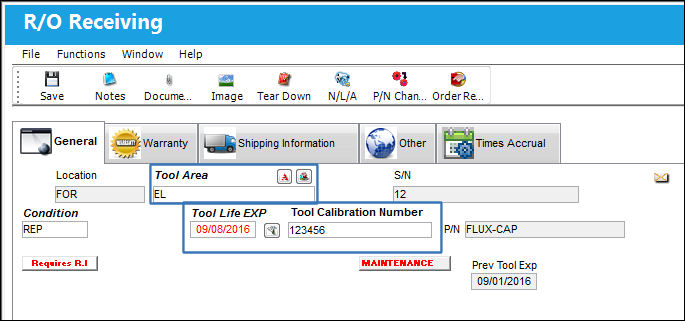
The following information/options are available in this window:
_____________________________________________________________________________________
Tool Area
The location/area of the tool. This is similar to a bin for tools. This field appears when the part being received is a tool.
Tool Life Expiration
The tool life expiration date of the part, as applicable.
Tool Calibration Number 
This is a unique number used to define a tool.
Previous Tool Exp
This is the previous expiration date for the tool (if applicable). Not all tools have an expiration date.
_____________________________________________________________________________________
Go to Receiving/ Update/ Receiving Inspection
Once the tool is located, click on the Select button.
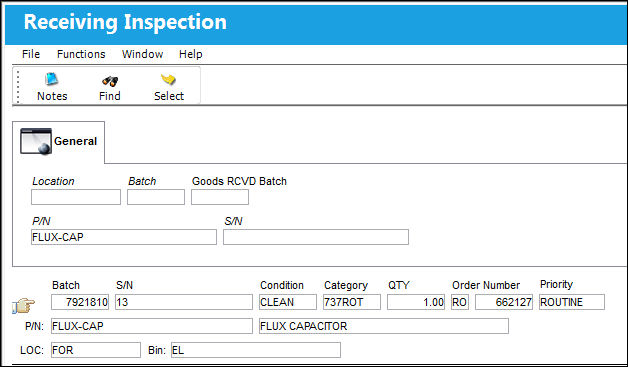
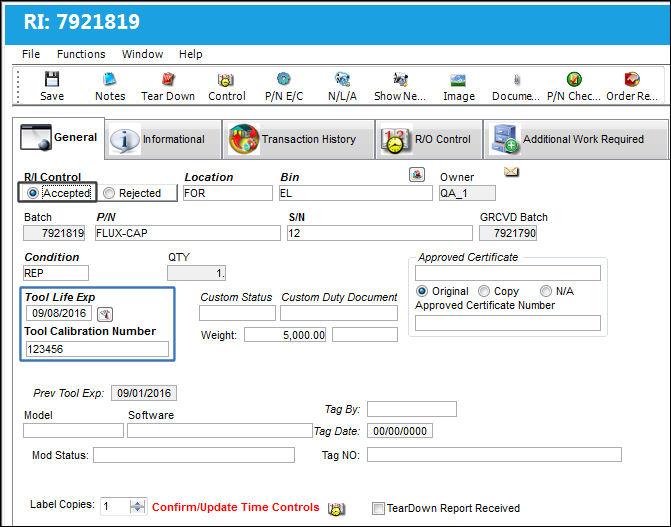
From the RI window, select the 'Accepted' radio button once the Receiving Inspection process has been completed.
Note that the Tool Life Expiration and Tool Calibration Number have followed the tool to the Receiving Inspection process.
Select the Save  button. The Save prompt appears. Select 'OK'.
Go to Inventory/ Update/ Inventory Transaction
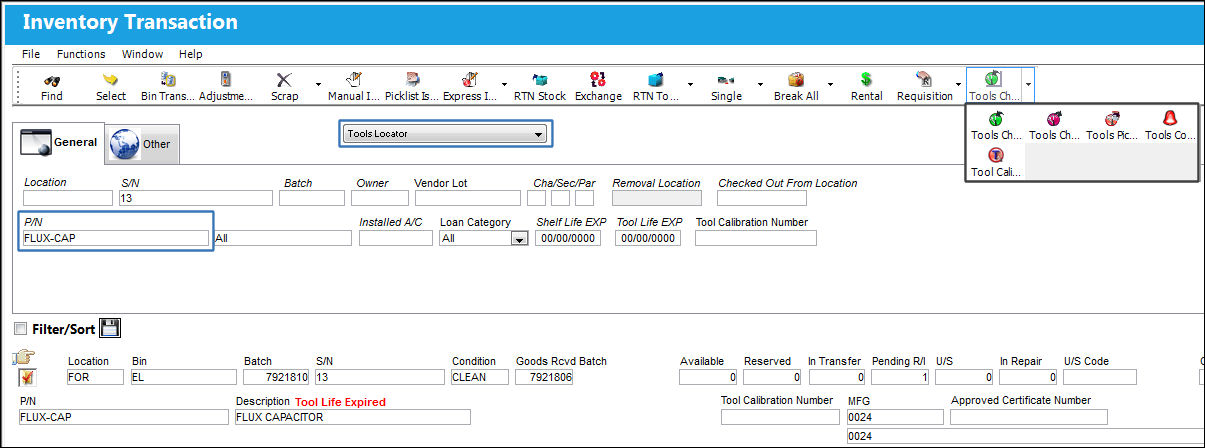
Select the Tools Locator View and enter the Part (tool) Number. Select the Find  button.
The tool is now in inventory.
Note that the tool options become available once the Tools Locator View is selected.
Share
Print
|
©1997-2026 Trax USA Corp. All rights reserved. This manual may not be copied, photocopied, reproduced, translated, or converted to any electronic or machine-readable form, in whole or in part, without prior written approval from Trax USA Corp. |
 |