
 Share
Share
 Print
Print
|
|
|
|
|


TRAX Quick Print Creation
To create a Trax Quick Print go to TRAX Quick Print/Update/Quick Print Creation.
The following screen allows the user to select the print content and format in an abbreviated or "quick" format:
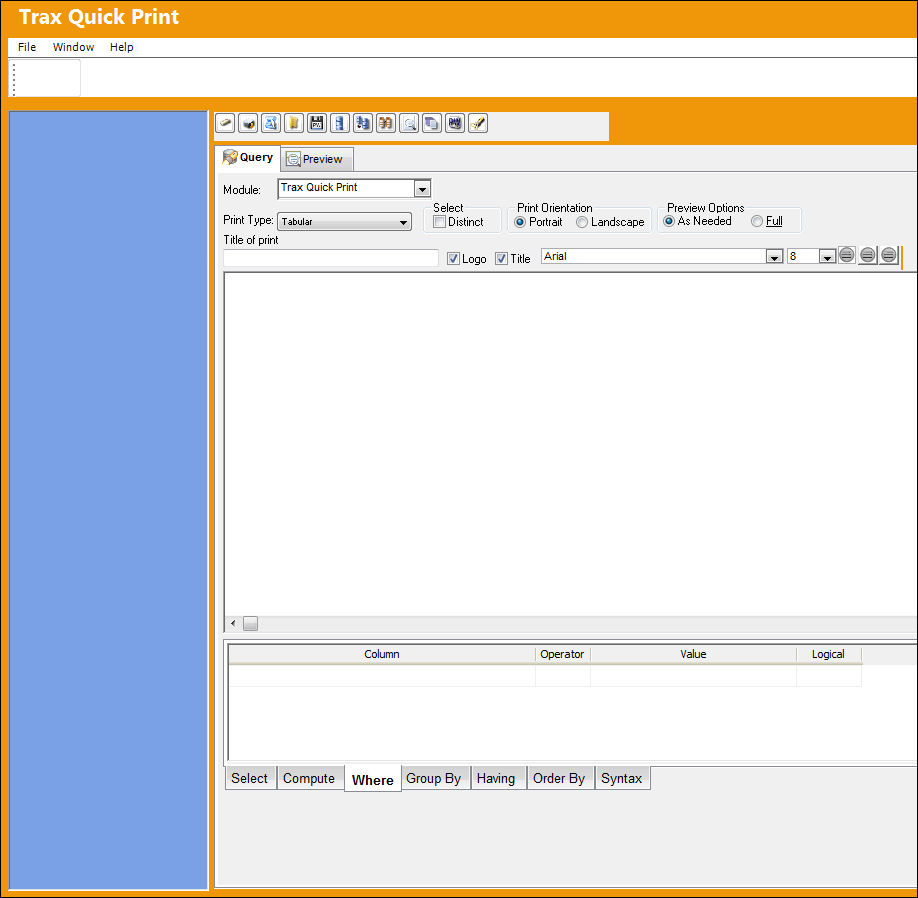
The following are options the user has when creating, or modifying a report:

The following information/options are available in this window:
_____________________________________________________________________________________
Query
Mode in which information is selected and options are chosen.
Preview
Mode in which information is viewed.
Module
Select an individual TRAX Module to narrow down search results by groups.
Print Type
Select the print type:
Tabular - Table without grid lines.
Grid - Table with grid lines.
Free Form - A free form layout where the user can customize the layout in the preview page.
Group - An option which allows users to group specific fields together.
Crosstab - Allows users to join two or more fields together to see a relationship between the two.
Graph - Allows users to graph information from a number of fields for a visual interpretation.
Select
Allows users to select specific information for a query
Print Orientation radio button
Select Portrait or Landscape.
Preview Options radio button
As Needed - Brings up information in preview query as needed (as user scrolls down).
Full - Brings up all of the information all at once.
Title of Print
Enter a name for the Print.
Logo checkbox
Select this checkbox to include the company logo on the print.
Font drop down
Select a font for the print.
Font Size drop down
Select a font size for the print.
Cell Alignment
Select the alignment of the cells of the print; left aligned, centered, or right aligned.
_____________________________________________________________________________________
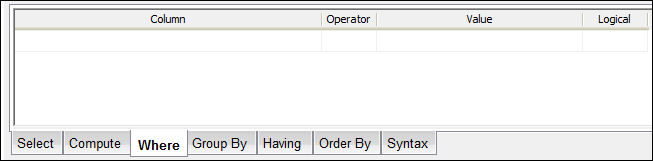
The following are functions that the user can select to search for specific information in a report:
_____________________________________________________________________________________
Column
Select a column for the clause.
The columns used in the clauses are from the selected tables but are not necessarily in the print.
Operator Logic drop down
Select an operator for the clause.
= - Equal to
> - Greater than
< - Less than
<= - Less than or equal to
>= - Greater than or equal to
<> - Not equal to
Between - Within a range
Exists - Used if a sub query contains rows
In - Equal to one of a list of expressions
Like - Matches a pattern
Not between - Not within a range
Not exists - Sub query does not contain rows
Not In - Not equal to one of a list of expressions
Is - Is (used when expression is not NULL)
Is not - Is not NULL
= All - Equal to All
=! All - Different than or not equal to All
< All - Less than All
> All - Greater than All
= Any - Equal to Any
< Any - Less than Any
> Any - Greater than Any
<= Any - Less than or equal to Any
>= Any - Greater than or equal to Any
=! Any - Different than or not equal to Any
Value
Select a value for the clause.
All values must be within single quotation marks (i.e.: '1001269'). Right-click in field and select 'values' for a list of possible values to choose from.
Logical
Select a logical connector to the proceeding clause.
_____________________________________________________________________________________
The following tabs allow the user to create a SQL for a report:

_____________________________________________________________________________________
Select
Selects the fields the user has highlighted.
Compute
Creates new calculated fields for report.
Where
Adds clauses to filter the print.
Group By
Groups the report fields for calculation purposes.
Having
Adds further clauses to filter data once it is grouped.
Order By
Orders the data in the print (Asc = Ascending/Desc = Descending).
Syntax
Used to view the SQL code of the report.
_____________________________________________________________________________________
Share
Print
|
©1997-2026 Trax USA Corp. All rights reserved. This manual may not be copied, photocopied, reproduced, translated, or converted to any electronic or machine-readable form, in whole or in part, without prior written approval from Trax USA Corp. |
 |