
 Share
Share
 Print
Print
|
|
|
|
|


The P/N Interchangeability, General tab allows the user to enter the following information regarding interchangeable parts:
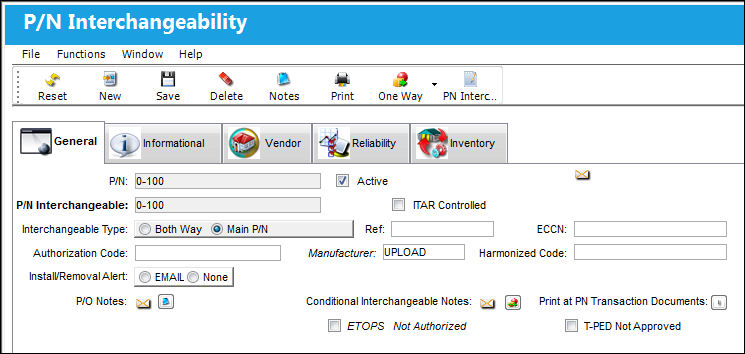
The following information/options are available in this window:
_____________________________________________________________________________________
P/N
The Part Number reference for the aircraft part. This is the main part that is interchangeable with the Interchangeable Part.
Active checkbox
Check this box if the part number is active.
 NWPNAUTH - (New P/N to Authorization) - If set to Yes and then Config Other field is blank, the system will make the Active checkbox protected on all new P/N Inactives. It will also send the new P/Ns to Settings/ Explorer P/N Authorization Explorer. Once authorized, the status of the P/N will be automatically changed to 'Active'.
- If set to Yes and then Config Other is set to 'Active', the system will make the part automatically Active for all new P/N. It will also send the new P/Ns to Settings/ Explorer/P/N Authorization Explorer.
- When set to No, upon creating a new part into the system, the part can automatically be set to 'Active'.
When unchecked, the text 'Active' becomes inactive, therefore appearing in red.
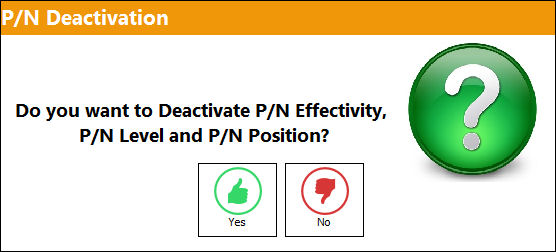
When trying to Save an Inactive P/N, the following pop-up appears:
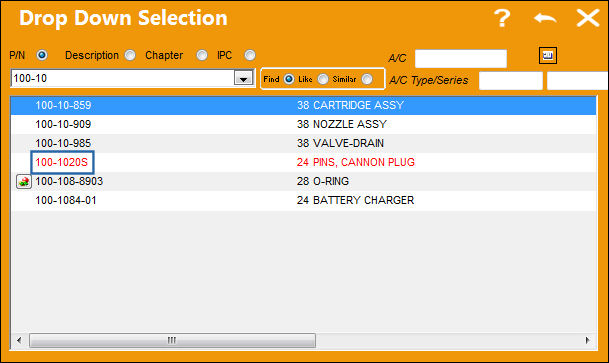
Once P/N is Inactive, it will appear in red in the P/N drop down selection, as shown below:
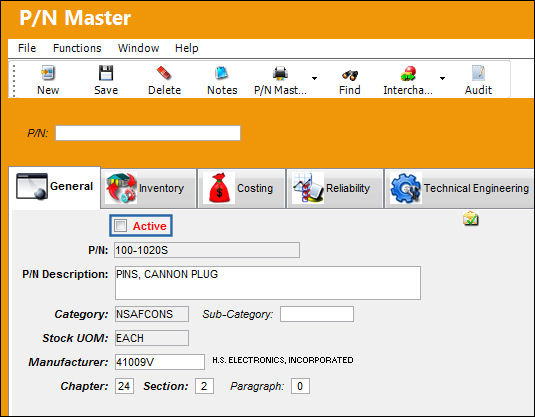
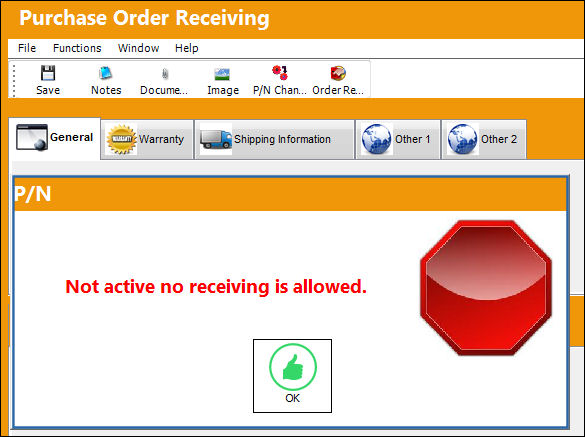
This P/N cannot be received or purchased because it is inactive, as shown below:
P/N Interchangeable
The Part Number that is interchangeable with the selected part.
ITAR Controlled checkbox
International Traffic in Arms Regulations. If checked and requested, the ITAR flag will appear in the custom P/N Tag print.
Interchangeable Type
Choose the Both Way radio button for adding new Both Way Interchangeable parts. The Main P/N radio button is used to indicate whether the currently selected P/N Interchangeable (at the bottom of window with Hand  pointer) is the Main P/N.
Ref
The part number reference number.
ECCN
Export Control Classification Number. This is a specific alpha-numeric code that identifies the level of export control for articles, technology and software (collectively, "Items") that are exported from member states of the Wassenaar Arrangement, including the United States. This field is informational only.
IIC
Enter the appropriate Item Identification Code. This field is informational only.
Authorization Code
Any authorization code related to this record. Enter the person/entity that authorizes the interchangeability (ex. Engineering Dept.).
Manufacturer
The Manufacturer or main Vendor for this part. The Vendor must be flagged in the Vendor Master as a Manufacturer to populate this Manufacturer field. When a new P/N is to be created as an alternate to the main P/N, its Manufacturer’s code should be mandatory.
Harmonized Code
Harmonized Commodity Description and Coding System of tariff nomenclature is an internationally standardized system of names and numbers for classifying traded products developed and maintained by the World Customs Organization (WCO). This field is informational only.
Install/Removal Alert
Select the Email radio button to automatically send an email to the specified email address when this P/N is installed or removed from an aircraft. The message will come from the email notepad. For example – if there is specific work to carry out on that part to enhance it to another mod level (and change the part number). Choose the None radio button if no email notification is desired.
P/O Notes
Purchase Order Notes.
Conditional Interchangeable Notes  button
Enter any relevant note for the selected interchangeable part. Once the note is saved, a system notification will appear before being able to save the part against any of the following windows:
- A/C P/N Transaction
- Task Card P/N
- Defect Reports
- Picklist Creation
Print at P/N Transaction Documents  button
Select this button to have documents print at the time of a P/N Transaction. For additional information, refer to Print at P/N Transaction Documents Button, via P/N Interchangeability, General Tab which can be found in the Settings Training Manual.
Software Override From P/N Main checkbox
Select this checkbox to override the Software setting of the Interchangeable P/N. This will not affect the Main P/N.
ETOPS checkboxes
Select these checkboxes, as needed, to make the interchangeable part(s) ETOPS authorized.
ETOPS Authorized - The part is ETOPS authorized. (i.e. can be flown on ETOPS A/C for 180 minutes).
ETOPS Not Authorized - The part is not ETOPS authorized.
ETOPS Not Applicable - The part is ETOPS rated, but not solely for ETOPS purposes (can be issued for other aircraft).
The interchangeable P/N cannot be made an ETOPS authorized part if the main P/N is not ETOPS authorized.
The Select All  and Deselect All
  buttons have been added to the lower half of the P/N Interchangeable window:
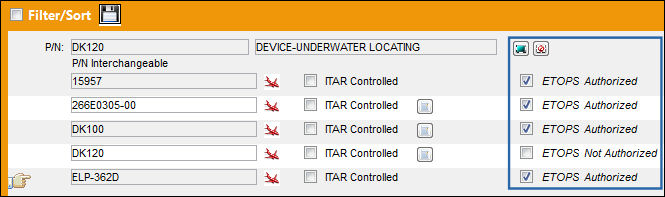
Select All button - Select this button to make all interchangeable P/Ns ETOPS authorized.
Deselect All button - Select this button to make all interchangeable P/Ns non-ETOPS authorized.
 If the ETOPS Rating for an interchangeable part is designated through an IPC import, a note will appear in the P/N Interchangeability, General tab detailing the ETOPS Rating that was applied to the part during the import. For additional information, refer to TraxDoc AIPC Import, as well as the TraxDoc IPC787 Import via the TraxDoc Training manual.
T-PED checkbox 
Indicates the part's Transmitting Portable Electronic Devices (T-PED) status. Only certain parts may be approved T-PED wireless technology. This checkbox allows for the proper inventory management of the T-PED approved parts. From the P/N Interchangeability window, this checkbox is informational. The T-PED status can only be changed via the P/N Master, Technical Engineering Tab. For more information refer to the Settings Training Manual.
_____________________________________________________________________________________
Share
Print
|
©1997-2026 Trax USA Corp. All rights reserved. This manual may not be copied, photocopied, reproduced, translated, or converted to any electronic or machine-readable form, in whole or in part, without prior written approval from Trax USA Corp. |
 |