
 Share
Share
 Print
Print
|
|
|
|
|


The AIPC creates P/Ns, vendor codes and sets effectivity and P/N interchangeability. The manual is divided using ATA 100 chapters. The manufacturers for this manual are Boeing-Airbus, Embraer and Bombardier-Fokker.
The Import From OEM  button allows the digital import of the Illustrated Parts Catalog (IPC) creation from SGML format. From the TraxDoc Document window, select the Import From OEM Manual button.
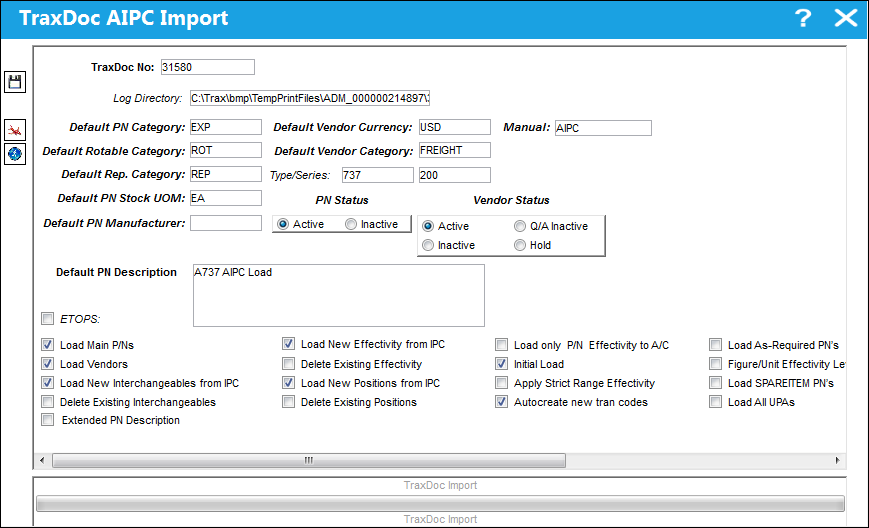
TRAX displays the TraxDoc AIPC Import window:
For Airbus operators, before loading a new IPC or a new IPC Revision, please contact the TraxDoc Programming department.
The following information/options are available in this window:
_____________________________________________________________________________________
TraxDoc No.
The TraxDoc Document ID number, which is automatically generated by the system.
Log Directory
This option allows the user to specify the directory to which log files and error reports will be saved. The initial value is a sub-folder inside the default temporary directory.
Default P/N Category
This P/N Category field in this window is referring to only Expendable part numbers. This determines how the system will handle this part. If the Category entered is a 'consumable' one, then the system will not be expecting serial numbers for every item in the system for this part number.
The user must enter default values to place in these fields in case the IPC does not contain data for them. Parts for these categories are identified by the ITEM tag.
Default Rotable Category
This P/N Category field in this window is referring to only Serialized part numbers. This determines how the system will handle this part. If the Category entered is Serialized, the system will be expecting a Serialized number for every item in the system for this part number.
The user must enter default values to place in these fields in case the IPC does not contain data for them. Parts for these categories are identified by the ITEM tag. The system assumes that a part is Serialized if the IPC lists positions for the part.
Default P/N Manufacturer
The Manufacturer or main Vendor for this part. The Vendor must be flagged in the Vendor Master as a Manufacturer to populate this field.
Note: The user must enter default values to place in these field in case the IPC does not contain data for them.
Default Vendor Currency
This is the default vendor currency.
The user must enter default values to place in these field in case the IPC does not contain data for them.
Manual
The manual to be applicable to associated E/Cs / T/Cs.
Default Vendor Category
This is the default vendor category.
The user must enter default values to place in these field in case the IPC does not contain data for them.
Default Rep. Category
This P/N Category field in this window is referring to only Repairable part numbers. This determines how the system will handle this part. If the Category entered is Repairable, the system will be expecting a Repairable number for every item in the system for this part number.
The user must enter default values to place in these field in case the IPC does not contain data for them.
Type/Series
The Aircraft Type and Series/Fleet assignment.
Default PN Stock UOM
The ATA code for Unit Of Measurement (or internal code if preferred). The Order UOM differentiates by Stock UOM a unit of conversion may be defined in the UOM code which will automatically convert the Order UOM to the Stock UOM at receiving.
Default PN Manufacturer
The Manufacturer or main Vendor for this part. The Vendor must be flagged in the Vendor Master as a Manufacturer to populate this field.
P/N Status radio buttons
Controls the Status of the P/N.
Active - Select this radio button to make the part number(s) active.
Inactive - Select this radio button to make the part number(s) inactive.
 The P/N Status radio buttons are security-controlled via TraxDoc/ Update/ TraxDoc Master/ IPC Import PN Status Authorization from the Security Explorer. For more information refer to the Security Explorer via the System Administration Training Manual.
For this security control to be applicable, Settings Switch  NWPNAUTH must be set to Yes. For more information refer to Switch NWPNAUTH via the Settings Training Manual.
Vendor Status radio buttons
Active - Select this radio button to indicate that the Vendor associated with supplying the part being imported is an Active Vendor.
Inactive - Select this radio button to indicate that the Vendor associated with supplying the part being imported is an Inactive Vendor.
Q/A Inactive - Select this radio button to indicate that the Vendor associated with supplying the part being imported is in Q/A Inactive Status.
Hold - Select this radio button to indicate that the Vendor associated with supplying the part being imported is on Hold Status.
Default PN Description
The description of the part number.
ETOPS checkbox
Select this checkbox to indicate that the part is relevant to ETOPS operations. When the ETOPS checkbox is selected, the ETOPS field appears. Specify the ETOPS rating for the aircraft in this field.
 Each part in the IPC will either contain an ETOPS rating or no rating. This is how the part will appear in the P/N Master, Technical Engineering tab once the part is imported from the IPC:
- If part's ETOPS rating is less than Aircraft's rating: part will be 'ETOPS Not Authorized'
- If part's ETOPS rating is equal to or greater than Aircraft's rating: part will be 'ETOPS Authorized'
- If part does not have an ETOPS rating: part will be 'ETOPS Not Applicable'
A note will appear in the P/N Master, Technical Engineering tab as well as in the P/N Interchangeability, General tab detailing the ETOPS Rating that was applied to the part during the IPC import.

Load Main P/Ns checkbox
Select this checkbox to load main P/Ns.
Load Vendors checkbox
Select this checkbox to load the vendors that are associated to supplying the part to which the import is being conducted.
Load New Interchangeables from IPC checkbox
Select this checkbox to load any association to Interchangeable parts for the part to which the import is being conducted.
If the part exists in TRAX as a both-way interchangeable to Main relationship, but the AIPC manual states that the relationship should be one-way interchangeable to Main (or vice-versa), no changes will occur in TRAX, however a warning message will appear at the end of the import to notify the user of the interchangeable relationship between the P/Ns as in the AIPC. For additional information, refer to Load New Interchangeables from IPC checkbox, via TraxDoc AIPC Import.
Delete Existing Interchangeables checkbox
Select this checkbox to delete the associated Interchangeable parts that existed within the P/N Master prior to the new import being conducted for the part.
This option is not intended to be used regularly when importing, but as an occasional 'clean-up' option.
 Note: When this checkbox is selected in version 12.5 and all later releases, rotable P/Ns will not have their both-way interchangeables deleted but they will be placed in 'inactive' status. Expandable P/Ns will continue to have their both-way interchangeables deleted.
Extended PN Description checkbox
Select this checkbox to have the P/N Description (via the P/N Master) include the value for both the KWD and ADT tags once the AIPC import has been completed. If this checkbox is deselected, the P/N Description will only include the value of the KWD tag.
Load New Effectivity from IPC checkbox
Select this checkbox to load any Effectivity for the parts that the IPC is loading.
New Effectivity will be added in the form of IPC P/N Effectivity Range. The IPC Range will be defined for Type/Series by SGML Designator. The range will assign Aircraft Effectivity matching the A/C Tail Number to the IPC field via the A/C Master, Optional 2 Tab of the A/C Master. For additional information, refer to Load New Effectivity from IPC checkbox, via TraxDoc AIPC Import.
Delete Existing Effectivity checkbox
Select this checkbox to delete the Effectivity that existed within the P/N Master prior to the new import being conducted for the part.
Load New Positions from IPC checkbox
Select this checkbox to load any Positions for the part to which the import is being conducted.
Delete Existing Positions checkbox
Select this checkbox to delete the Positions that existed within the P/N Master prior to the new import being conducted for the part.
Load only P/Ns effective to A/C checkbox
Select this checkbox to load only parts that are effective to the aircraft.
Initial Load checkbox
Select this checkbox to initial load P/Ns. When selected the import will update the P/Ns regardless of the CHG Tags which are in the SGMLs. There are New, Unchanged, Delete and Revision CHG tags in the SGML. If the checkbox is selected it will check the P/N Master for the P/N and update existing data from the import. If the P/N must be a Main it will create the NEW Main P/N (MPN), if it doesn't already exist. If it exists as a main it will only update the records as explained. If it exists as an interchangeable P/N to another P/N but must be a MPN, it will change the both-way interchangeable P/N into a Main P/N, making it a one way Part Number to the MPN it was once both-way interchangeable with, and it will apply its own IPC and supplement documentation.
Apply Strict Range Effectivity checkbox
When checked, imported Task Cards/Engineering Controls will be made effective to all Aircraft Type/Series, regardless of whether or not tail-level effectivity is specified in the manual. Positions, Zones, Panels, References, etc. will also be created for all type/series. If unchecked, effectivity will only be created for those type/series that have a least one effective Aircraft specified in the manual.
Autocreate new tran codes checkbox 
Some of the Task Card information provided in OEM manuals is controlled by Tran codes (i.e. Task Card types, areas, and skills). Selecting this checkbox will automatically create a Tran code record for any values found in the manual. If this box is not checked, the fields will still be set in the Task Card, but will have to be changed manually when working with the task card. This option is unchecked by default.
Load As-Required PNs checkbox
When this checkbox is selected, the system will also process P/Ns that are flagged 'As Required' within the AIPC SGML, and the UPA will be set to the value of 1. When this checkbox is deselected, the P/Ns that are flagged as 'As Required' will be ignored.
Figure/Unit Effectivity Level checkbox
When this checkbox is selected, the system will also take into consideration the effectivity from the Figure and Unit from the AIPC SGML. If this checkbox is selected and the P/N effectivity is not specified, the system will assign the Figure Level effectivity to the P/N. If the Figure Level effectivity is not specified, the system will assign the Unit Level effectivity to the P/N. If the Unit Level effectivity is not specified, the system will then assign the TraxDoc effectivity to the P/N.
When the checkbox is deselected, the system will skip the Figure and Unit Level effectivity and assign the TraxDoc effectivity to the P/N (when P/N effectivity is not specified in the manual).
Load SPAREITEM PNs checkbox
When this checkbox is selected, TRAX will process all P/Ns within the AIPC SGML that are marked as spares. The following rules will be applied:
Interchangeability Rules:
- If a spare does not exist in TRAX, the interchangeability type (i.e. one-way, both-way) will be determined by the AIPC rules.
- If the spare and Main exist in TRAX as a both-way interchangeable to Main relationship, but the AIPC manual states that the relationship should be one-way interchangeable to Main (or vice-versa), no changes will occur in TRAX, however a warning message will appear at the end of the import to notify the user of the interchangeable relationship between the P/Ns as in the AIPC.
- If both the spare and the Main exist in TRAX and the Main is a one-way interchangeable to spare relationship (or vice versa) and the AIPC manual states they have a both-way interchangeable relationship, TRAX will convert this to a one-way interchangeable relationship.
Effectivity Rules:
- When this checkbox is selected, spare effectivity in TRAX will be determined according to the Interchangeability Level (P/N Master/ Interchangeable Button/ Interchangeability Type Radio Button). If effectivity is specified for a spare, this effectivity will supersede that of the P/N effectivity.
P/N Master Rules:
- When this checkbox is selected, TRAX will process spares and items that exist in the PNRDATA section of the manual that are not included in the DPLIST section.
Load All UPAs checkbox
Select this checkbox to have the system create alphanumeric P/Ns in the P/N Master.
_____________________________________________________________________________________
Populate all mandatory fields and select the Save  button. The Save prompt will appear. Select OK.
Select the Run  button.
This process may take some time depending on the number of manuals being imported.
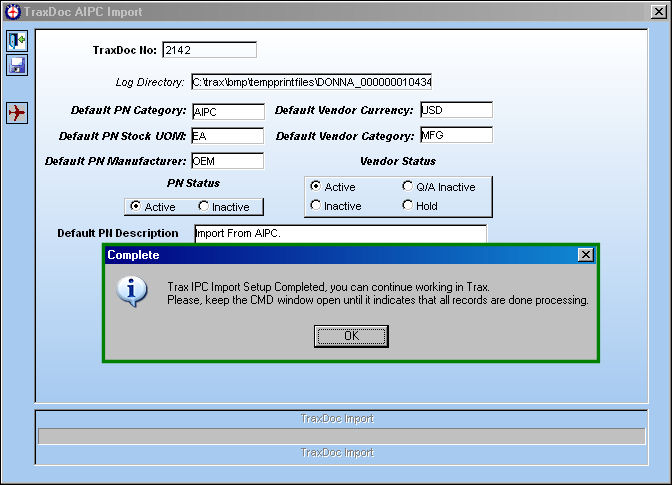
When all IPC documents have been imported, the following information box will appear:
Select 'OK.'
For information regarding the Effectivity  button, refer to the View AIPC Effectivity Button.
Please keep the following CMD window open until all records have finished processing:
This data import process may also take some time depending on the number of records to be processed.
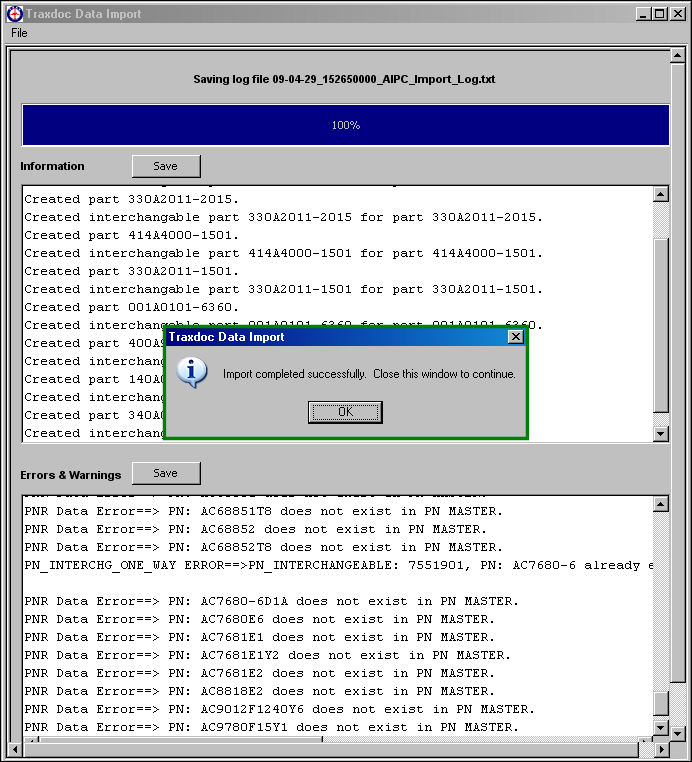
The Traxdoc Data Import window appears.
Once the import is complete, the following information box will appear.
Select 'OK.'
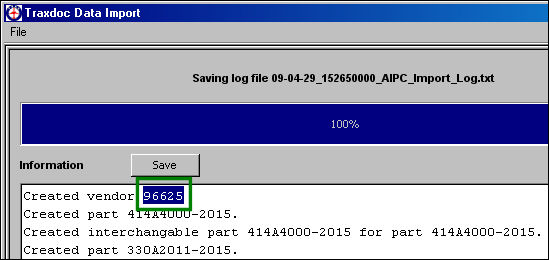
This process creates P/Ns, interchangeables and vendors from the vendor list from the manual.
This data import process will not create non-procurable parts. As such, import reference UPA must be numerical digits (e.g., '001') to indicate that the P/N is are procurable parts. Otherwise, if the UPA reference is non-numerical (e.g., 'REF'), then the P/N record will not be loaded because it will be considered non-procurable.
The user may use the Save buttons in this window to save the reports as text files for future use.
 If any errors occur during import, do not authorize any the the recently imported Task Cards. Contact TRAX immediately for assistance.
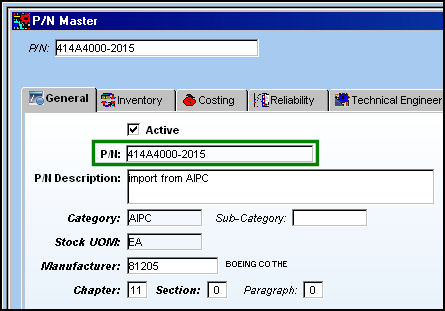
Verify that the following part was created. Go to Settings/Update/P/N and search for the below P/N.
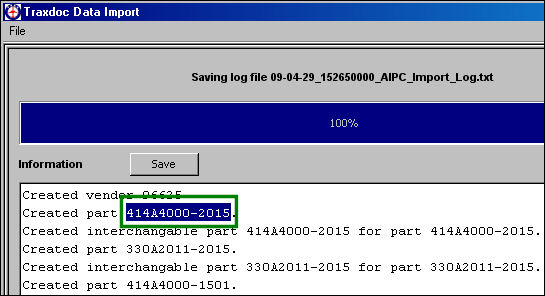
The P/N is found in the P/N Master as shown below:
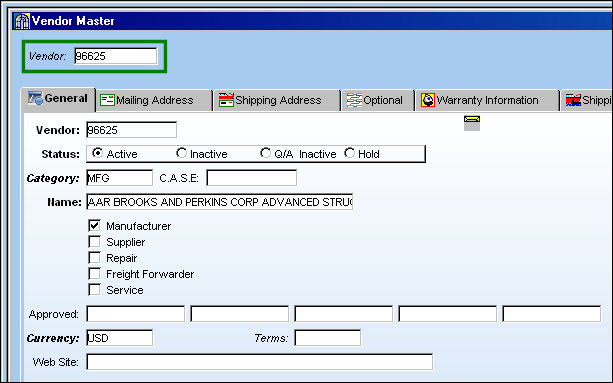
Verify that the following vendor was created. Go to Settings/Update/Vendor Master and search for the below vendor.
The vendor is found in the Vendor Master as shown below:
Share
Print
|
©1997-2026 Trax USA Corp. All rights reserved. This manual may not be copied, photocopied, reproduced, translated, or converted to any electronic or machine-readable form, in whole or in part, without prior written approval from Trax USA Corp. |
 |