
 Share
Share
 Print
Print
|
|
|
|
|


Class Enrollment New Button, via Training Forecasting (Results)
From the Training Forecasting Query results window, select a record using the Select checkbox located to the right of each record. Select the Class Enrollment New  button.
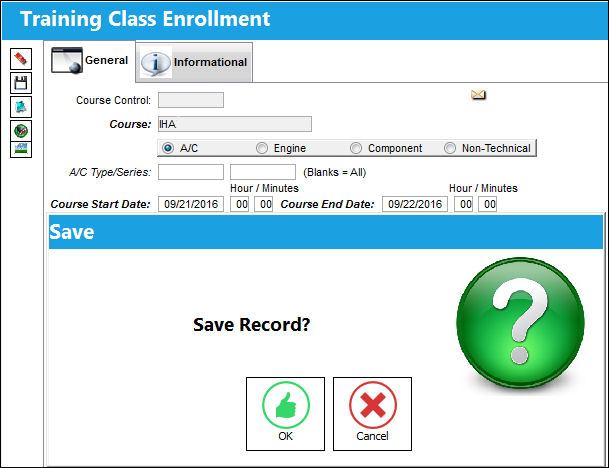
TRAX displays the Training Class Enrollment window. This window is used to add another class to the course. Enter any mandatory and desired information, then select the Save  button. The Save prompt will appear. Select ‘OK’ to save the record, or ‘Cancel’ to close it.
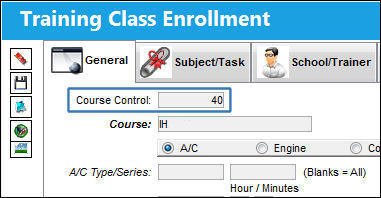
The class has now been added to the course, as shown below:
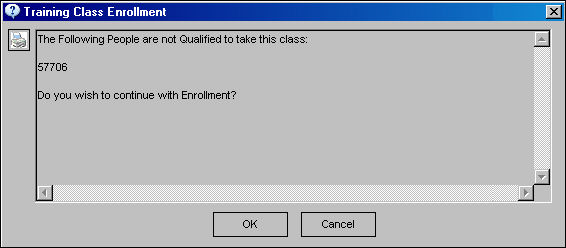
If employees who are enrolled in the course are not qualified to take the class, the user will receive the following error. The user may select ‘OK’ to continue the enrollment process or ‘Cancel’ to cancel the process.
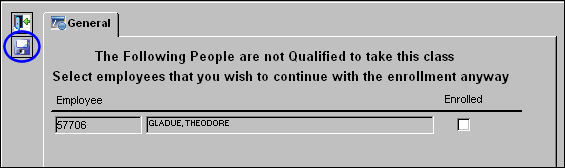
If the user selects ‘OK’, the following window will appear. The user may select the Enrolled checkbox and select the Save button to enroll the employee even though they are unqualified for the class.
Share
Print
|
©1997-2026 Trax USA Corp. All rights reserved. This manual may not be copied, photocopied, reproduced, translated, or converted to any electronic or machine-readable form, in whole or in part, without prior written approval from Trax USA Corp. |
 |