
 Share
Share
 Print
Print
|
|
|
|
|


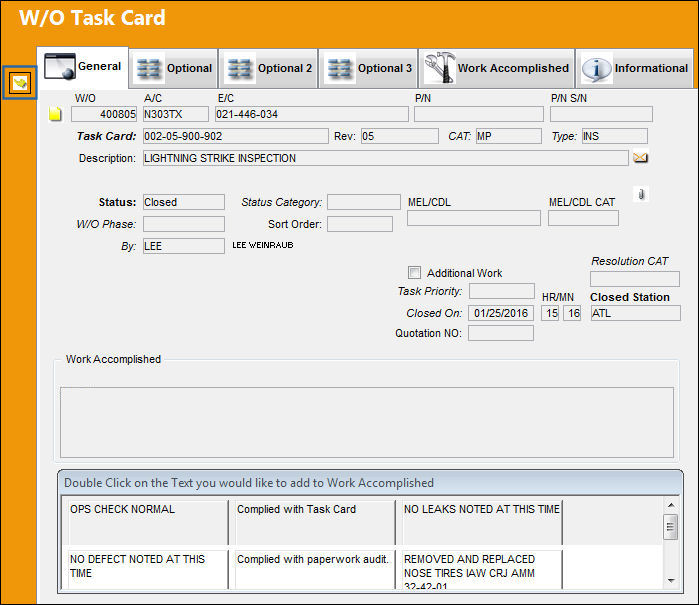
From the W/O Task Card window click on the Select  button.
TRAX displays the W/O Audit Update window. From this window, the user may update the audit result.
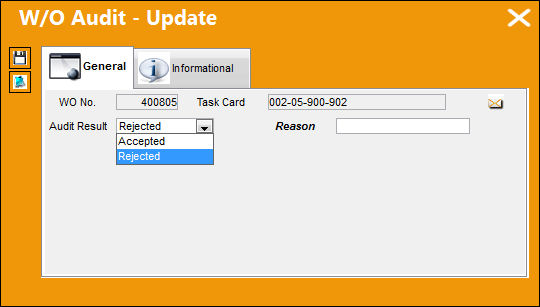
The following information/options are available in this window:
_____________________________________________________________________________________
WO No.
The Work Order used to categorize, manage, and schedule work requirements for aircraft maintenance.
Task Card
The Task Card / Job Card that details the scheduled maintenance work.
Audit Result
The result of the W/O Task Card Audit. The options are 'ACCEPTED', 'REJECTED' or 'No Audit Required.'
Accepted - Select if the audit is being 'Accepted.'
Rejected - Select if the audit is being 'Rejected.' When selected, the Reason field appears.
Reason - The reason why the W/O Task Card was rejected. This field is only available when 'Rejected' is selected in the Audit Result drop down field.
_____________________________________________________________________________________
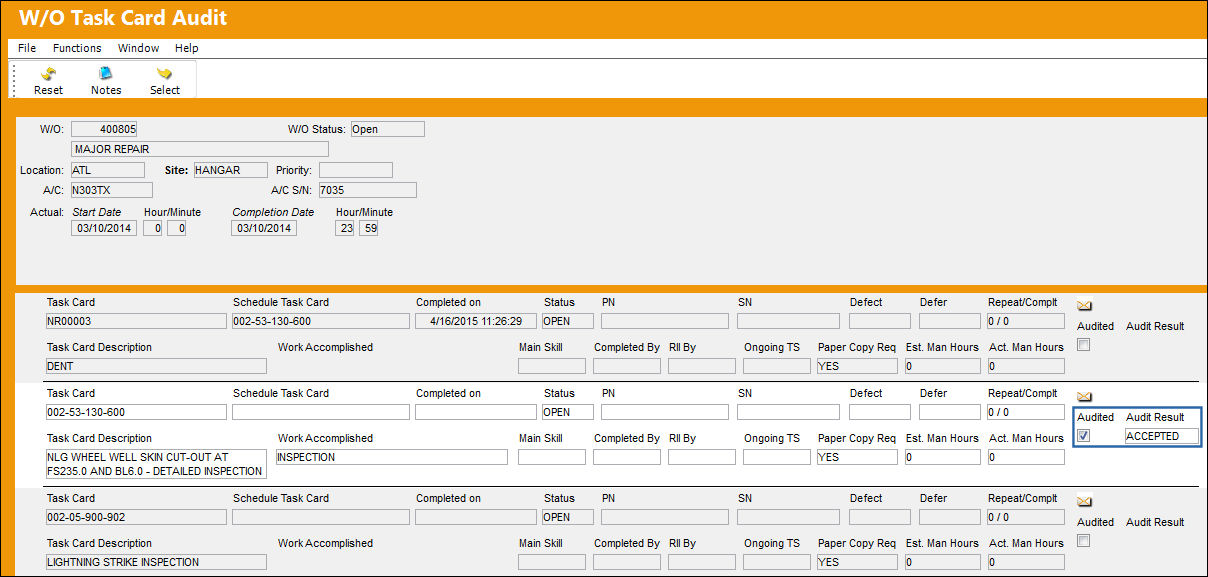
Once saved, the Audited checkbox is selected and the Audit Result field is populated in the W/O Task Card audit window.
Additional Functionality: Close W/O Button
Once all Task Cards are approved, users can proceed to close the W/O by selecting the Close W/O  button. This button only appears once all Task Cards are approved.
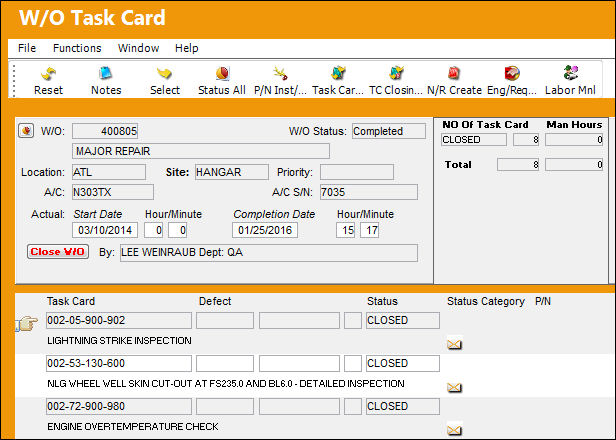
Once selected, notice the W/O Status has changed to 'CLOSED.'
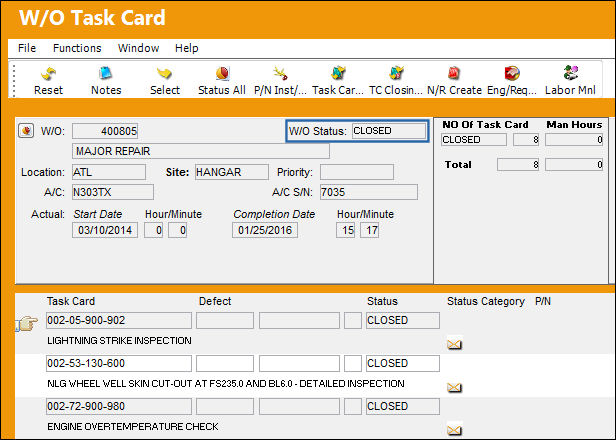
For more information on the Close W/O button refer to the Close W/O Button, via T/C Work Button in the Work Order section of the Production Training Manual.
Share
Print
|
©1997-2026 Trax USA Corp. All rights reserved. This manual may not be copied, photocopied, reproduced, translated, or converted to any electronic or machine-readable form, in whole or in part, without prior written approval from Trax USA Corp. |
 |