
 Share
Share
 Print
Print
|
|
|
|
|


Select a part number and select the Find  button. Be sure the Hand
  pointer is pointing to the desired record. Double click, or click on the Select
  button. Select the Audit tab.
 The Audit tab has been replaced by the Audit Button in the Exchange Order Out Detail, Audit tab in TRAX Version 11 and later releases of TRAX.
The Exchange Order Out Detail, Audit tab displays historical information regarding the Exchange Order:
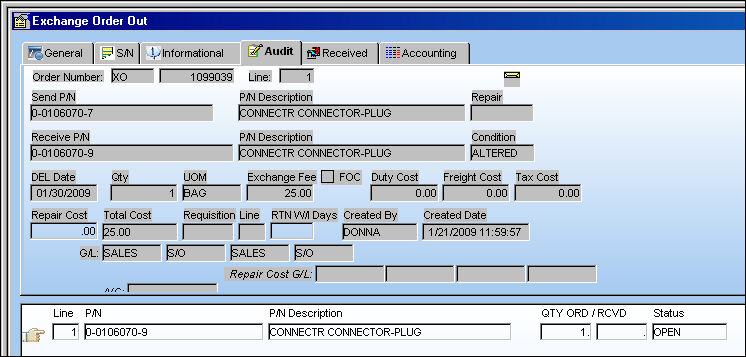
The following information/options are available in this window:
_____________________________________________________________________________________
Order Number
An auto-generated unique sequential number is assigned to each order. All Order Types which exist under the Order Module will receive their number for the following configuration:
 POSEQ - (Orders Next Sequence Number) - Next number for an Order. The start number is set at implementation. The Config Number field is used.
Line
The specific Line item of the Order. Each Line item could represent a different part included in the same order.
Send P/N
The part that the user is sending to the customer.
P/N Description
The description of the part that the user is exchanging with the customer.
Repair
The required repair action to be taken on the part the user will receive.
Receive P/N
The part that the user will receive from the customer.
Condition
The condition of the item that the user is sending. This will default if S/N is selected.
DEL Date
The required delivery date expected to receive the Core P/N.
Note: May be pre-defined on the Shipping Information Tab via the Vendor Master of the Setting Training Manual.
Qty
The quantity of part(s) being exchanged.
UOM
The unit of measure. This will default if associated with a Part Number as defined in the P/N Master. Transactions for parts can be conducted in a different UOM than defined in the P/N Master. However, upon receiving the UOM, conversion will automatically adjust the quantities, providing that the conversion rate is defined in the UOM System Transaction Code (via Setting/Explorer/System Transaction Code).
Exchange Fee
The exchange cost for the Customer. This field automatically defaults to the Unit Sell price listed for the part via the Sell  button for the Condition listed. If there is no Unit Sell price for the part or for the part Condition, then the field will be left blank and must be populated manually.
FOC (Free of Charge) checkbox
Select this checkbox if the order is without charge.
Duty Cost
The customs duty cost (if applicable).
Freight Cost
The associated freight cost/fees, if applicable.
Tax Cost
The tax cost (if applicable).
Repair Cost
The estimated cost of the repair (if applicable).
Total Cost
The total cost of the order, which includes all line items' quantity multiplied by any additional fees or cocts, such as Freight, Duty, Tax, etc.
Requisition
List of required parts for either a maintenance item or for restocking.
Line
The specific Line item of the Order. Each Line item could represent a different part included in the same order.
RTN W/I Days
The number of days for either the P/N to be received and returned or delivered and returned.
Created By
The user who created the record.
Created Date
The date the record was created.
G/L
The General Ledger account(s) reference used for financial control throughout the system.
Repair Cost G/L
The G/L account for the repair cost. The Order Repair Cost G/L will default to the Part Number Default RO G/L as defined in the P/N Master. This may be overridden for any given order.
A/C
The individual aircraft tail number.
_____________________________________________________________________________________
Share
Print
|
©1997-2026 Trax USA Corp. All rights reserved. This manual may not be copied, photocopied, reproduced, translated, or converted to any electronic or machine-readable form, in whole or in part, without prior written approval from Trax USA Corp. |
 |