
 Share
Share
 Print
Print
|
|
|
|
|


The following tab is displayed when the Exchange Order Out has been created though an Auto Exchange Order Out from the P/N Pool:
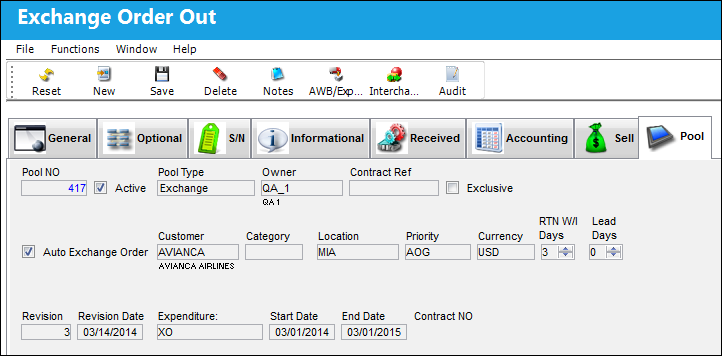
The following information/options are available in this window:
_____________________________________________________________________________________
Pool No
The Pool reference number.
Status
The status of the Pool record that is being created.
- Open
- Closed
- Under Revision
When the status is 'Open', the Revision  button and the Close
  button are available.
Revision button - Select the Revision button to update the P/N Pool Agreement from 'Open' status to 'Under Revision' status where the agreement can then be updated/modified.
Close button - Close button to update the P/N Pool Agreement from 'Open' status to 'Closed' status where the agreement will then be closed.
Pool Type
Select from one of the following pool types:
PBH (Power By the Hour) - The PBH (Power By the Hour) type designates that the agreement is for parts that will be counted by the hour.
Repair - The Repair type designates that the agreement is for parts that will have the option for repair.
Lease - The Lease type designates that the agreement is for parts that will be leased.
Exchange - The Exchange type designates that the agreement is for parts that will be exchanged.
If the Auto Exchange Order checkbox is selected, the system will automatically generate an Exchange Order. For additional information regarding how the Auto Exchange Order checkbox functions with an Exchange Pool Type, refer to Auto Exchange Order [P/N Pool] via the P/N Pool Header, General tab.
RO/EX - The RO/EX type designates that the agreement is for parts with Repair Order and/or Exchange Order capabilities.
Exchange Out - The Exchange Out type designates that the agreement is for parts that will be exchanged out.
If the Auto Exchange Order checkbox is selected, the system will automatically generate an Exchange Order Out. For additional information regarding how the Auto Exchange Order checkbox functions with an Exchange Order Out Pool Type, refer to Auto Exchange Order Out [P/N Pool] via the P/N Pool Header, General tab.
The Pool Type selected will determine the display of certain fields within the header and the detail windows. Please refer to individual field descriptions for this information.
 The RO/EX radio button is required for the TRX Interface functionality, but it is not exclusively part of said interface. Companies that are not using the TRX Interface may use this radio button as part of regular TRAX functionality. However, companies that are using the TRX Interface must select this radio button when creating P/N Pool entries in order to properly link to the TRX Interface (see note at bottom of page).
Owner
The name of the owner of the part, when applicable.
 Inventoried Pool parts can be returned to their Owner via the Return to Owner
  button.
Contract Ref
The contract reference associated with the P/N Pool agreement.
Exclusive checkbox
When this checkbox is selected, the system will exclude both-way interchangeable parts to be used to generate orders as part of the pool agreement. When this checkbox is de-selected, the system will include both-way interchangeable parts when generating orders as part of a pool agreement.
Auto Exchange Order checkbox
This checkbox enables the system to auto generate Exchange Orders and Exchange Out orders. This checkbox is only available when the Exchange/ Exchange Out Pool types are selected. For more information on how to create automatic Exchange Orders refer to the Auto Exchange Order Functionality via the Inventory Training Manual.
Vendor
The system code for the service/part provider. Enter the Vendor that the Pool agreement has been made with. The vendor will be the party providing the Pooled parts upon request by the Customer. This field is only available when the Exchange Pool type and the Auto Exchange Order checkbox are selected.
Customer
Enter the Customer that the Pool agreement has been created for. This field is only available when the Exchange Out Pool type and the Auto Exchange Order checkbox are selected.
Category
The Order Category code of the pool record.
Location
The Location for maintenance events, inventory stores, orders, transactions, or training events. The location that the part will be shipped to. This field is only available when the Exchange/Exchange Out Pool type and the Auto Exchange Order checkbox are selected.
Priority
The priority placed on the transaction (e.g., routine, AOG, etc.). For additional information and functionality, refer to the Priority transaction code via the Orders Transaction Codes. This field is only available when the Exchange Pool type and the Auto Exchange Order checkbox are selected.
Currency
The currency that will be used for the order transaction. Currencies may be defined for the Customer/Vendor in the Customer/Vendor Master and overridden at the order level. For additional information, please refer to the Currency section of the G/L Interface, System Transaction Code Training Manual. This field is only available when the Exchange Pool type and the Auto Exchange Order checkbox are selected.
The Currency field is auto-populated depending on the currency entered in the Vendor Master for the Vendor inserted in the above field. For more information refer to the Vendor Master, General Tab via the Settings Training Manual.
Company
The Company that the P/N Pool part is associated with.
The G/L Company that the P/N was assigned to when entered into inventory or ordered. For more information refer to the multi-company functionality explained through Switch  COMPANYMULTI via the G/L Interface Switches Manual.
RTN W/I Days
Enter the number of days for either the P/N to be received or sent, or to be delivered or sent. This field is only available when the Exchange Pool type and the Auto Exchange Order checkbox are selected.
Lead Days
Enter the number of lead days to be included in the delivery date. This number of days is added to the E/X creation date to calculate the delivery date. This field is only available when the Exchange Pool type and the Auto Exchange Order checkbox are selected.
G/L
Enter the General Ledger accounting code for this order. The order G/L will default to the Part Number G/L as defined in the P/N Master,Costing tab. However, this field may be overwritten for any given order. This field is only available when the Exchange Pool type and the Auto Exchange Order checkbox are selected.
Repair G/L
The G/L account for the repair cost. The Order Repair Cost G/L will default to the Part Number Default R/O G/L as defined in the P/N Master. This may be overridden for any given order. This field is only available when the Exchange Pool type and the Auto Exchange Order checkbox are selected.
Revision 
The revision reference of the Pool record.
Revision Date
The date the last revision was made to the Pool record.
Expenditure
The Expenditure Code for the transaction selected for the Pool Agreement. This field is only available when the Exchange Out Pool type and the Auto Exchange Order checkbox are selected.
Start Date
Enter the Start Date of the Pool agreement. This field is only available when the Exchange Out Pool type and the Auto Exchange Order checkbox are selected.
End Date
Enter the End Date of the Pool agreement. This field is only available when the Exchange Out Pool type and the Auto Exchange Order checkbox are selected.
Contract No
Enter the Contract number if the Pool Agreement will be linked to a Customer Contract. This field is informational only. This field is only available when the Exchange Out Pool type and the Auto Exchange Order checkbox are selected.
_____________________________________________________________________________________
Share
Print
|
©1997-2026 Trax USA Corp. All rights reserved. This manual may not be copied, photocopied, reproduced, translated, or converted to any electronic or machine-readable form, in whole or in part, without prior written approval from Trax USA Corp. |
 |