
 Share
Share
 Print
Print
|
|
|
|
|


COMPANYMULTI - Multi Company Setup
Multi Company Setup
Affected Window: w_journal_entries_expenditure_eu
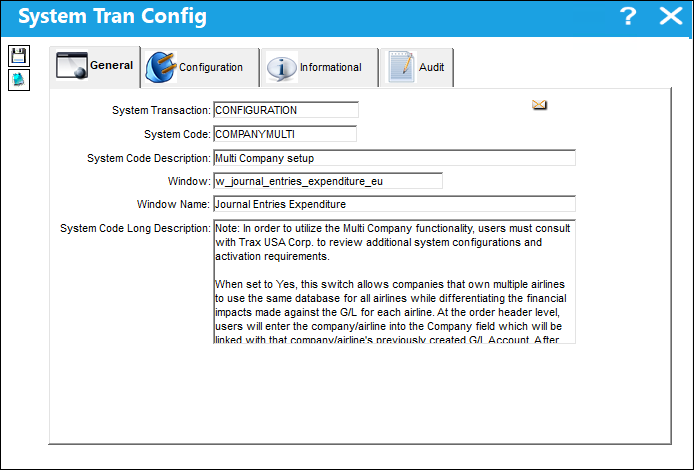
 Any TRAX operator that would like to start using the Multi Company functionality will be required to transition to the eMRO system. Various modifications have been made to the Multi Company functionality in eMRO to streamline the overall business processes and inter-company record keeping. For more information contact your system administrator or support@trax.aero.
For the functionality of this switch to take effect, the TRAX session must be exited then reopened when changing between 'Yes' and 'No'. If the session is not reset in this manner, the changes will not take place.
Switch Set to Yes:
When set to Yes, this switch allows companies that own multiple airlines to use the same database for all airlines while differentiating the financial impacts made against the G/L for each airline. At the order header level, users will enter the subsidized airline into the Company field which will be linked with that airline's previously created G/L Account. After completing the transaction, the particular airline will be affected through the G/L within the same shared database.
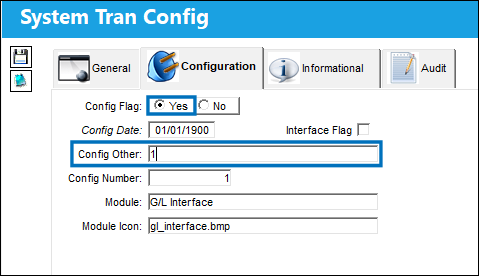
For this Switch to function properly when set to 'Yes', Orders Switch  POGLDFCL must be set to 'No'. When that switch is set to 'Yes', the multi-company G/L will not be linked to the order detail window as required. For more information refer to Switch POGLDFCL via the Orders Switches Manual.
Before utilizing the multi-company functionality it is necessary to assign the correct Company Profile. The multiple airlines sharing the same database will need profiles to differentiate their company transactions. These profiles are created via Settings/Update/Company Profile.
For example, select the New  button to the left of the screen. Enter the second company information then select the Save
  button. The multiple companies will then appear at the bottom of the window.
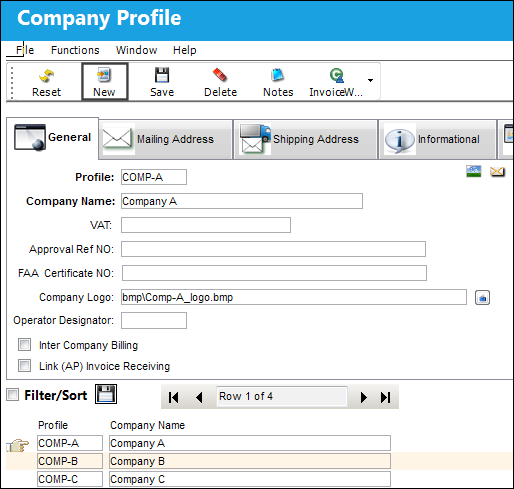
The New button is only available when this switch is set to Yes.
Once the proper Company Profile has been selected, the multi-company functionality can be performed.
For example, select a rotable part via the Part Number Master.
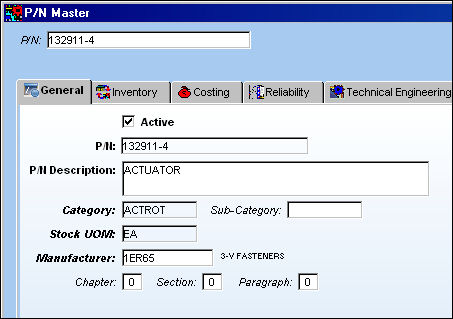
From the Costing tab, enter the G/L Account representing the parent company then save.
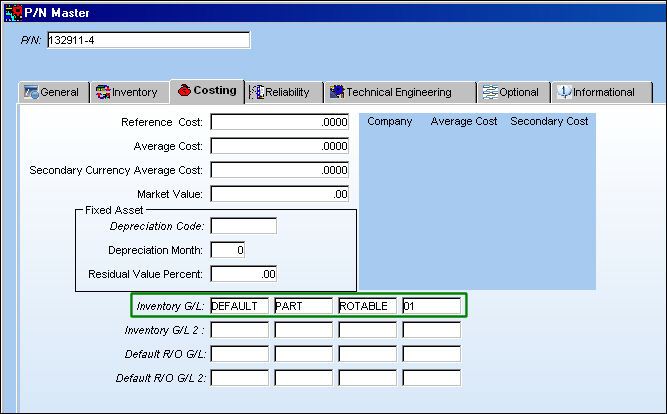
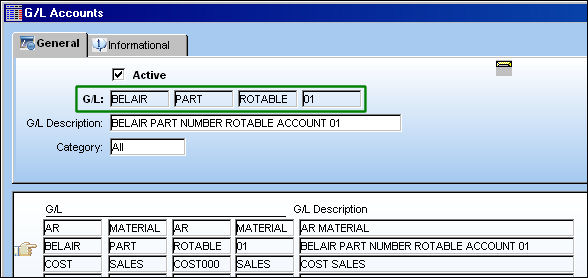
G/L Accounts (as the above) are created via the G/L Interface/Update/G/L Accounts. For more information refer to Creating a New G/L Account via the G/L Interface Manual.
Before proceeding, it is important to create G/L Accounts representing each of the company's airlines as well. The first field of the G/L Account listing should be used as a reference to the company/airline (in this case: 'BELAIR').
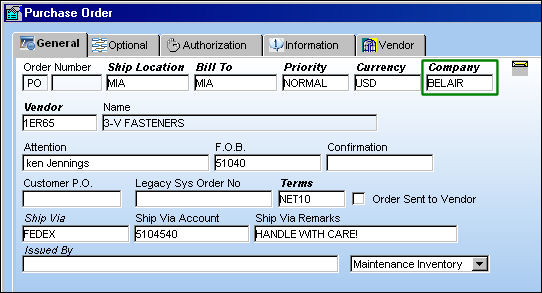
Next, create a Purchase Order for the above P/N.
The Multi-Company functionality applies to all order types that pertain to a parent company's inventoried parts. The Purchase Order type is used in this documentation as an example of the functionality.
From the Purchase Order header window, users will be required to enter the airline that the P/O is being created for into the Company field.
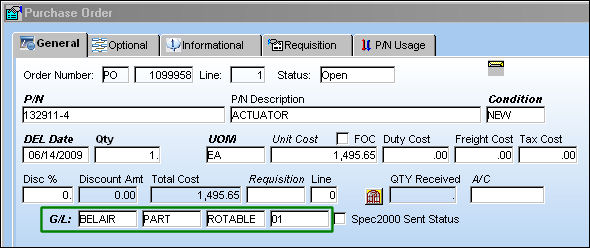
From the Purchase Order detail window, when the Part Number is entered, the G/L field will auto-populate with the previously created G/L Account for the Company listed in the P/O header window (see above note). Enter all required information including the Unit Cost and Quantity then save.
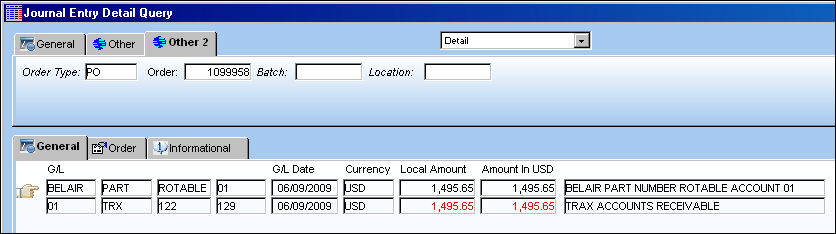
After receiving the part into inventory, notice the adjustments made against the G/L for the Purchase Order via the Journal Entry Detail Query.
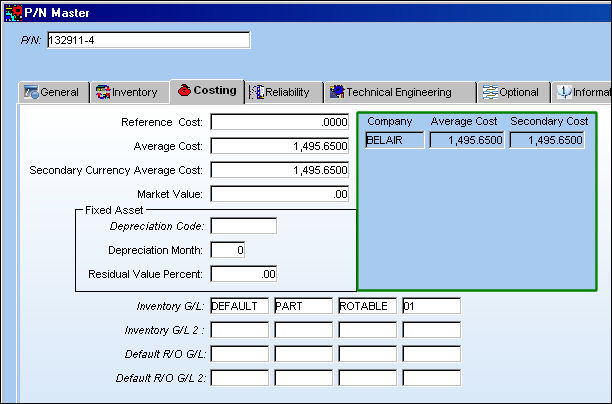
The Costing tab of the P/N Master will now display the transaction. This portion of the Costing tab will display all transactions for the parent company as well as its airlines.
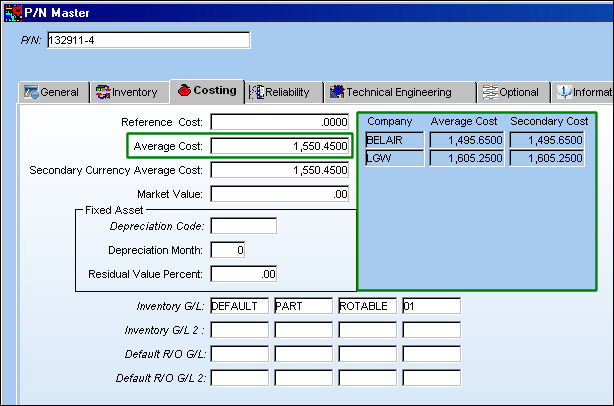
Notice when the same part is purchased and received into inventory for a different airline, the informational field is updated. Note that with each new listing, the Average Cost for the part is also adjusted. For more information refer to the P/N Master, Costing Tab via the Settings Manual.
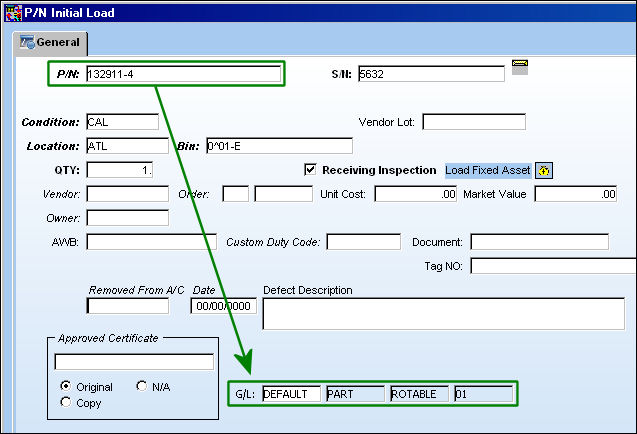
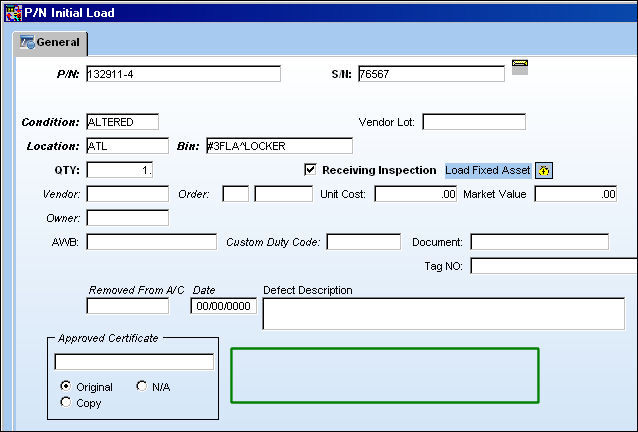
Also, when set to Yes, the P/N Initial Load window will include a G/L field that is auto-populated with the G/L of the entered Part Number. This will help keep track of a company's parts.
Along with the specific functionality explained above, when this switch is set to Yes, Company fields are included in various windows to facilitate searches performed for the Multi-Company functionality. Some examples of windows with Company fields are Receiving Inspection, Inventory Transaction, etc. Due to the amount of search fields added through TRAX, they are not all listed in this documentation but are specified in the documentation for each enhanced window.
Engineering Functionality:
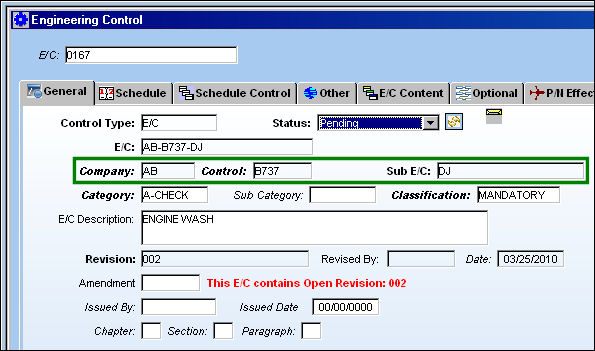
When switch is set to Yes, the Company, Control and Sub fields are activated in the Engineering module in the following windows:
- Engineering Control, General Tab
- Engineering Control Authorization
- Task Card, General Tab
- Task Card Authorization
- Task Card Shop
Once fields have been populated and saved, they become grayed out and the user is no longer able to edit this information.
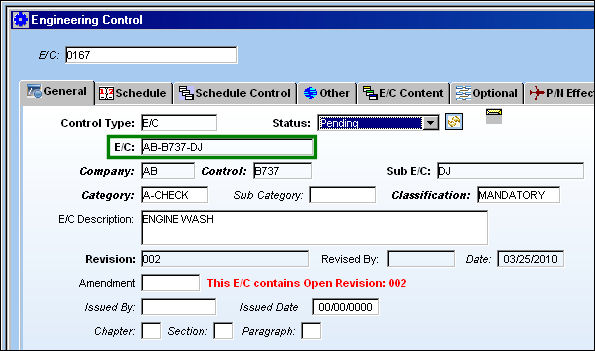
The E/C reference is composed of the combination of the information saved in the Company, Control and Sub fields.
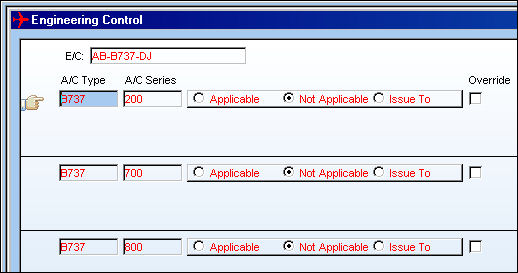
Users are only able to apply effectivity to the Control Series selected in the Control field.
The following Control selected was for a particular Series. Therefore, when the A/C Control  button is selected, the user may only assign effectivity to that Series.
When a Task Card or E/C is copied, the effectivity will always be removed. When a Task Card or E/C is renamed however, effectivity will not be removed.
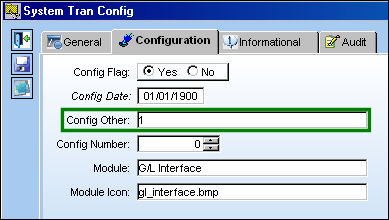
The Config Other field is used to re-sequence the order in which the Company, Control and Sub fields appear in the respective Engineering windows.
Field |
Function |
Config Other |
The value entered in this field will effect the sequence of the Company, Control and Sub fields in the respective windows. Config Other = 1:
Config Other = 2:
Config Other = 3:
|



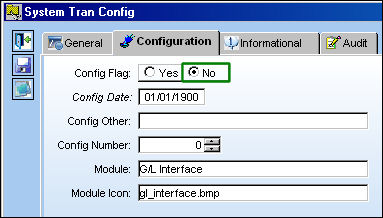
Switch Set to No:
When set to No, financial transactions will not be differentiated between a parent company’s subsidiary airlines.
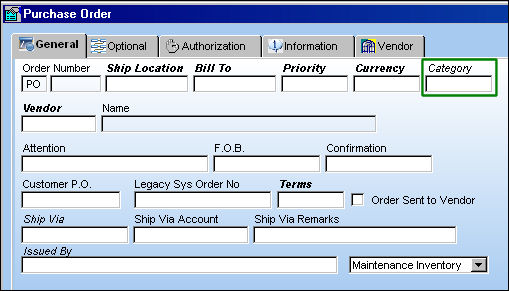
Notice when creating a Purchase Order, users will be allowed to enter the Category code instead of the Company.
For more information on this System Transaction Code, refer to the Order Category via the Orders Transaction Code Manual. From the P/N Initial Load window the G/L field will not appear.
For more information refer to the P/N Initial Load via the Inventory Training Manual.
Share
Print
|
©1997-2026 Trax USA Corp. All rights reserved. This manual may not be copied, photocopied, reproduced, translated, or converted to any electronic or machine-readable form, in whole or in part, without prior written approval from Trax USA Corp. |
 |