
 Share
Share
 Print
Print
|
|
|
|
|


COMPANYMULTIPL - Multi Company For Picklist
Multi Company For Picklist
Affected Window: w_picklist_detail_eu
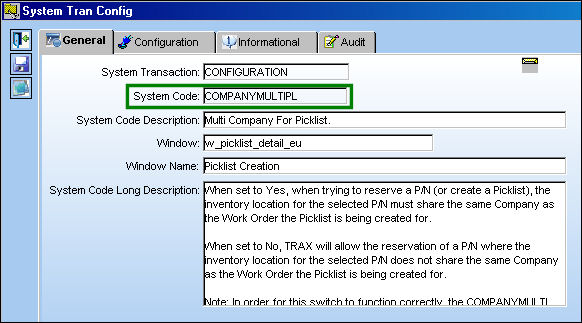
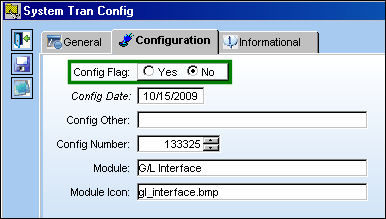
In order for this switch to function correctly, Switch  COMPANYMULTI must be set to Yes.
Any TRAX operator that would like to start using the Multi Company functionality will be required to transition to the eMRO system. Various modifications have been made to the Multi Company functionality in eMRO to streamline the overall business processes and inter-company record keeping. For more information contact your system administrator or support@trax.aero.
Switch Set to Yes:
When set to Yes, when trying to reserve a P/N (or create a Picklist), the inventory location for the selected P/N must share the same Company as the Work Order the Picklist is being created for.
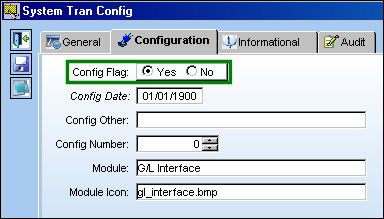
Example 1:
Create a Picklist for a P/N where the inventory location does not share the same Company as the Work Order.
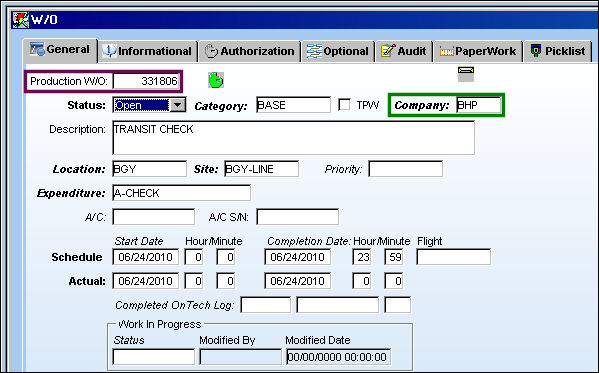
The following Work Order is created with Company BHP.
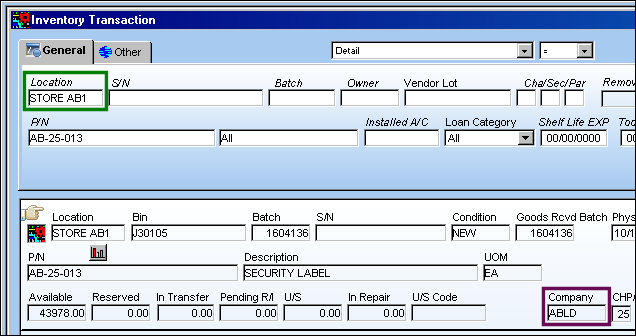
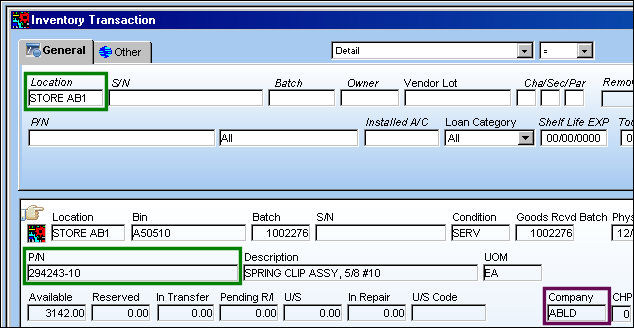
Note the Company for the following Location STORE AB1 is ABLD. This is not the same Company for the selected Work Order.
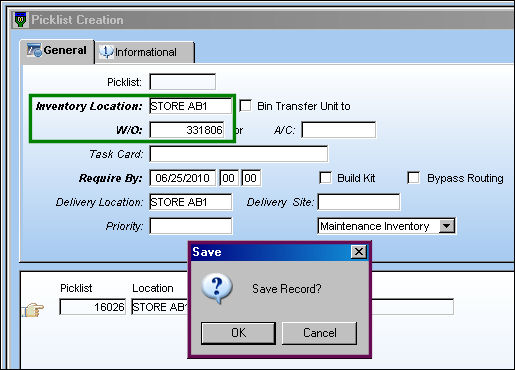
Proceed with the Picklist Creation. Be sure to select the specified Inventory Location to reserve the part. The Save prompt appears. Select 'OK.'
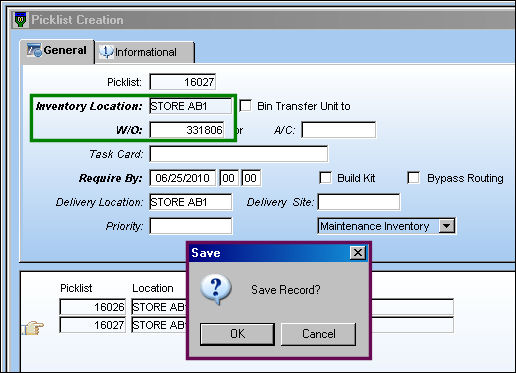
Since there is no inventory for the Work Order company, the transaction cannot be completed. The user receives the following error.
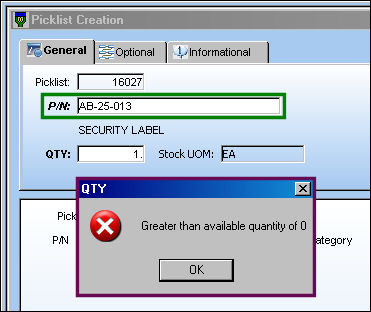
Example 2:
Create a Picklist for a P/N that does share the same Company as the Work Order.
The following Work Order is created with Company ABLD.
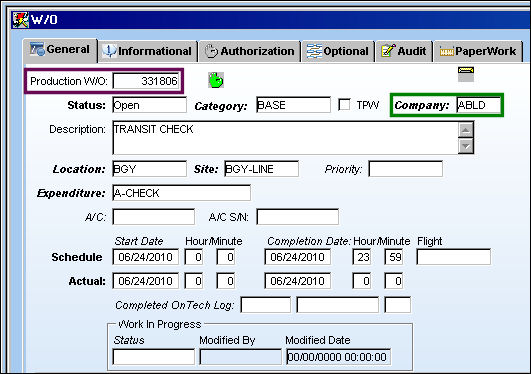
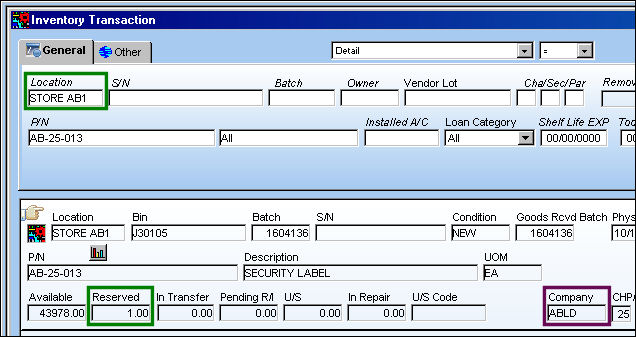
Note the Company for the following Location STORE AB1 is ABLD, which is the same Company for the selected Work Order.
Proceed with the Picklist Creation. Be sure to select the specified Inventory Location to reserve the part. The Save prompt appears. Select 'OK.'
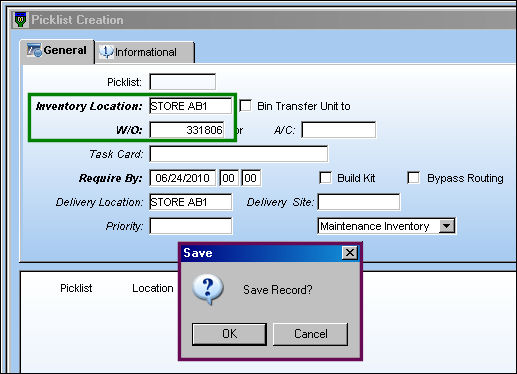
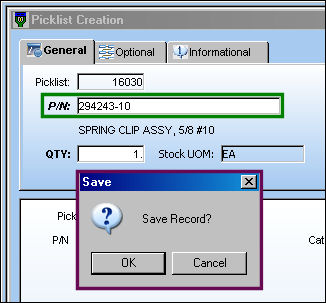
Select the P/N and save the record. The Save prompt appears. Select 'OK.'
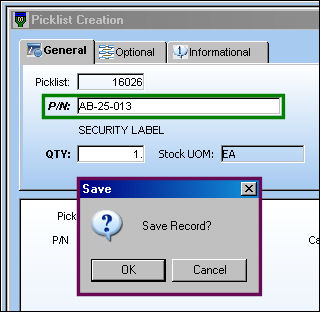
The Picklist is created.
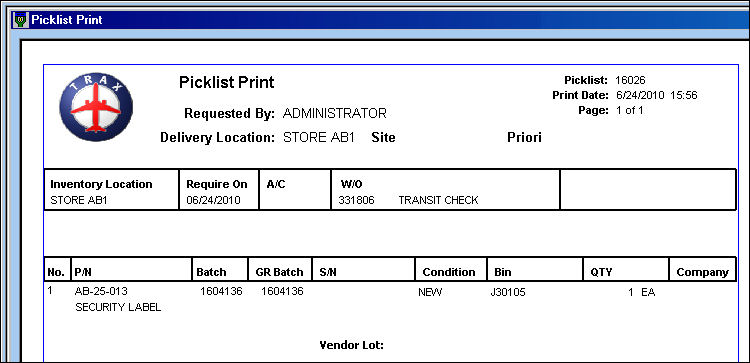
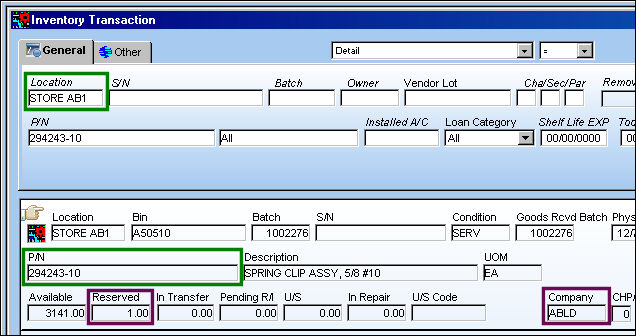
The part is reserved.
Switch Set to No:
When set to No, TRAX will allow the reservation of a P/N where the inventory location for the selected P/N does not share the same Company as the Work Order the Picklist is being created for.
The following Work Order is created with Company BHP.
Note the Company for the following Location STORE AB1 is ABLD. This is not the same Company for the selected Work Order.
Proceed with the Picklist Creation. Be sure to select the specified Inventory Location to reserve the part. The Save prompt appears. Select 'OK.'
Select the P/N and save the record. The Save prompt appears. Select 'OK.'
The part is reserved.
Share
Print
|
©1997-2026 Trax USA Corp. All rights reserved. This manual may not be copied, photocopied, reproduced, translated, or converted to any electronic or machine-readable form, in whole or in part, without prior written approval from Trax USA Corp. |
 |