
 Share
Share
 Print
Print
|
|
|
|
|


COMPANYMULTIRO - Multi Company Override J/E for R/O
Multi Company Override J/E for R/O
Affected Window: w_journal_entries_expenditure_eu
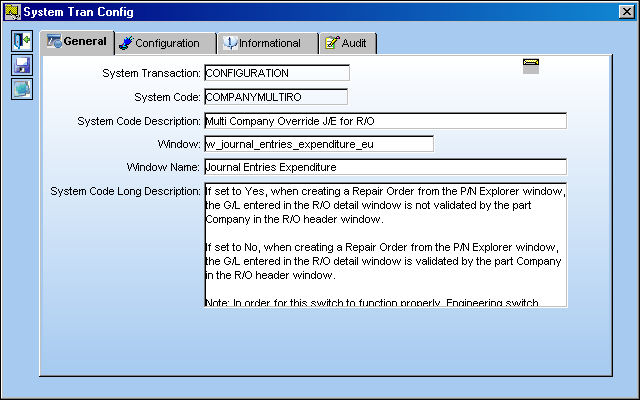
Switch Set to Yes:
If set to Yes, when creating a Repair Order from the P/N Explorer window, the G/L entered in the R/O detail window is not validated by the part Company in the R/O header window.
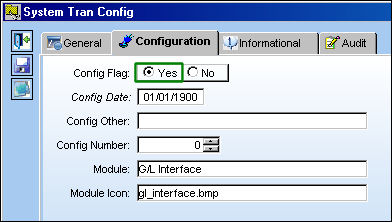
In order for this switch to function properly, Engineering Switch  COMPANYMULTI must be set to Yes. For more information refer to Switch COMPANYMULTI via the Engineering Switches Manual.
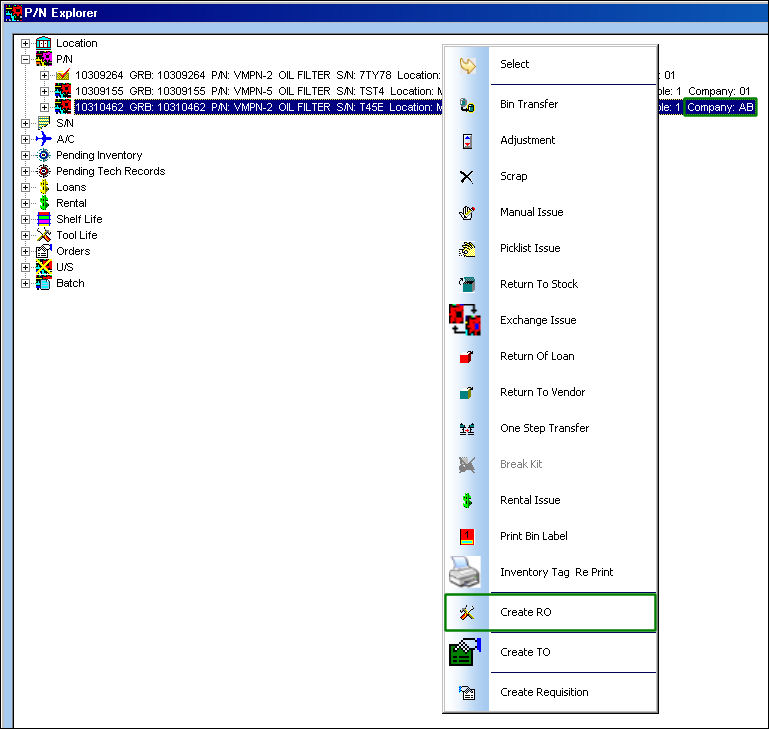
For example, select a part via the P/N Explorer window and notice its Company then right-click over the entry and select the Create R/O  button.
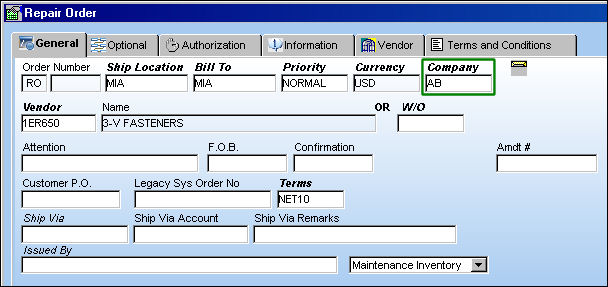
Notice the Company in the R/O header window. Enter all information then save.
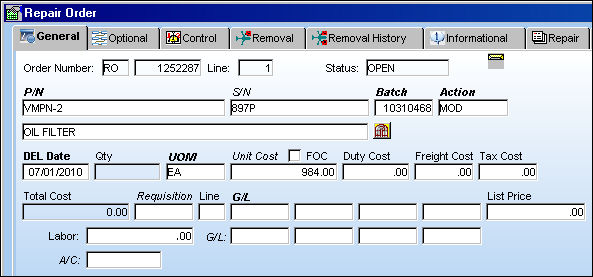
From the R/O detail window, enter all pertinent information. In this example, the G/L field was left blank.
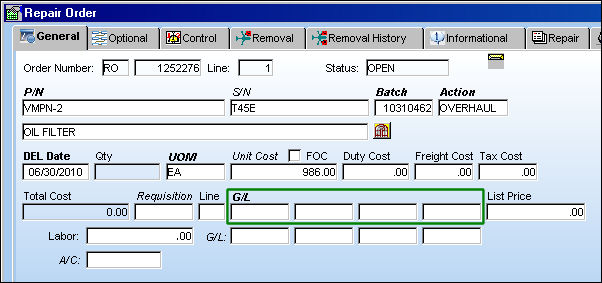
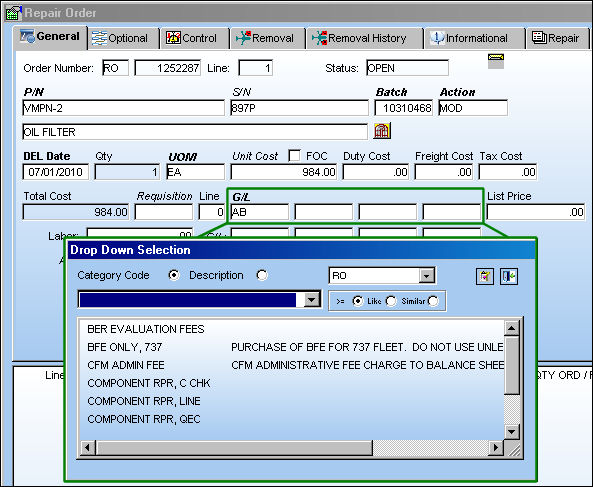
When the window is saved, a Drop Down Selection window pops-up for the user to select a G/L.
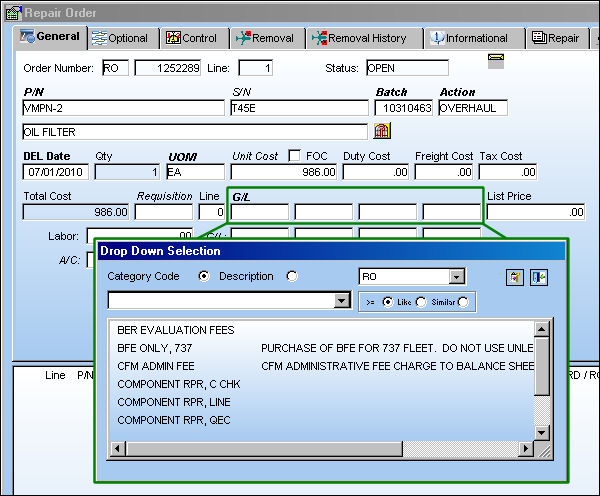
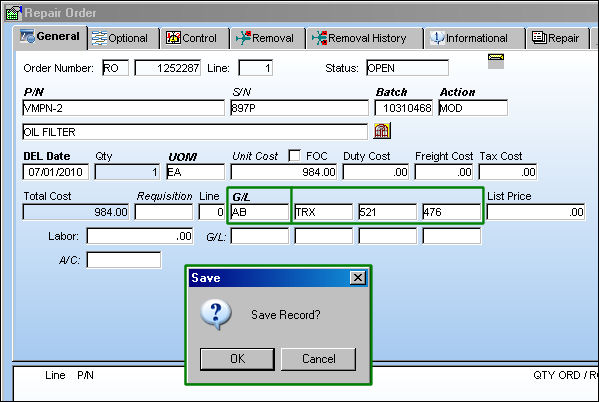
Users can enter any G/L Company. The field is not validated against the part Company in the R/O header window. Notice that the G/L Company (below) is not the same as the part Company.
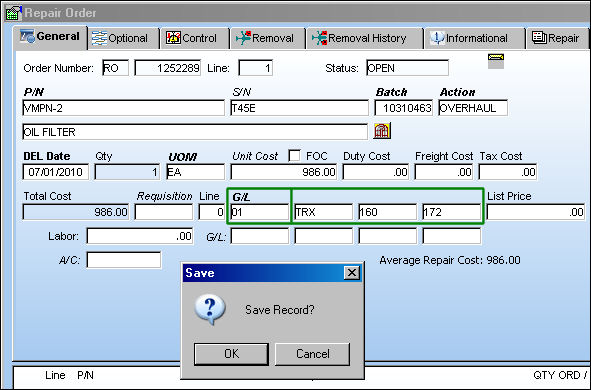
Once saved, release the order for authorization then receive the R/O.
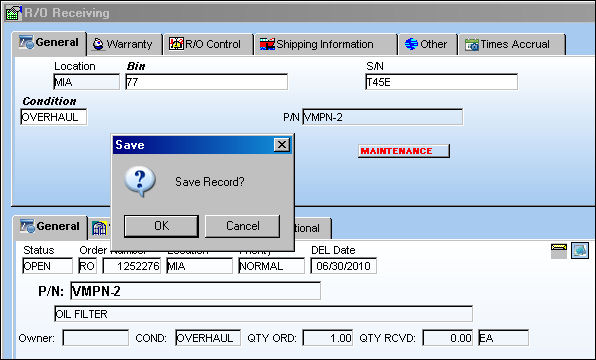
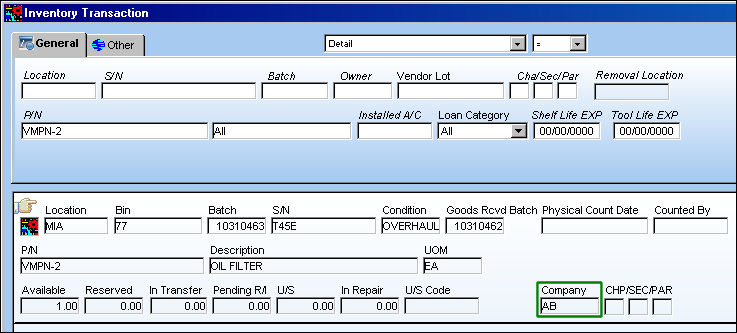
From the Inventory Transaction window, the part contains its original Company information even though the R/O G/L Company is different.
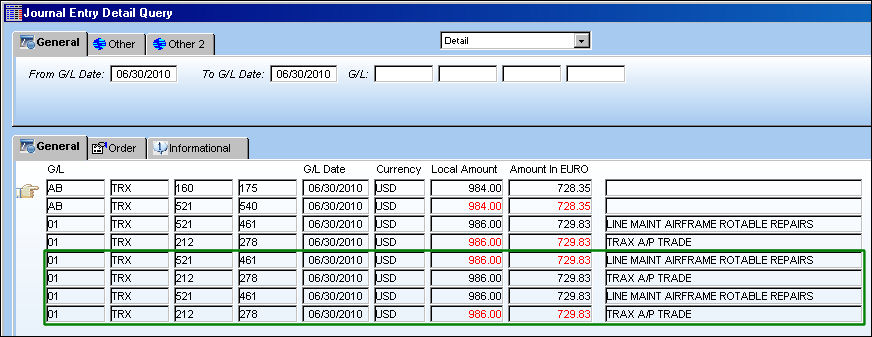
After the R/O Receiving, notice that the Journal Entries for the transaction are represented by the R/O detail's G/L, via the G/L Interface/Query/Journal Entries Query window.
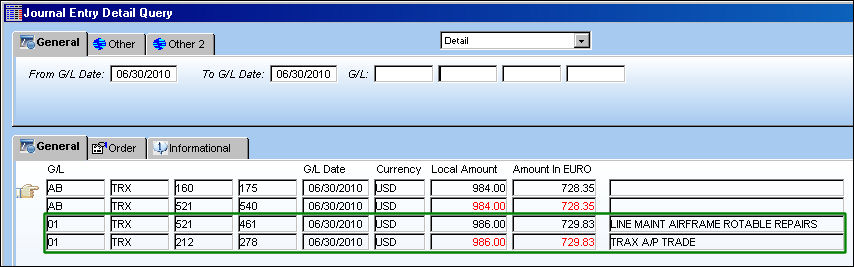
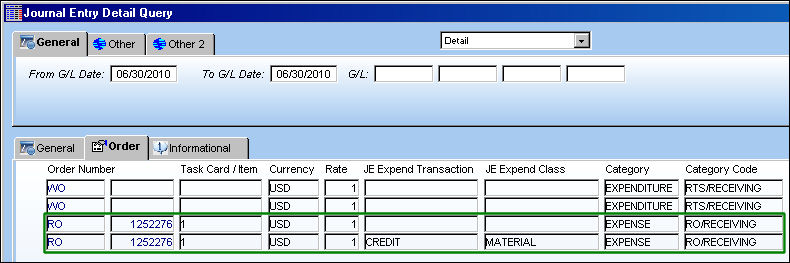
The R/O is then invoiced.
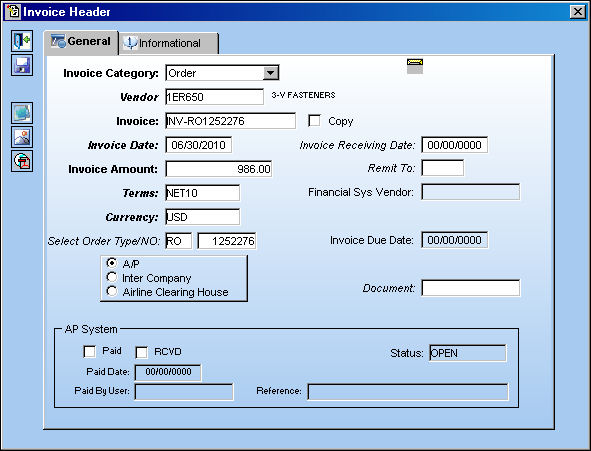
The R/O detail's G/L were invoiced by default.

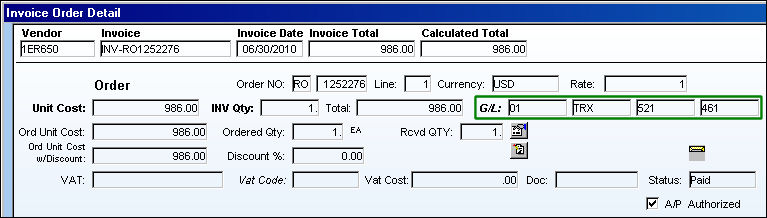
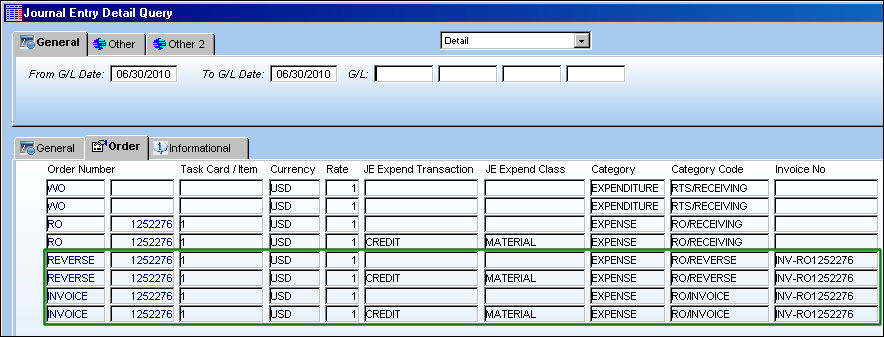
The invoice Journal Entries were then created for the same G/L.
Switch Set to No:
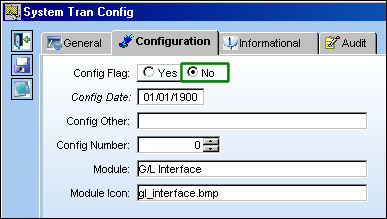
If set to No, when creating a Repair Order from the P/N Explorer window, the G/L entered in the R/O detail window is validated by the part Company in the R/O header window.
For example, select a part via the P/N Explorer window and notice its Company then right-click over the entry and select the Create R/O button.
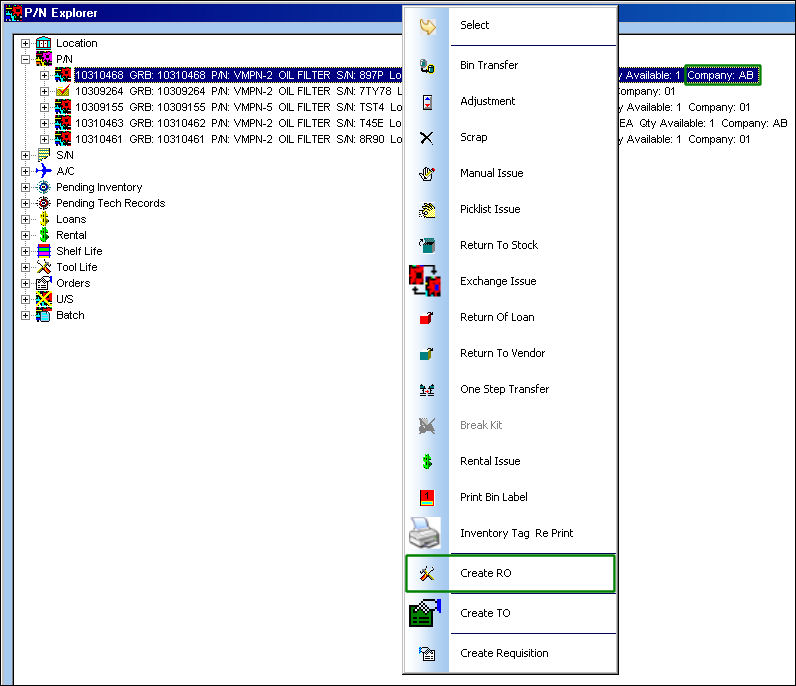
Notice the Company in the R/O header window. Enter all information then save.
From the R/O detail window, enter all pertinent information. In this example, the G/L field was left blank.
When the window is saved, a Drop Down Selection window pops-up for the user to select a G/L.
In this case, the field is validated against the part Company. Users must enter the same G/L Company in the R/O detail window as in the R/O header window. Notice that the G/L Company (below) is the same as the part Company.
When this R/O is received and then invoiced, the same G/L entered in the R/O detail window will be reflected in the newly created Journal Entries.
Share
Print
|
©1997-2026 Trax USA Corp. All rights reserved. This manual may not be copied, photocopied, reproduced, translated, or converted to any electronic or machine-readable form, in whole or in part, without prior written approval from Trax USA Corp. |
 |