
 Share
Share
 Print
Print
|
|
|
|
|


P/N Initial Load
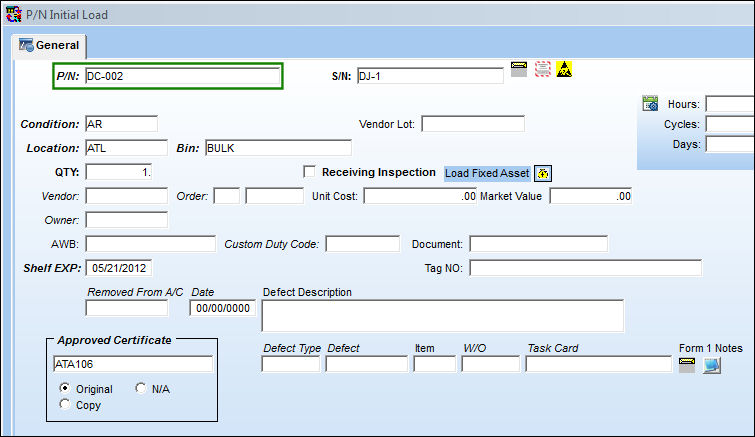
The P/N Initial Load option is used to enter a part that has no prior history within the system. For example, when a part is removed from an older aircraft that was set up in the system, but the individual parts from the aircraft were not set up. This option will also allow you to load parts to inventory from manual records. The part number must be created in the system first (Settings/Update/Part Number Master). Additional information may be required (according to P/N settings), such as time control or lower assembly information.
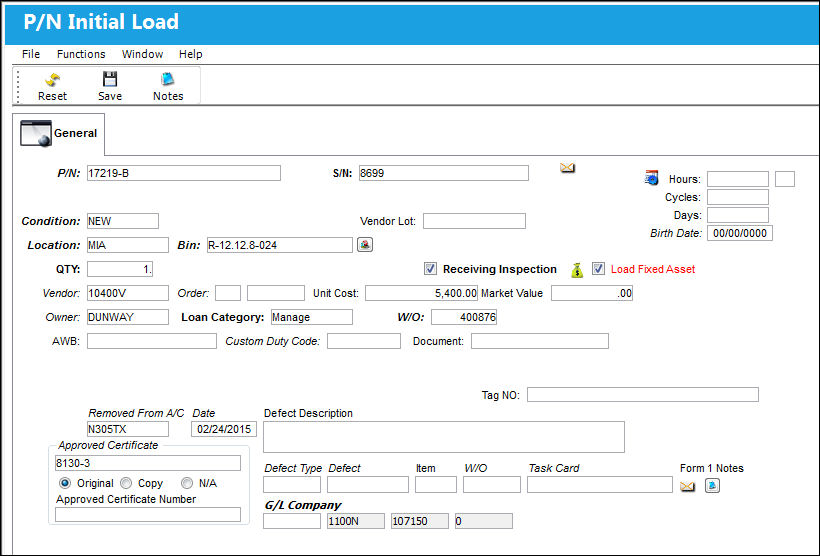
The following information/options are available in this window:
_____________________________________________________________________________________
P/N
The Part Number reference for the aircraft part.
Software parts cannot be loaded onto hardware parts via the P/N Initial Load transaction.
S/N
The Serial Number for the specific serialized part.
Condition
The condition of the part.
Vendor Lot
Vendor batch number of the part entered upon receiving or initial load, as applicable. This field can contain up to 20 characters.
Location
The Location for maintenance events, inventory stores, orders, transactions, or training events.
Bin
The specific storage bin within the inventory location.
Inventory Switch  GREYOUTBINPREF: When set to Yes and the P/N has been set up with preferred bin locations, then the Bin field will be automatically greyed out from the following windows:P/N Initial Load, Bin Transfer, Order Receiving, Return To Stock. When set to No, the Bin field will be available regardless of prior preferred bin locations set up for the P/N.
QTY
The number of parts for the transaction.
U/S Code
Unserviceable Code that applies to the part, to be stored in a quarantine location.
Receiving Inspection checkbox
Check to indicate that Receiving Inspection is required for the part.
Load Fixed Asset checkbox
When initially loading a Serialized or Repairable Part Number into the system using the P/N Initial Load window, select this checkbox to have the system automatically create a Fixed Asset with the same Value as the Initial Load's Unit Cost.
 This button is security controlled via Inventory/Update/P/N Initial Load/ Allow Load of Fixed Asset Value. For more information refer to the Security Explorer.
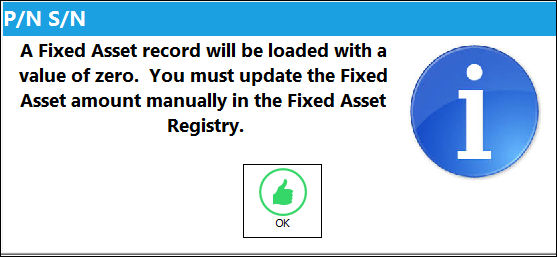
If this button is not selected when Initial Loading a part into inventory, the Fixed Asset will be created with a Value of 0.00; users would then have to go and manually enter a Value amount to the Fixed Asset at a later time. If not selected, the following informational prompt appears after the window is saved:
Vendor
The system code for the service/part provider.
Order
The order number for the part receipt into the system (if applicable).
The Order field is a reference field only used when a part is lost and then later found. The P/N Initial Load window will load that part into the system and reference the original order number for reporting purposes. The Orders field is also used to reference customer PO numbers when managing parts on behalf of other customers.
Unit Cost
The cost of the item when brought into the system, if known. If no value is entered, the value of the part in the Fixed Asset Registry, when applicable, will be set to zero (not the value in the Part Number Master).
If the Unit Cost is null (not entered), Journal Entries will not be created for those P/N Categories which have Actual P/N Costing Methods. Journal Entries will be created for those P/N Categories which have Average P/N Costing Methods.
Market Value
Market value for the part.
Owner
The name of the owner of the part, when applicable. When the Owner field is populated, the Loan Category drop down appears.
Loan Category - Loan Part Category (short, long, consigned, manage or pool).
Pool - Parts belonging to a pool agreement with the vendor.
Consigned - The part is still associated with the specified owner and does not yet belong to your company. Ownership is changed when the part is issued to an aircraft or Work Order. Once initial loaded, from the Inventory Transaction window, this part will be flagged as 'CONSIGNED.' For more information refer to Initial Loading Consigned Inventory. Once the consigned part is issued to an Aircraft, that part will then belong to the your company and Journal Entries will be written at that time (if Inventory Switch CONSINED is set to Yes). A new P/O will be created and closed automatically to capture this transaction. For more information refer to Purchasing and Issuing Consigned Parts (P/Os) via the Inventory Training Manual.

Manage - Maintenance organization manage parts in their inventory that are owned by a particular owner and are to be used only for a particular customer's aircraft.
When the 'Manage' Loan Category is selected, the W/O field appears.
W/O - The Work Order used to categorize, manage, and schedule work requirements for aircraft maintenance. This is the Work Order which generated the order or requires the part being ordered.
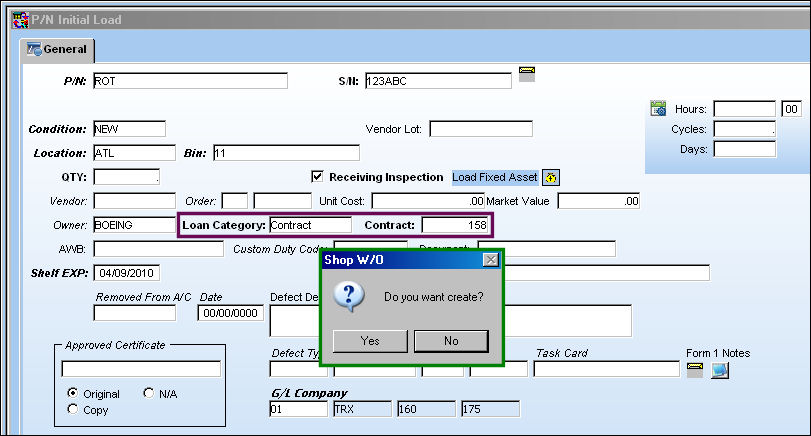
Contract - The Customer Contract associated to the Inventory Owner in the Customer Master, General Tab. When the 'Contract' Loan Category is selected, the Contract field appears:
Contract - The Customer Contract that is linked to the Owner.
The Contract option is designed for operators using the Multi Company functionality.
License Type
The type of license for the P/N. Either unlimited of limited.
Unlimited radio button - When selected, this indicates that there is an unlimited number of licenses available for the part.
Per License radio button - When selected, this indicates that there is a specific number of licenses available for the part, indicated through the Qty field that becomes available.
Qty - The quantity of licenses for the part.
AWB
The airway bill number related to the part.
Custom Duty Code
Any Custom Duty Code related to the part. The codes are created and administered in the Trans Code Custom/Duty in orders.
Document
Document used to verify that the part was accepted by customs.
Shelf Expiration
The shelf life expiration date of the part, as applicable.
The Shelf Expiration field only appears when the Shelf Life checkbox has been selected in the P/N Master, Inventory tab. For additional information, refer to the P/N Master, Inventory tab.
Tool Expiration
The tool life expiration date of the part, as applicable.
The Tool Expiration field only appears if the Tool Calibration checkbox is selected in the P/N Master, Inventory tab. For additional information, refer to the P/N Master, Inventory tab.
Tag No.
The tag number associated with the part.
Removed From A/C
The aircraft that the part was removed from.
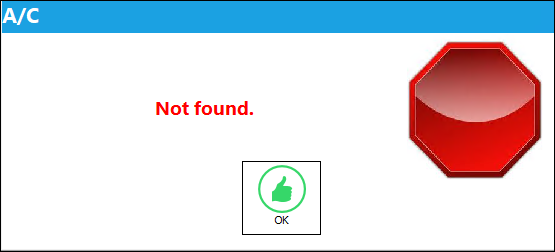
 Note: Entries in this field will be validated. If a user attempts to save the record with an unrecognizable aircraft, the following error message will display.
Date
The date that the part was removed from the aircraft.
Approved Certificate
The type of certificate approving the part (ie. Form 1, EASA etc.). The user may choose from a pre-defined transaction code, or enter the Approval Certificate manually.
Note the below switches:
- RIAPCRMN - (Approved Certificate (field) Mandatory). If set to Yes, the Approved Certificate field will be mandatory in the Receiving Inspection window. If set to No, the Approved Certificate field will not be mandatory in the Receiving Inspection window.
- APCERTVAL - (Approved Certification validation at Order Receiving). If set to Yes, the system will not validate an Approved Certificate in the Order Receiving window that is not registered in the System Transaction Codes. If set to No, the system will validate an Approved Certificate in the Order Receiving window that is not registered in the System Transaction Codes.
Original radio button - Select this radio button to indicate that the certificate is an original.
Copy radio button - Select this radio button to indicate that the certificate is a copy.
N/A radio button - Select this radio button to indicate that the certificate is not available.
Approved Certificate Number 
The Approved Certificate Number. This is a free text field.
Defect Description
The description of the Defect related to the part that was removed from the aircraft. This text will be automatically copied to any Repair Order that is created for the part. The information will be placed in the Defect field of the Removal and Removal History Tabs.
Defect Type
The type of defect found on the aircraft (for example, Pilot Report, MX Report). For additional information, refer to the Defect Type Transaction Code, via the Technical Records Transaction Code Manual.
Defect
The defect number (or log book number).
Item
The defect log item number.
W/O
The Work Order used to categorize, manage, and schedule work requirements for aircraft maintenance.
Task Card
The Task Card / Job Card that details the scheduled maintenance work.
G/L
The General Ledger account(s) reference used for financial control throughout the system. This is auto-populated from the Part Number Master, Costing tab.
This field is only available when G/L Switch COMPANYMULTI is set to Yes.
- COMPANYMULTI - When set to Yes, this switch allows companies that own multiple airlines to use the same database for all subsidized airlines while differentiating the financial impacts made against the G/L for each airline. At the order header level, users will enter the subsidized company/airline into the Company field which will be linked with that company/airline's previously created G/L Account. After completing the transaction, the particular company/airline will be affected through the G/L within the same shared database. When set to No, financial transactions will not be differentiated between a parent company’s subsidized airlines.
Times Accrual Hours/Cycles/Days
Total time accrued against a serialized part.
_____________________________________________________________________________________
If the Unit Cost is null (not entered), Journal Entries will not be created for those P/N Categories which have Actual P/N Costing Methods. Journal Entries will be created for those P/N Categories which have Average P/N Costing Methods.
If the part loaded is an assembly, the P/N Inventory Next Lower Assembly window is displayed. Part Number, Serial Number, NLA position and condition are entered here. Upon saving, TRAX generates the Part Label print.
If the P/N being loaded contains defined P/N Controls, the P/N Inventory Control window appears prompting the user enter the actuals. For additional information, refer to Receiving a Time Controlled Part via the Receiving Training Manual.
The Part Number Category of the kit cannot be loaded using this option. The User can use th Build Kit, Multi Kit, or Rebuild Kit buttons in the Inventory Transaction option.
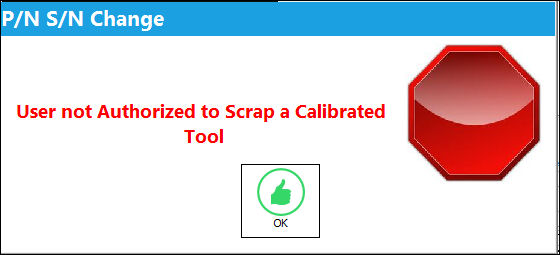
 This feature is security controlled for calibrated tools through the Security Explorer via Inventory/ Update/ P/N Initial Load/ Tool Calibration Control with Switch TOOLCALCONTROL set to Yes. For more information, refer to the Security Explorer via the System Administration Training Manual. Upon attempting to conduct a P/N Initial Load without the necessary security, the following prompt will appear:
Auto Create Shop W/O:
The option to auto create a Shop Work Order from the P/N Initial Load is now available.
Select the Loan Category of Contract and select a Contract. Select the Save  button. The Shop W/O pop-up appears. Select 'Yes'.
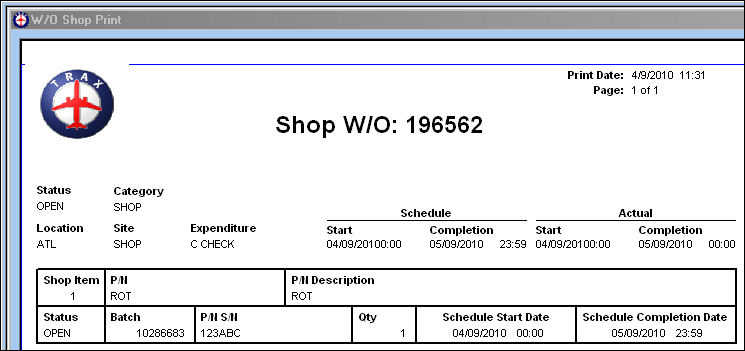
The following Shop W/O is automatically created:
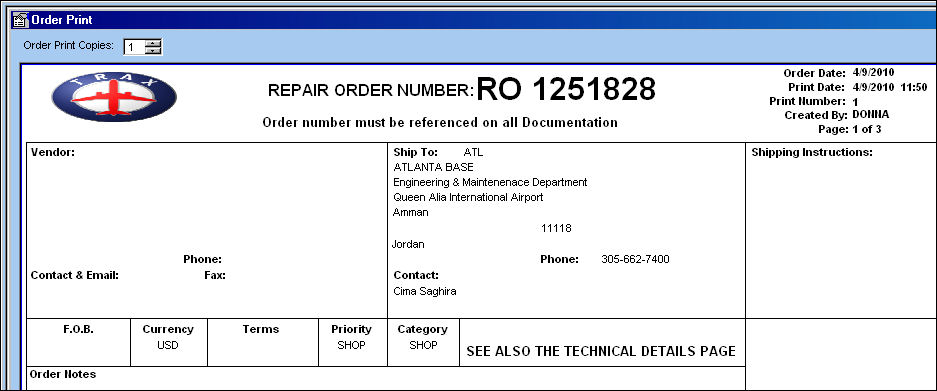
Repair Order 1251828 is created:
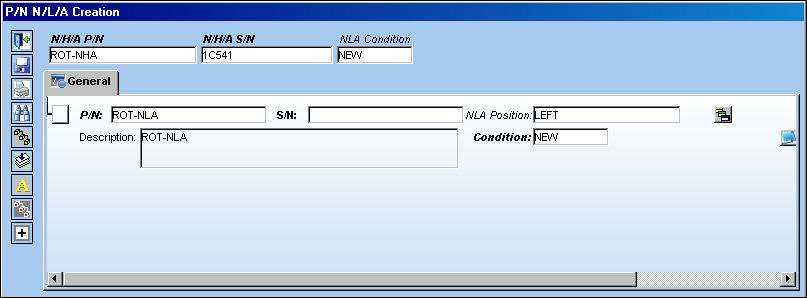
P/N N/L/A Creation:
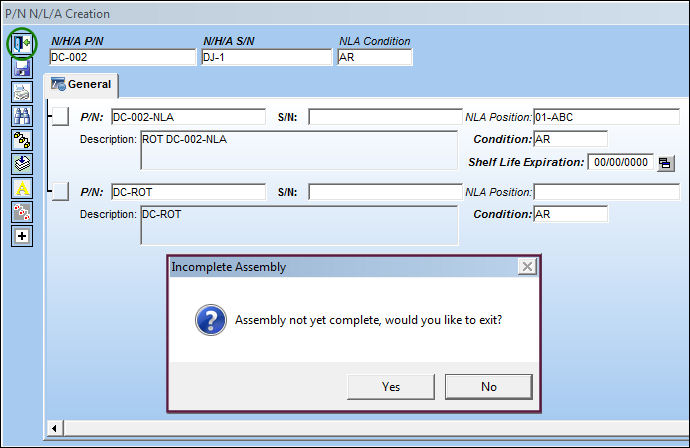
When Initial Loading an N/H/A, the P/N N/L/A Creation window appears instead of the P/N Inventory Next Lower Assembly window. For more information refer to the P/N N/L/A Creation via the Technical Records Training Manual.
 Assembly Not Complete:
The user will receive a soft warning when attempting to Initial Load a P/N before creating the NLA(s) in the P/N N/L/N Creation window.
Exit  without creating the NLAs:
TRAX displays the following soft warning:
If the user selects Yes, the user will be able to create the NHA as an incomplete assembly. If they select No, they will be taken back to the P/N N/L/A Creation window to create the NLAs.
Additional information can be included through the Notes  button.
Share
Print
|
©1997-2026 Trax USA Corp. All rights reserved. This manual may not be copied, photocopied, reproduced, translated, or converted to any electronic or machine-readable form, in whole or in part, without prior written approval from Trax USA Corp. |
 |