
 Share
Share
 Print
Print
|
|
|
|
|


Tray Management - Murata Multifunctional Screen
From the Tray Management window, transactions can be performed from the Picking Stations on parts that were requested/delivered via the MCM interface. Users can select a Tray to be displayed with all of its Bins laid out. At the bottom of the window all of the pending requests from the selected Tray are displayed.
 This window is security-controlled via Inventory/Update/Tray Management. For more information refer to the Security Explorer via the System Administration.
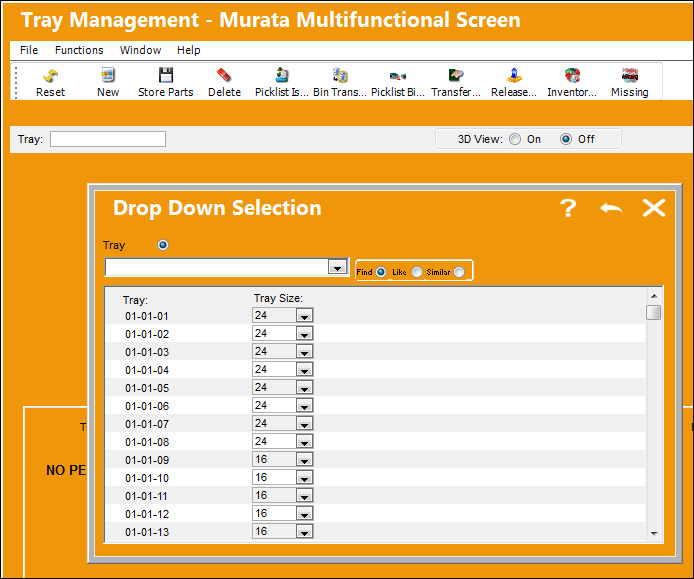
When the Tray Management option is selected via Inventory/Update, the Murata Multifunctional Screen window is opened as follows. Right-click in the Tray window to select a Tray with pending transactions.
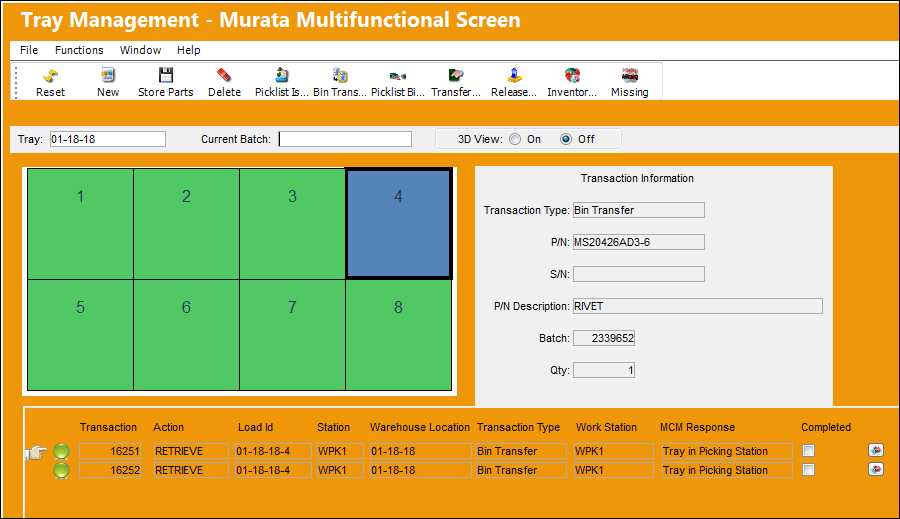
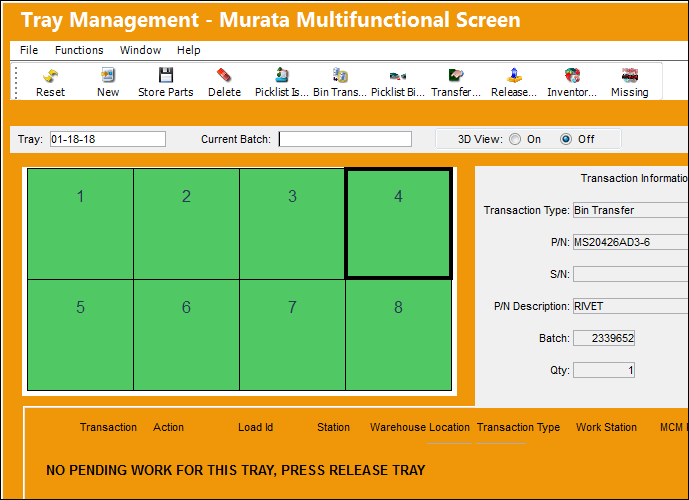
The Tray display appears with all of its Bins listed. The Bin containing the pending Murata request(s) will be highlighted in blue. (Green Bins indicate that the Bin contains a part(s); white Bins indicate that the Bin is empty.) Users can also select the specific Batch requiring attention by entering it into the Current Batch field. (This Batch can be entered in the fields or scanned with a hand-held scanner.) Users can also double-click in any of the Bins to view all of the Batches available in each Bin.
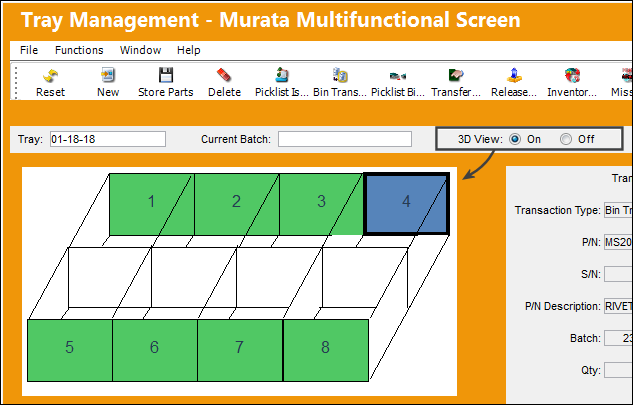
 Additionally, the 3D View radio buttons are available. When set to On, the Tray is displayed in 3D.
The layout of the Tray's Bins depends on the View Mode entered for that Picking Station via the Murata Configuration window. This View Mode depends on the perspective of the Picking Station relative to the conveyor belt. 'Normal View' organizes the Bins from left to right, top to bottom; 'Inverse View' organizes the Bins from right to left, bottom to top. For detailed information refer to the Tray Master Button via the Location Master of the Settings Training Manual.
All pending transactions are listed at the bottom of the window. Most of the listed information for each transaction is also available in the Murata Queue window (refer to that window for more information). When a transaction is selected from the Murata Queue, the Multifunctional Screen appears with the transaction's Tray/Bin highlighted.
Next to each transaction there is a Completed checkbox. Users can manually select this checkbox once the transaction is completed at any point. Otherwise, this checkbox is automatically selected once the transaction is completed.
To the far right of each pending transaction, users can select the Inventory Detail  button to go to the Inventory Detail window for the listed P/N Batch.
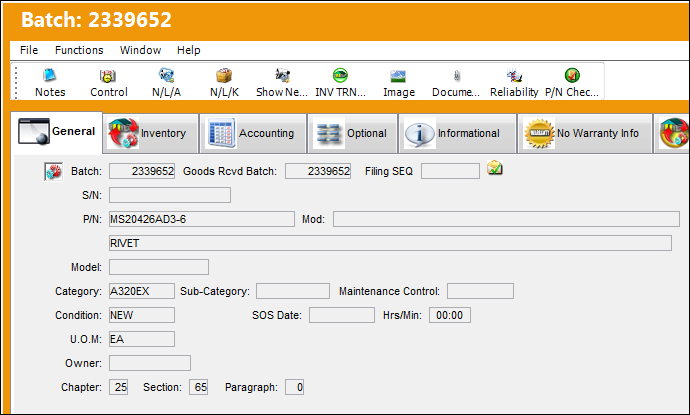
From this window, users can perform the required tasks on the retrieval requests. The work that can be performed is as follows:
From the Murata Multifunctional Screen, once a Tray's transactions have been completed, all transactions for the selected Tray's are removed. The bottom of the window will read: 'No pending Work for this Tray, Press Release Tray.'
At this point, if there is no more work to be performed for the Tray, the Tray can be sent back to the warehouse by selecting the Release Tray  button.
Share
Print
|
©1997-2026 Trax USA Corp. All rights reserved. This manual may not be copied, photocopied, reproduced, translated, or converted to any electronic or machine-readable form, in whole or in part, without prior written approval from Trax USA Corp. |
 |