
 Share
Share
 Print
Print
|
|
|
|
|


Physical Inventory Count
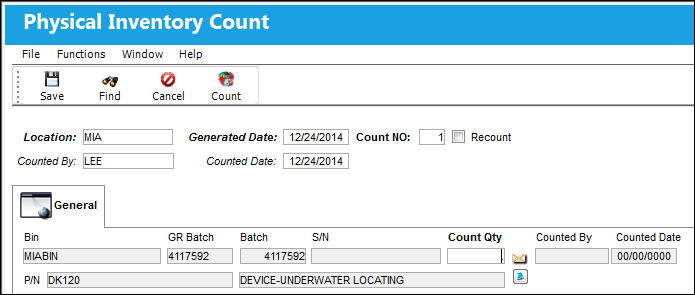
Physical Inventory Count is the tool used to enter the actual part quantities into the system after manually counting the parts.
 Note: When Inventory Switch
  BINTRANPIC is set to Yes, Bin Transfers can be conducted with an Open Physical Inventory Count. A soft warning will notify the user if the P/N has a Physical Inventory Count Open. For more information, refer to the Inventory Switches Module.
The following information/options are available in this window:
_____________________________________________________________________________________
Location
The Location for maintenance events, inventory stores, orders, transactions, or training events.
Generated Date
The date on the Physical Inventory Count print that the count was generated.
Recount checkbox
The Recount Checkbox on the Physical Inventory Count window allows you to re-enter counts for specific items at a later time if required. If checked, once you have entered and saved the quantities via the Physical Inventory Count option, you can later go to the Physical Reconciliation Recount option to re-enter the counts if required.
Counted By
The name of the user who generated the inventory count.
Counted Date
That date the inventory count was generated.
Auto-Populate List  button
Select this button to have the system auto-populate the Count Qty and Counted Date fields.
 The Auto-Populate List button is a customized configuration and may not be available for your company. For additional information consult your TRAX Interface Administrator.
_____________________________________________________________________________________
The Recount checkbox should be checked after the Find  button is clicked and before the Save
  button is clicked.
After populating the fields listed above, select the Find button.
TRAX displays the Physical Inventory Count screen.
The data will appear on the screen in the same order as it appears on the Physical Inventory Count Print.
Enter the quantities that were physically counted into the Count Qty field.
Use the Notes  button to include additional information to any given part.
Users can select the Save button at any time to save the current information.
Once all of the data has been entered and saved, a Physical Inventory Count Print can be printed.
Go to Inventory/Print/Physical Inventory Print (Physical Inventory Print format)
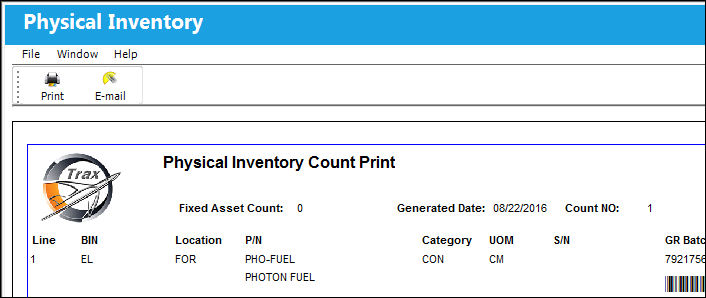
Included in this print are all notes manually added to parts in the Physical Inventory Count window.
The following buttons offer additional functionality:
 Share
Print
Share
Print
|
©1997-2026 Trax USA Corp. All rights reserved. This manual may not be copied, photocopied, reproduced, translated, or converted to any electronic or machine-readable form, in whole or in part, without prior written approval from Trax USA Corp. |
 |