
 Share
Share
 Print
Print
|
|
|
|
|


Inventory Initial Provision Load
The Inventory Initial Provision Load is a program used mainly by new TRAX customers to generate their open status Purchase Order data from the previous system into TRAX. By doing so, the Inventory Initial Provision Load will create Order Headers for each vendor within the import file and create a detail item for each part number required and quantity required in the Purchase Order Detail for receiving. The program will read a tab delimited text file (.txt) and enter the parts into TRAX.
Once a new aircraft has been created, or a new type series, the user can utilize the Initial Provision Load option to load parts into the system that will be needed for maintenance at a later time.
All the part numbers and vendors need to be known in the system before they can be imported.
First, the user must prepare the file. For information regarding how to prepare the import file, refer to Preparing File For Import, via the Import Button of the System Standards Training Manual.
Criteria for Inventory Initial Provision Load Import file:
Only the Part Number, Vendor, Description, Price and Quantity fields are mandatory for this import file. Many of the fields are only required for column positioning during the import, but may remain null. These fields are not imported into the system and may only be relevant to the customer.
Column Name |
Data Type |
Limitation |
Csufi |
Alphanumeric |
30 |
Special |
Alphanumeric |
10 |
Part Number |
Alphanumeric |
35 |
Vendor |
Alphanumeric |
10 |
Spec |
Alphanumeric |
25 |
Description |
Alphanumeric |
35 |
ci |
Alphanumeric |
10 |
Price |
Decimal |
N/A |
Budget |
Alphanumeric |
10 |
cl |
Alphanumeric |
10 |
ms |
Alphanumeric |
10 |
ec |
Alphanumeric |
10 |
spcd |
Alphanumeric |
10 |
mb |
Alphanumeric |
10 |
Store |
Alphanumeric |
10 |
mtbur |
Decimal |
N/A |
hc |
Alphanumeric |
10 |
bfe |
Alphanumeric |
10 |
Minimum |
Alphanumeric |
10 |
qpa_1 |
Number |
N/A |
Quantity 1 |
Number |
N/A |
Fill Rate 1 |
Decimal |
N/A |
qpa_2 |
Number |
N/A |
Quantity 2 |
Number |
N/A |
Fill Rate 2 |
Decimal |
N/A |
qpa_3 |
Number |
N/A |
Quantity 3 |
Number |
N/A |
Fill Rate 3 |
Alphanumeric |
10 |
alc |
Alphanumeric |
10 |
rev_ind |
Alphanumeric |
10 |
Variable |
Alphanumeric |
10 |
Be sure to select the ‘First Line is Header’checkbox  if the first line in your file is not the first data row schema but a header line.
Select the Import  button. The Select File To Import window will appear. Select the file to be imported.
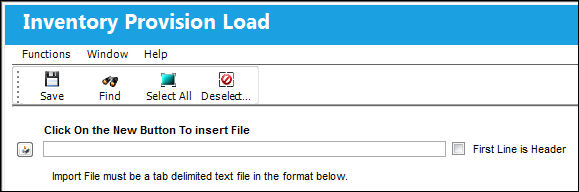
The Select File To Import window appears Select the desired file and select 'Open'.
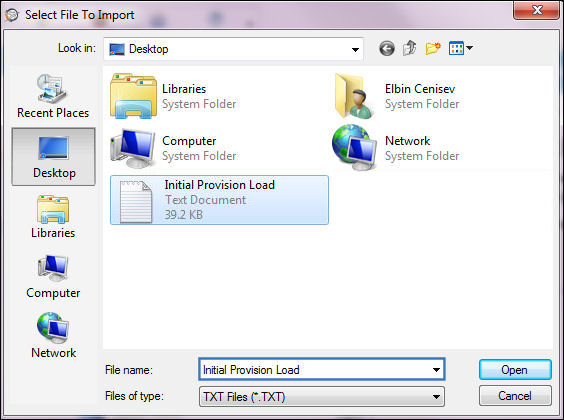
The file appears in the below field. Select the Find  button.
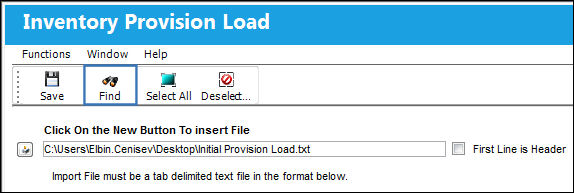
The file is imported as shown below. Select the 'Select checkbox'.
The Qty (Quantity) must be populated in this window.
Select the Save  Button to save the data import.
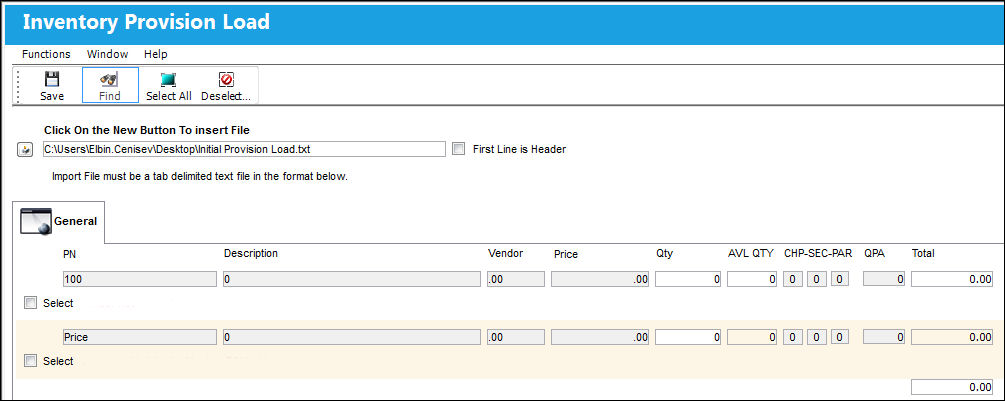
The Inventory Provision Load window will appear. Populate all mandatory information and select the Save button.
 Note: The character limit for the Description field is 35.
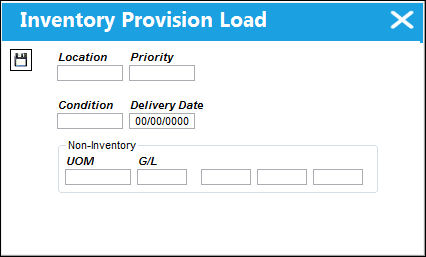
Complete the following fields for the parts to import:
_____________________________________________________________________________________
Location
The Location for maintenance events, inventory stores, orders, transactions, or training events. This is the inventory location where the parts are to be received.
Priority
The priority placed on the transaction (e.g., routine, AOG, etc.). For additional information and functionality, refer to the Priority transaction code via the Orders Transaction Codes.
Condition
The condition of the part.
Delivery Date
The date when the part(s) is/are expected to be received.
UOM
The unit of measure. This will default if associated with a Part Number as defined in the P/N Master. Transactions for parts can be conducted in a different UOM than defined in the P/N Master. However, upon receiving the UOM, conversion will automatically adjust the quantities, providing that the conversion rate is defined in the UOM System Transaction Code (via Setting/Explorer/System Transaction Code).
G/L
The General Ledger account(s) reference used for financial control throughout the system.
_____________________________________________________________________________________
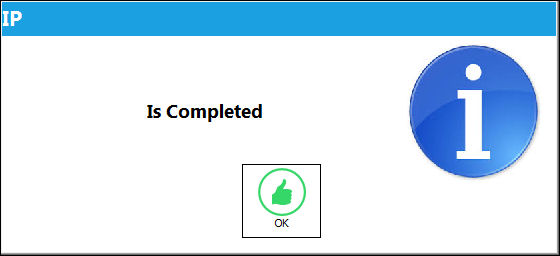
The following IP pop-up will appear to confirm that the import is completed. Select 'OK'.
The Part Number, Vendor and Unit of Measurement need to be known to the system before they can be imported.
Go to Order/Update/Purchase Order
The Purchase Order has been created as shown below.
For additional information regarding how to create a Purchase Order, refer to the Purchase Order, General Tab via the Orders Training Manual.
Share
Print
|
©1997-2026 Trax USA Corp. All rights reserved. This manual may not be copied, photocopied, reproduced, translated, or converted to any electronic or machine-readable form, in whole or in part, without prior written approval from Trax USA Corp. |
 |