
 Share
Share
 Print
Print
|
|
|
|
|


Physical Reconciliation Recount
Once you have performed the Physical Inventory Generation and the Physical Inventory Count, you can continue on to the Physical Reconciliation Recount option (if applicable).
This feature is only available if you checked the Recount Checkbox in the Physical Inventory Count. It allows for a reconciliation count and you can re-enter counts for specific items (if required) via the Physical Reconciliation Recount option.
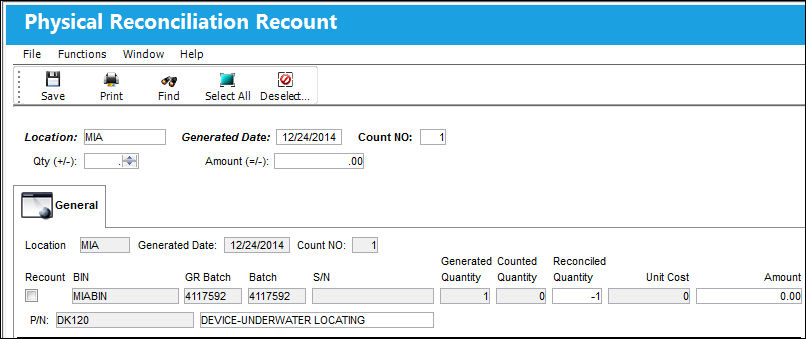
The following information/options are available in this window:
_____________________________________________________________________________________
Location
The Location for maintenance events, inventory stores, orders, transactions, or training events.
Generated Date
The date on the Physical Inventory Count print that the count was generated.
Count NO
Count number.
Qty (+/-)
If you want to find only records that contain a specific count quantity, enter the amount here. Positive and negative values are allowed.
Amount (=/-)
If you want to find only records that contain a specific dollar amount, enter the amount here. Enter an amount to make your search result either equal to or less than a specific dollar amount.
_____________________________________________________________________________________
Click on the Find  button.
Check the checkboxes for the records in this screen that you wish to correct (e.g. the counted quantities). You can individually select records or use the select all buttons. Then click on the Save  button to save all information.
You can now return to the Physical Inventory Count (Inventory/ Update/ Physical Inventory Count) to re-enter the corrected quantities. Notice that only the records that were previously individually selected (via the Physical Reconciliation Recount window) appear for you to re-enter the corrected quantities.
Once the corrected quantities are entered and saved, the Physical Inventory Adjustment option should be run to finalize the process.
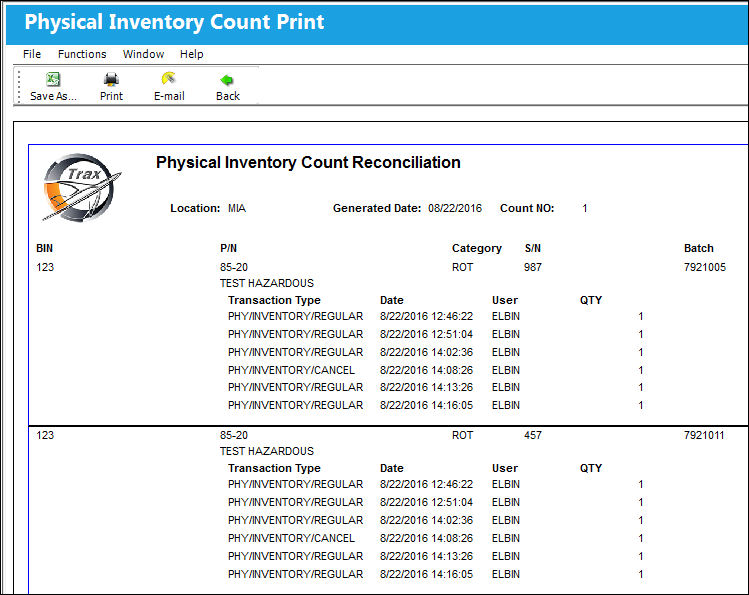
At this point, the reconciliation report can be printed.
Go to Inventory/Print/Physical Inventory Print (Reconciliation format).
This will show the system quantity, the counted quantity, and the reconciled quantity:
If you require entering a Physical Reconciliation Recount, continue on to the Physical Reconciliation Recount option.
If not, continue on to the Physical Inventory Adjustment option.
 Share
Print
Share
Print
|
©1997-2026 Trax USA Corp. All rights reserved. This manual may not be copied, photocopied, reproduced, translated, or converted to any electronic or machine-readable form, in whole or in part, without prior written approval from Trax USA Corp. |
 |