
 Share
Share
 Print
Print
|
|
|
|
|


World Part Locator
Through TRAX's World Part Locator, TRAX operators can connect seamlessly to a global marketplace of part suppliers through a business-to-business interfacing system.
For TRAX operators, the WPL marketplace is built directly into the TRAX application for efficient, reliable access. The marketplace lets operators compare part suppliers for each part they need by providing key vendor information, such as price, lead time, availability, and overall vendor performance ratings. Built-in interfacing connects TRAX operators to the best vendors for each situation in real time, thereby avoiding guesswork and maximizing the customer experience.
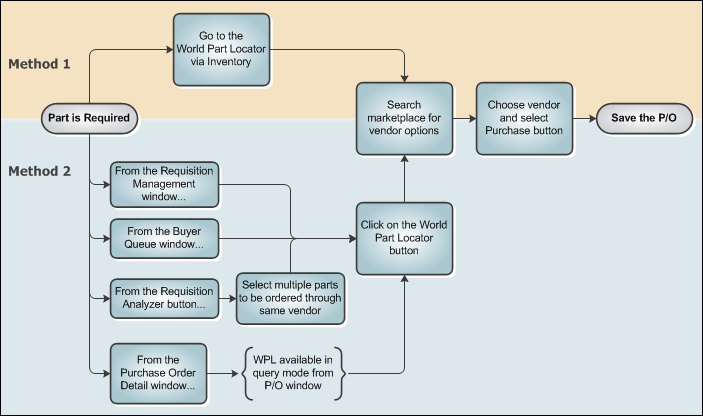
The World Part Locator can be accessed in the application through two methods:
- Method 1: Directly through the World Part Locator window via Inventory. See below.
- Method 2: Through the WPL buttons located in various windows, such as Requisition Management, the Buyer Queue, Requisition Analyzer, and Purchase Order Detail (in query mode).
The World Part Locator system is also available for TRAX operators to sell their own surplus inventory to other TRAX operators through the WPL marketplace. For detailed information on this aspect of the WPL, refer to the Surplus Sales functionality in Customer Orders.
When accessed from Inventory, the World Part Locator appears as follows. The fields at the top of the window help users search for the parts they need at the location they're needed (filters and sorting options can be selected to optimize the search results). The marketplace's results can be seen at the lower portion of the window.
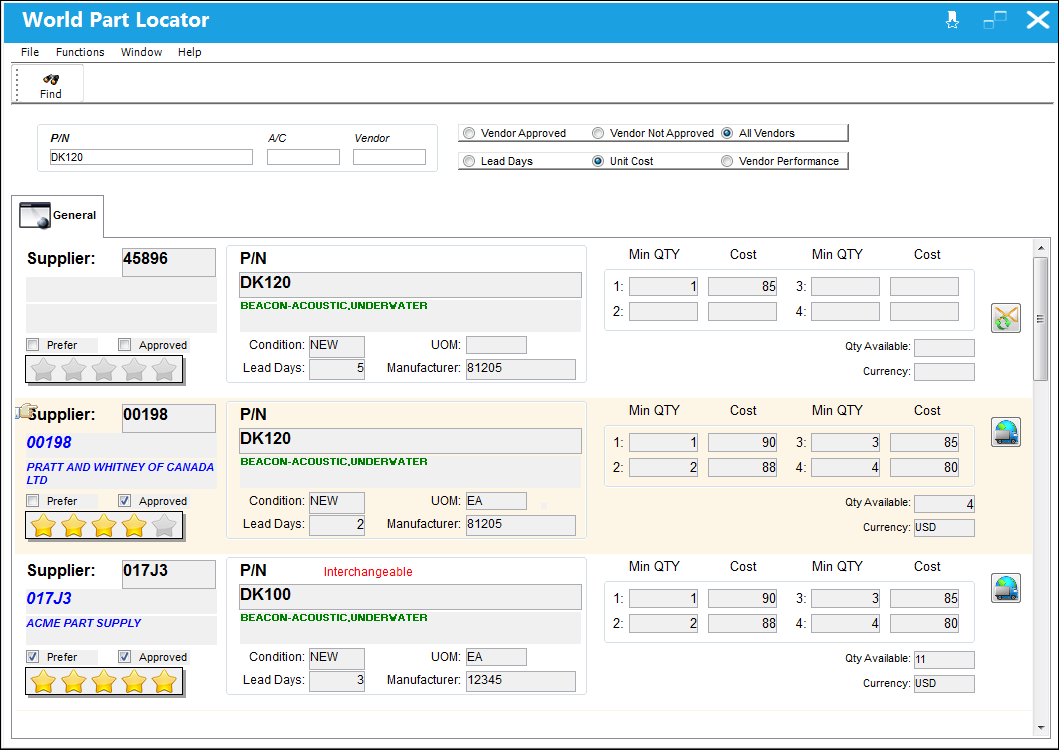
Once a selection is made, click the Purchase button  to create a Purchase Order for the part.
Search Section:
The following search fields and filters are available at the top of the window. Click the Find  button to get the results.
_____________________________________________________________________________________
P/N
The Part Number reference for the aircraft part. The results will show all vendors that have this part available for purchase. This field is mandatory.
A/C
The individual aircraft tail number. The results will only show main and interchangeable parts that are effective to the aircraft entered in this field.
Vendor
The system code for the service/part provider.
Filter radio buttons
Users can filter the results for the following vendor specifications:
Vendor Approved - When selected, only those vendors that have a record in the Vendor Master in 'Active' status and marked as a 'Supplier' will be displayed in the results section. For more information refer to WPL Vendor Configurations.
Vendor Not Approved - When selected, only those vendors that either do not exist in the Vendor Master, are not Active in the Vendor Master, and/or are not marked as 'Supplier' will be displayed in the results section. See above radio button.
Note: Unapproved Vendors will contain the Request Vendor Approval button in the results section. Once selected, a system notification is sent to the necessary user to add the vendor to the Vendor Master and designate them as an 'Active' vendor. See below.
All Vendors - When selected, all vendors with the required parts for sale will be displayed in the results, regardless of their Vendor Master status. See Vendor Approved radio button.
Sort radio buttons
Users can sort the results through the following fields:
Lead Days - Sorts the results by the lowest amount of Lead Days (the number of days specified by the vendor between the part's purchase date and the delivery date).
Unit Cost - Sorts the results by the lowest Unit Cost for the required part.
Vendor Performance - Sorts the results by the highest vendor performance ratings. See the Vendor Performance Ratings below.
_____________________________________________________________________________________
Results Section:
The results from the marketplace contain the following information for each part/vendor.
_____________________________________________________________________________________
Supplier Information
This section provides useful information on the vendor providing the part on the WPL.
Cage Code - The Commercial and Government Entity (CAGE) standardized supplier code. This is a government-issued, five character code used to identify suppliers/vendors for each of their unique locations.
Vendor Code - The system code for the service/part provider.
Vendor Name - The official company name of the Vendor.
Prefer checkbox - Indicates that this is the preferred Vendor for this P/N and Condition. Preferred vendors are added to P/Ns through the Cost Button of the P/N Master. Each part and condition could have multiple preferred vendors.
Approved checkbox - Indicates that the vendor exists in the Vendor Master and has an 'Active' status. The results in the WPL can be filtered to only display approved vendors by selecting the 'Vendor Approved' radio button at the top of the window (see above).
Note: If a Vendor is not approved, the Request Vendor Approval  button is available to the right of the window. Once selected, a system notification is sent to the necessary user to add the vendor to the Vendor Master and designate them as an 'Active' vendor. See below.
Star Rating - Indicates the vendor's performance. This information comes from the Vendor Performance button of the Vendor Master. TRAX compiles data points for each vendor to chart their month-by-month performance. These data points track delivery lead times (from order placement to order receipt) and overall vendor accuracy. For more information refer to the Vendor Performance Button and the Vendor Performance transaction code.
Note: Only Vendors that have this data history in the system will have star ratings in the WPL. Vendors that are not approved (see above) will not have a star rating.
P/N Information
This section provides information regarding the part being sold.
P/N - The Part Number reference for the aircraft part.This is the part being sold by the vendor.
Interchangeable text - If this part is an interchangeable of the P/N searched for in the top of this window, the word 'Interchangeable' will appear in red.
Description - The description of the part.
Condition - The condition of the part available for purchase (e.g., New, Overhauled, etc.).
UOM - The Unit of Measurement for the part.
Lead Days - The number of days specified by the vendor between the part's purchase date and the delivery date.
Manufacture - The manufacturer of this part.
Min QTY / Cost section
This section allows vendors to specify different pricing options depending on the quantity being bought. This creates an incentive for the customer to purchase a greater quantity. (For example, the unit cost for '1' part may be '15.00'. But as an incentive to purchase a larger quantity, the cost of buying '3' parts can be '13.00' instead of '15.00'.)
Min QTY 1 - The minimum quantity required to be purchased in order for Cost 1 to be in effect.
Cost 1 - The unit cost for the part when Min Quantity 1 is purchased.
Min QTY 2 - The minimum quantity required to be purchased in order for Cost 2 to be in effect.
Cost 2 - The unit cost for the part when Min Quantity 2 is purchased.
Min QTY 3 - The minimum quantity required to be purchased in order for Cost 3 to be in effect.
Cost 3 - The unit cost for the part when Min Quantity 3 is purchased.
Min QTY 4 - The minimum quantity required to be purchased in order for Cost 4 to be in effect.
Cost 4 - The unit cost for the part when Min Quantity 4 is purchased.
Qty Available
The quantity available for purchase from this vendor in this condition.
Currency
The currency for the part being sold.
Purchase button
Select this button to create a Purchase Order for this part. When selected, a window pops up with most of the information auto-populated from the WPL entry, including the Vendor, P/N, Unit Cost, Currency, Terms, Condition, Delivery Date, etc. This pop-up window includes the same basic functionality as found in the Purchase Order window, including the header and detail information. For detailed information, refer to the Purchase Button, via World Part Locator.
Request Vendor Approval button
The Request Vendor Approval button is only available for Vendors that either do not exist in the Vendor Master, have a Vendor Master record that is not in 'Active' status, or have a Vendor Master record that is not registered as a 'Supplier'. Because purchases can only be made from Active status suppliers, when this button is selected, a system notification is sent to the necessary personnel requesting that the vendor be added to and/or made Active in the Vendor Master. The System Notification is called 'VENDOR APPROVAL REQUEST NOTIFICATION'. For information on how to configure a system notification, refer to the System Notification window.
_____________________________________________________________________________________
This update window is also available in query mode where users can view the records provided in this window but cannot create new records or edit existing data. Refer to this module's Query menu.
Share
Print
|
©1997-2026 Trax USA Corp. All rights reserved. This manual may not be copied, photocopied, reproduced, translated, or converted to any electronic or machine-readable form, in whole or in part, without prior written approval from Trax USA Corp. |
 |