
 Share
Share
 Print
Print
|
|
|
|
|


Purchase Button, via World Part Locator

Select this button to create a Purchase Order for this part. When selected, a window pops up with most of the information auto-populated from the WPL entry, including the Vendor, P/N, Unit Cost, Currency, Terms, Condition, Delivery Date, etc. This pop-up window includes the same basic functionality as found in the Purchase Order window, including the header and detail information.
Select the Purchase  button to access the World Part Locator Purchase Order pop-up window.
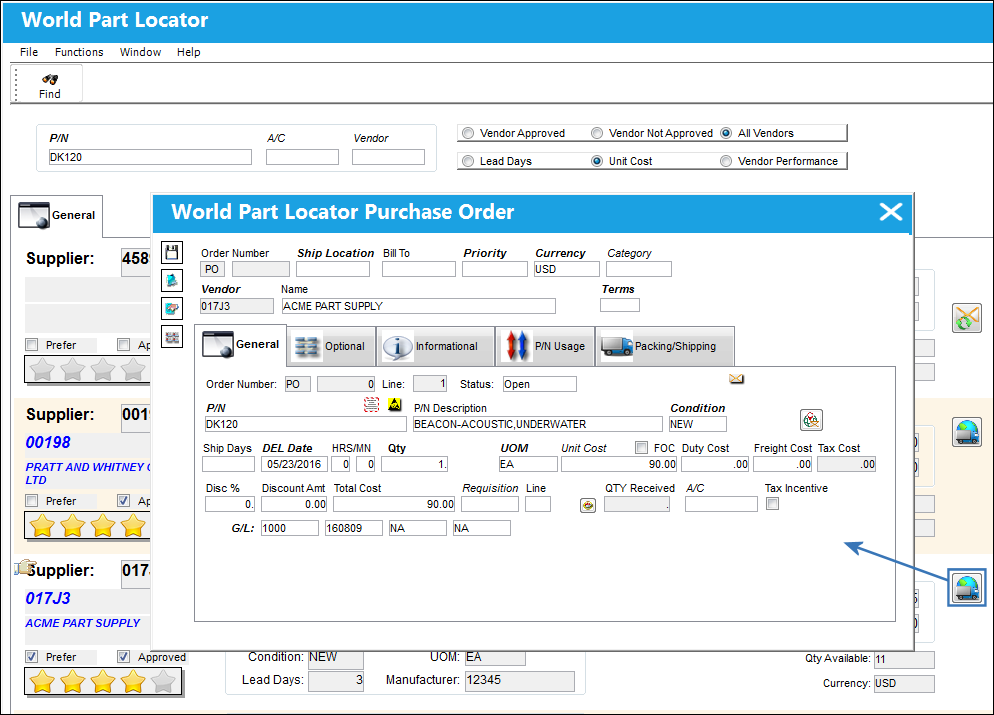
Enter the remaining details in the P/O's header and detail sections then save the order.
When the Vendor is not approved, the Purchase button is not available. Instead, the Request Vendor Approval  button is available. The Request Vendor Approval button is only available for Vendors that either do not exist in the Vendor Master, have a Vendor Master record that is not in 'Active' status, or have a Vendor Master record that is not registered as a 'Supplier'. Because purchases can only be made from Active status suppliers, when this button is selected, a system notification is sent to the necessary personnel requesting that the vendor be added to and/or made Active in the Vendor Master. The System Notification is called 'VENDOR APPROVAL REQUEST NOTIFICATION'. For information on how to configure a system notification, refer to the System Notification window.
Once the window is saved, an order number is generated for the P/O. The P/O is subject to the same authorization and receiving functionality as found in the main Purchase Order functionality.
- Select the P/O Header
 button to access the order's header window with all of the header level tabs and fields.
 - Select the Order Detail Notes
 button to add or view notes against the order detail.
 - Select the World Part Locator Messages
 button to view interface messages sent between TRAX and the World Part Locator.
For information on all of the fields included in the World Part Locator Purchase Order window, refer to Purchase Orders via the Orders module.
As WPL Orders are processed, the Messages button is available via the P/O and the Invoice (Link module):
Share
Print
|
©1997-2026 Trax USA Corp. All rights reserved. This manual may not be copied, photocopied, reproduced, translated, or converted to any electronic or machine-readable form, in whole or in part, without prior written approval from Trax USA Corp. |
 |