
 Share
Share
 Print
Print
|
|
|
|
|


Physical Inventory Adjustment
After performing the Physical Inventory Generation, the Physical Inventory Count, and the Physical Reconciliation Recount (if applicable), it is required that you run the Physical Inventory Adjustment option to have the system update the records and accept the counted quantities.
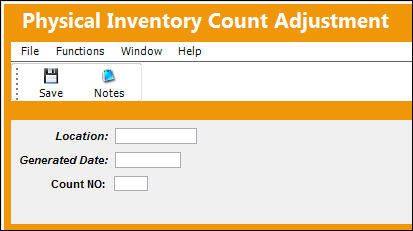
The following information/options are available in this window:
_____________________________________________________________________________________
Location
The Location for maintenance events, inventory stores, orders, transactions, or training events.
Generated Date
The date on the Physical Inventory Count print that the count was generated.
Count NO
Number of the inventory count.
_____________________________________________________________________________________
Do not save/perform this step more than once! If this step is saved more than once, counts will be adjusted again based on the previously entered count information (i.e. amounts will be doubled). Having completed the Physical Inventory generation setup, do NOT run the Physical Inventory adjustment without entering the Physical Inventory counts because TRAX will automatically set all non-serialized items to zero.
Go to Inventory/Update/Physical Inventory Adjustment.
The system will automatically adjust the quantity of all items and print a report of all the serialized items that had differences. If there are discrepancies present, you must investigate and then use your organization’s protocol (ex. scrap or issue) for the parts to make the adjustment.
The history and financial records will be written when the Physical Inventory Adjustment is run. The item counted will have the count date on it in the Inventory Transaction History detail window and the Bin master will show the count date too. If you wish to re-print the report in the future, use the Inventory/Print/Physical Inventory Print (Adjustment format).
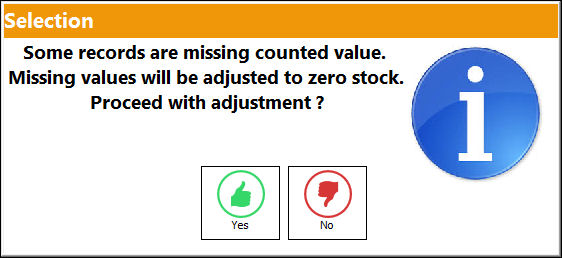
The following prompt will display if inventory counts were not entered or are missing during the Physical Inventory Count process. If the missing counts for the specified location are not fixed, the system will adjust the missing values to zero.
Additional information relevant to the record can be included through the Notes  button.
 Share
Print
Share
Print
|
©1997-2026 Trax USA Corp. All rights reserved. This manual may not be copied, photocopied, reproduced, translated, or converted to any electronic or machine-readable form, in whole or in part, without prior written approval from Trax USA Corp. |
 |