
 Share
Share
 Print
Print
|
|
|
|
|


Inventory Bogus P/N
The Bogus P/N option is used to enter those Part and Serial Number combinations that the inventory or inspection department(s) has found to be bogus. Bogus parts can be, for example, stolen part numbers, or parts that have been recognized as unreliable (high number of unscheduled removals due to failures).
TRAX displays the following screen:
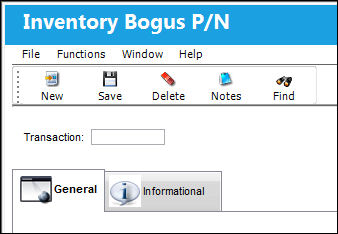
Enter the Transaction Number for the Part Number and click on the Find  button.
TRAX will display any Bogus Part Numbers that are related to the entered Transaction Number.
To enter a new Bogus Part Number, click on the New  button.
TRAX displays the following screen:
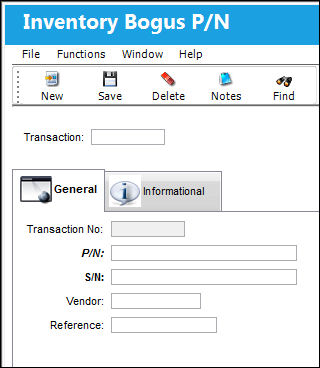
The following information/options are available in this window:
_____________________________________________________________________________________
Transaction No
An automatically generated reference number that is assigned to the part number being entered upon save. This transaction number is pulling from P/N Inventory History Next Sequence Number configuration.
P/N
The Part Number reference for the aircraft part.
S/N
The Serial Number for the specific serialized part.
Vendor
The system code for the service/part provider.
Reference
The reference number for the transaction.
_____________________________________________________________________________________
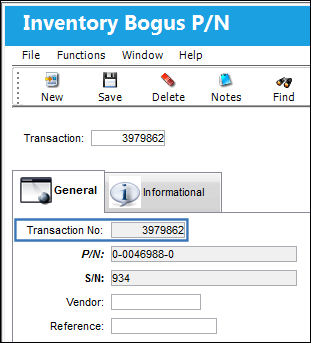
Click on the Save  Button to save all information. TRAX redisplays the screen as follows with a system-generated Transaction No:
Once the record is created in the system and the serialized part is recognized during the receiving process, the Receiving department will get a bogus part flag prompt, as seen below:
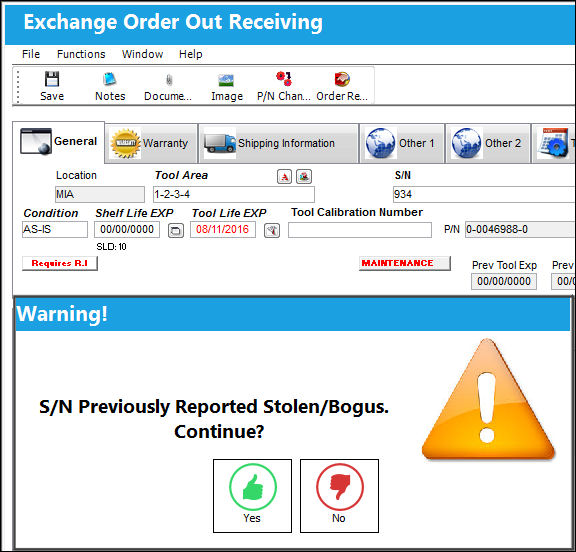
This functionality does not prevent the part from re-entering your facilities. It simply notifies the receiver that the part is known to be “unacceptable”. If this message is confirmed with Yes, the part may still be received into the inventory and issued as with any other part.
For a Bogus Print listing, go to the Inventory/Print/Inventory Transaction History Print, as seen below:
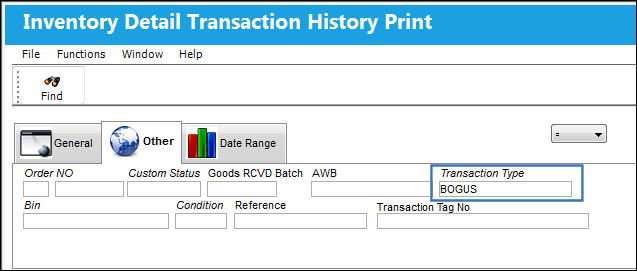
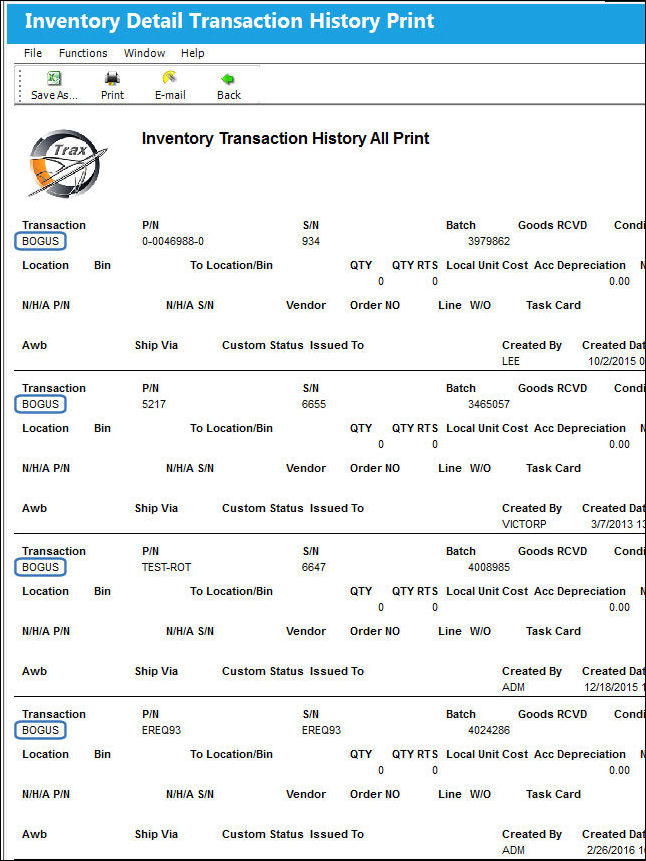
Select the Detail option in the print drop window and selected the BOGUS Transaction Type from the predefined pop-up selection window, then select the Find button. TRAX displays the print, as follows:
To view or include additional information, the Inventory Bogus P/N, Informational Tab and the Notes  button are available.
Share
Print
|
©1997-2026 Trax USA Corp. All rights reserved. This manual may not be copied, photocopied, reproduced, translated, or converted to any electronic or machine-readable form, in whole or in part, without prior written approval from Trax USA Corp. |
 |