
 Share
Share
 Print
Print
|
|
|
|
|


Murata Queue
The Murata Queue, via Inventory/Update/Murata Queue, displays all of the Trays with MCM requests and organizes them by priority. These requests represent both the messages being sent to the MCM via the Murata interface and the requested transactions. The highest listed requests will be processed first by the MCM.
 This window is security controlled via Inventory/Update/Murata Queue. For more information refer to the Security Explorer via the System Administration Training Manual.
When opened, the queue is displayed as follows. The top portion of the window contains the queued Messages/transactions and the bottom portion contains the current status of multiple components of the Murata robot.
Expanding the selected Tray will display all requests for the particular Tray.
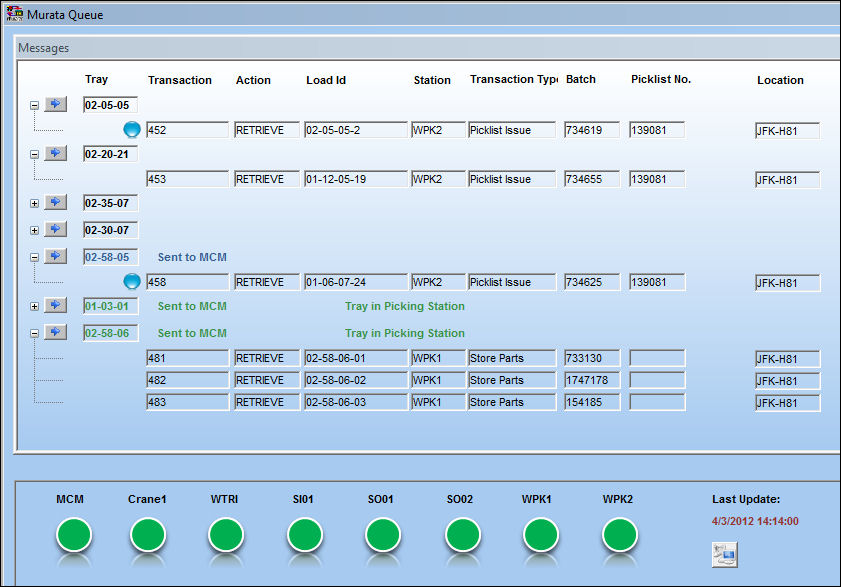
The following information/options are available in this window:
_____________________________________________________________________________________
Tray
The Tray requested by the interface. Each Tray may have multiple transactions.
Tray Status
Indicates where the Tray currently is. If the Tray is at the Picking Station, the text will read 'Sent to MCM' in green and it will also indicate 'Tray in Picking Station' in green. If the Tray is being processed but it has not yet arrived at the Picking Station, the text will indicate 'Sent to MCM' in blue. If there is no text displayed above the Tray, the Tray has not yet been process by the MCM.
Expand  /Collapse
  buttons
Expand the Tray to view the transaction details (below fields); Collapse to hide the Tray's transactions.
Transaction
The sequential transaction number of the message. The Murata messages are automatically prioritized by this number.
Transaction Status icons
The Green  icon indicates that the Tray/Bin is at the Picking Station. The Blue
  icon indicates that the Tray/Bin is being processed by the MCM. If there is no icon, this means that the Tray/Bin has not yet been processed by the MCM and is awaiting its turn.
Action
The action being applied to the Tray by the crane, such as 'RETRIEVE.'
Load Id
The warehouse location identification (i.e., aisle, column, row, etc.).
Station
The Picking Station which the message was sent from. The Tray is delivered to this Station.
Transaction Type
The Transaction Type being requested.
Batch
The inventory number that is currently associated with a part or group of parts. A part's Batch number can change after various types of transactions take place.
Picklist No.
The Picklist number associated to the request.
Location
The Location for maintenance events, inventory stores, orders, transactions, or training events. The Location of the MCM warehouse.
_____________________________________________________________________________________
If users double-click on a transaction, the Murata Multifunctional Screen appears with information on the selected transaction. For more information refer to the Tray Management window.
The requests at the top of the window have greater priority that the ones on the bottom of the window. To change the priority of a request, users can select the Change Priority  button. For detailed information, refer to the Change Priority Button, via the Murata Queue.
Users can change the Picking Station of a retrieval request by selecting the Change Picking Station  button. For detailed information, refer to the Change Picking Station Button, via the Murata Queue.
Requests can be deleted from the Queue by selecting the Delete Retrieval Request  button. For detailed information, refer to the Delete Retrieval Request Button, via the Murata Queue.
Requests can be resubmitted regardless of their priority by selecting the Resubmit Retrieval Request  button. For detailed information, refer to the Resubmit Retrieval Request Button, via the Murata Queue.
Users can override the auto-refreshing Queue system by selecting the Execute  button. When selected, the interface sends/performs the retrieval request on the top of the queue for each Picking Station. This execution is conditioned by the total of allowed simultaneous transactions.
An individual transaction can be selected and deleted with the Delete Transaction  button. For more information, refer to the Delete Transaction Button, via Murata Queue.
All transactions listed in the Murata Queue can be deleted by selecting the Delete All  button. For detailed information, refer to the Delete All Button, via the Murata Queue.
The bottom section of the window informs users on the current status on the MCM components. If all component icons are green, the MCM system is ready for normal operation. If an icon is grey, that component of the MCM system is offline; if an icon is red, there is a problem with that component that needs to be addressed.
The Last Update indicator indicates the last time the Queue was refreshed. This refresh interval is controlled via the Config Number field of Interface Switch  MURATA. The queue can also be refreshed manually by selecting the Refresh MCM Status
  button.

Share
Print
|
©1997-2026 Trax USA Corp. All rights reserved. This manual may not be copied, photocopied, reproduced, translated, or converted to any electronic or machine-readable form, in whole or in part, without prior written approval from Trax USA Corp. |
 |