
 Share
Share
 Print
Print
|
|
|
|
|


Preparing File for Import
Preparing the file for import includes creating an Excel file with all mandatory and optional columns. Once this is complete, the file must be saved as a Text file or a (.txt) file.
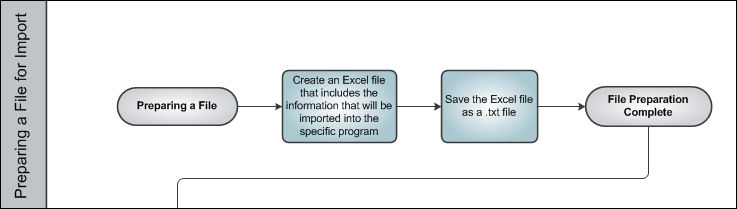
Step 1: Create Excel File
It is recommended that the file is opened in Microsoft Excel and inspected to make sure that the criteria defined in the below table is met:
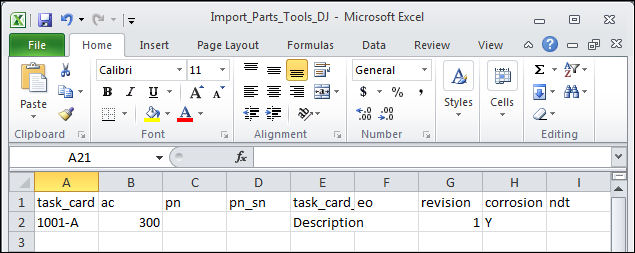
Create an Excel file and populate all of the information to be imported into the specified program. In the following example, the user will be completing an import of parts and tools into a Task Card.
In some instances, only a few fields are actually imported into the specified program, however, all of the fields shown below must be defined the table below.
Step 2: Save Excel File as a Text File
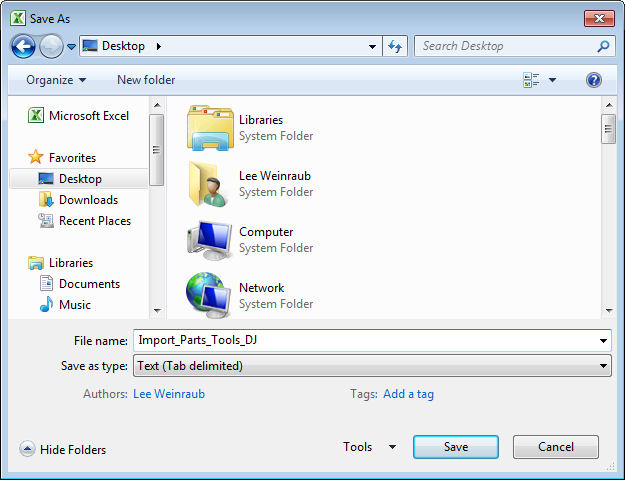
Save the file as a Text (Tab Delimited) document. Please note that the .txt file needs to be set up according to the way TRAX imports (defined in the table below) otherwise the program will not be able import the data correctly. Example of Excel file as a Tab Delimited .txt file:
Share
Print
|
©1997-2026 Trax USA Corp. All rights reserved. This manual may not be copied, photocopied, reproduced, translated, or converted to any electronic or machine-readable form, in whole or in part, without prior written approval from Trax USA Corp. |
 |