
 Share
Share
 Print
Print
|
|
|
|
|


Importing a File
Once the file has been prepared, the user may begin the import process.
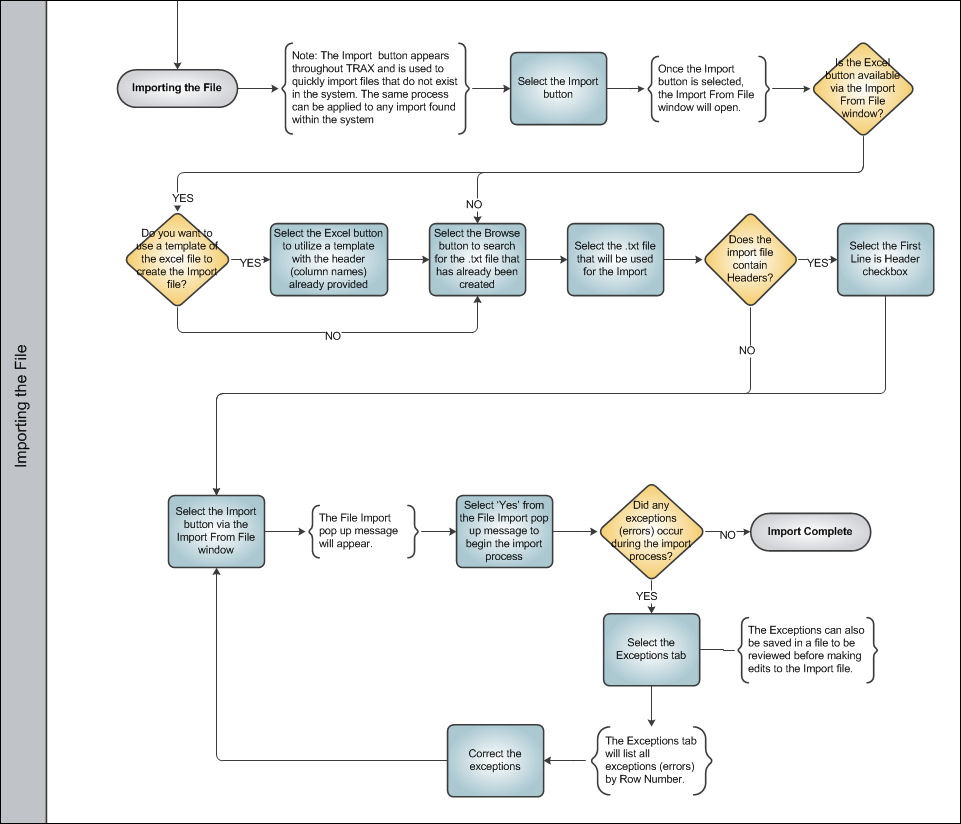
For information regarding how to prepare the import file, refer to Preparing File For Import, via the Import Button of the System Standards Training Manual.
Select the Import  button in the desired window to begin the import process. This process works the same way throughout the system.
In the following example, the user will import parts and tools information into the W/O Task Card P/N window.
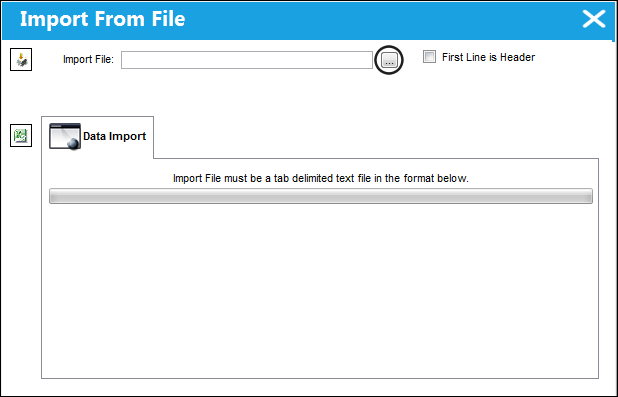
TRAX displays the Import From File window. Select the Browse  button to select the file to be imported.
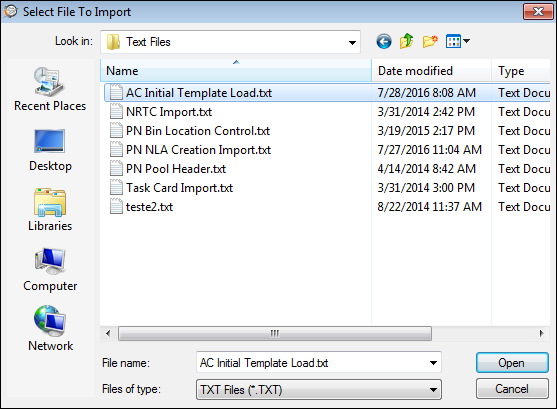
The Select File To Import window appears. Select the file to be imported and select the Open button.
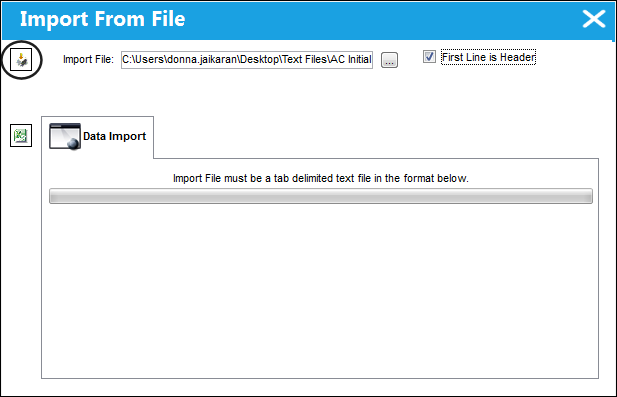
Once the path is specified, select the Import button.
Be sure the select the 'First Line is Header' checkbox if the import file contains headers such as the file provided in the above example.
The following information/options are available in this window:
_____________________________________________________________________________________
Import File
File being imported to the Work Order containing the record.
Select the Browse button to receive File Selection window.
First Line is Header checkbox
Check if the first line of the Input File is a header and should not be imported.
_____________________________________________________________________________________
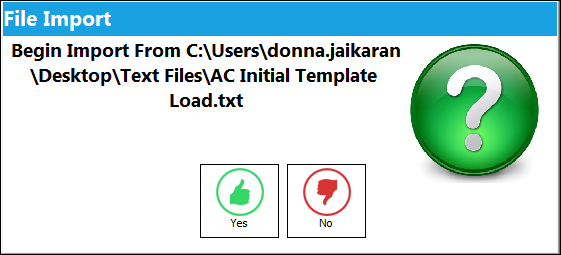
The File Import window will appear. To begin the import, select 'Yes.'
If no exceptions are found, the import will be complete:
For information regarding exceptions, refer to Exceptions via Import Buttons of the System Standards Training Manual.
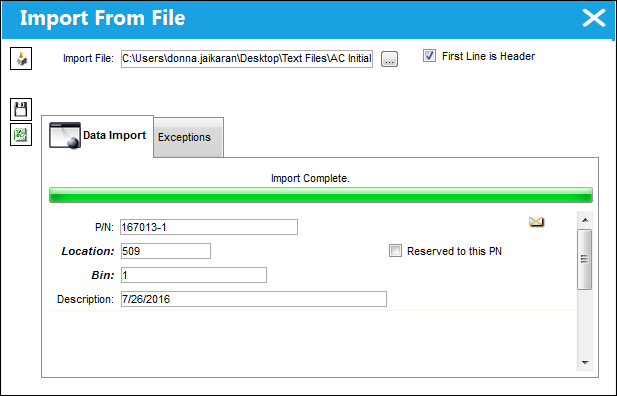
Once the import is complete, the user may view the specified window to see if the file was imported successfully.
Share
Print
|
©1997-2026 Trax USA Corp. All rights reserved. This manual may not be copied, photocopied, reproduced, translated, or converted to any electronic or machine-readable form, in whole or in part, without prior written approval from Trax USA Corp. |
 |