
 Share
Share
 Print
Print
|
|
|
|
|


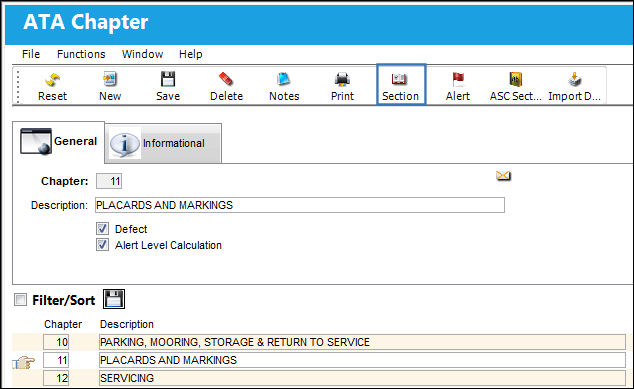
From the ATA Chapter window, place the Hand  pointer on the desired ATA Chapter. Select the Section
  button.
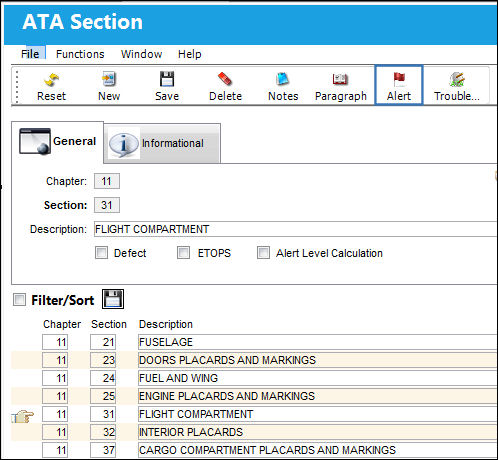
Be sure the Hand pointer is pointing to the desired section. Select the Alert  button.
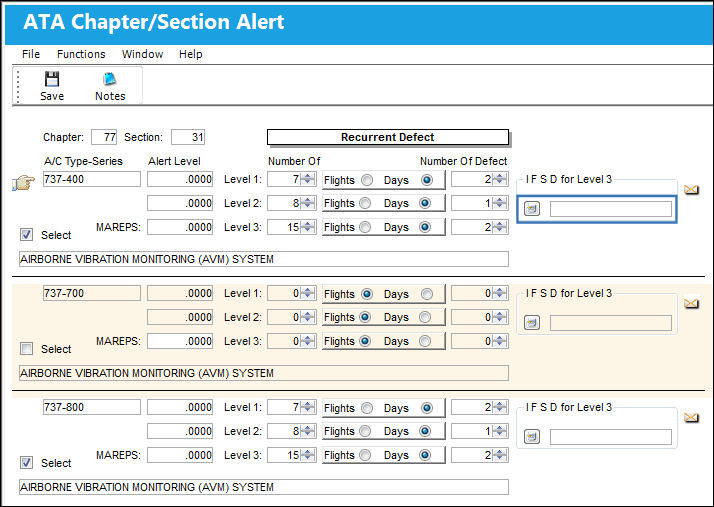
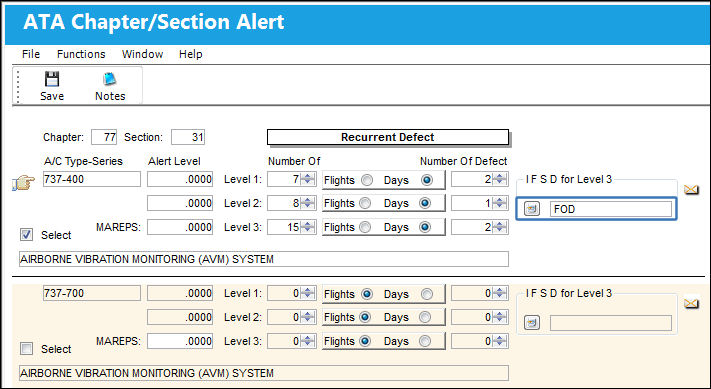
TRAX displays the ATA Chapter/Section Alert window. Select the New  button.
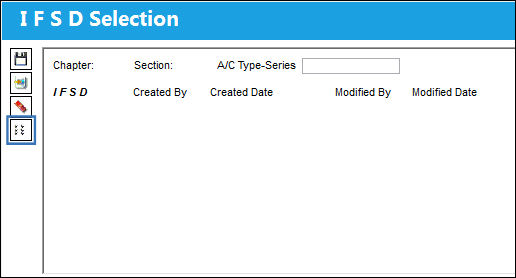
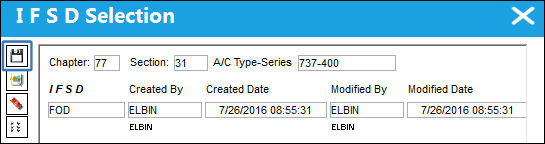
The IFSD Selection window appears. To quickly select multiple IFSD codes, select the Multi-Select button.
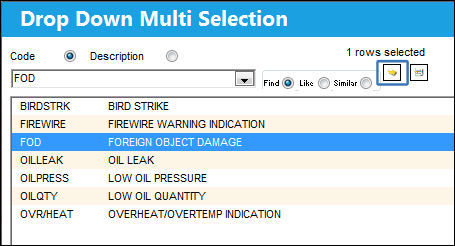
The following Drop Down Multi-Selection window appears. Select one or more IFSD code(s) and click on the Select  button.
The codes are populated in the IFSD Selection window. Select the Save  button. The Save prompt will appear. Select 'OK'.
IFSD of ATB and GTB have been set up for A/C Type-Series A320-300. Also, an alert has been set up for Level 3 if two defects are found matching IFSD of ATB and/or GTB after one day.
If one Defect Report is created for Type-Series A320-300, Chapter 51, Section 05 with the IFSD of ATB and a second Defect Report is created for the same Type-Series, Chapter and Section with the IFSD of GTB, an Alert File will be created as shown below.
Additional Functionality:
For information regarding how to create a Defect Report, refer to Creating A Defect Report via the Defect Report section of the Technical Records Training manual.
Select the Recurrent Alert  button.
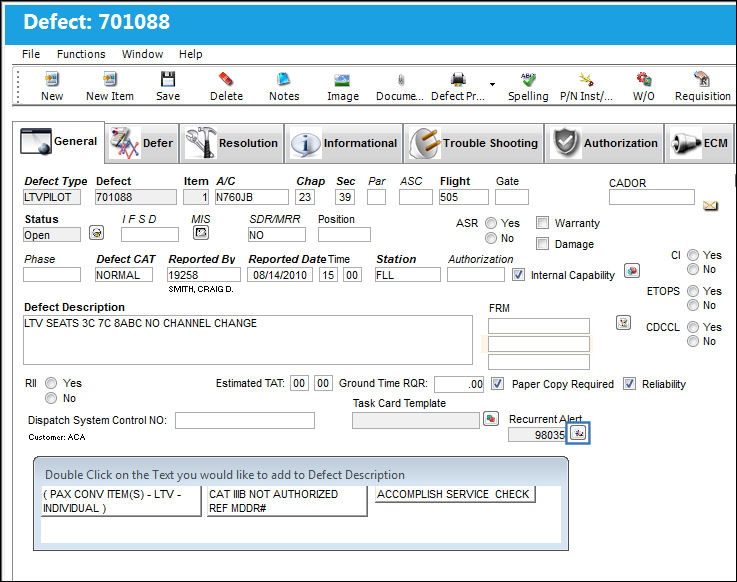
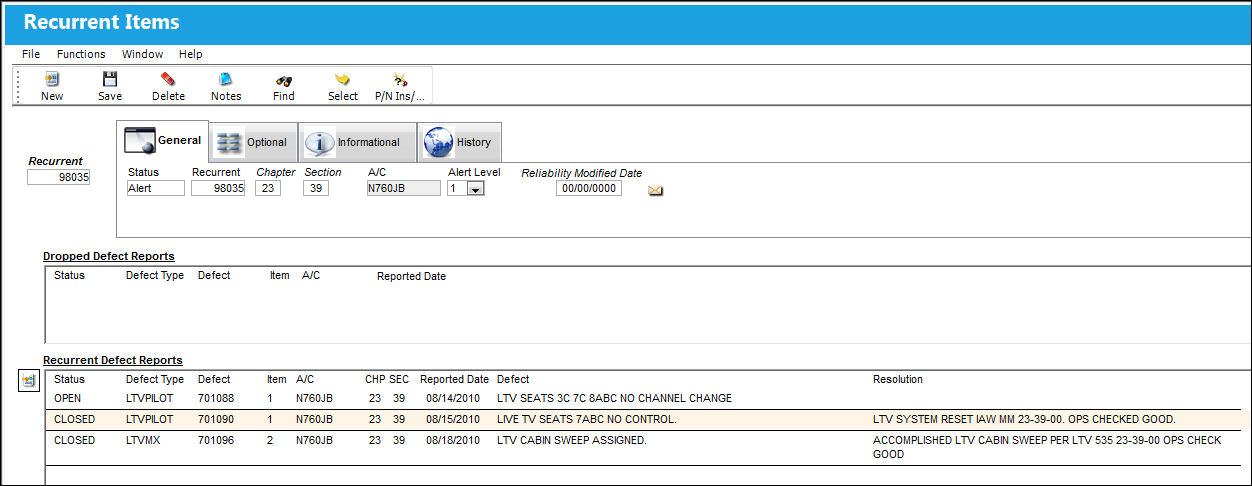
TRAX displays the Recurrent Items window which displays all recurrent items:
The Defect Reports created must contain the same IFSD codes created and saved as shown in the ATA Chapter/Section Alert window. If not, the Alert File will not be created.
Share
Print
|
©1997-2026 Trax USA Corp. All rights reserved. This manual may not be copied, photocopied, reproduced, translated, or converted to any electronic or machine-readable form, in whole or in part, without prior written approval from Trax USA Corp. |
 |