
 Share
Share
 Print
Print
|
|
|
|
|


Override Button, via Manhours Schedule by Head Count
The Man Hours Schedule by Head Count Override  window can be accessed via Planning/Update/Man Hours Schedule by Head Count. The Override window is used to edit the Factor and/or Head Count for any date between the current date and the Max Generated Date for a Head Count record.
This functionality is only available when Planning Switch  LBRBYHCNT is set to 'Yes.' When set to 'Yes,' man hour labor generation will be determined by the head count functionality and not by employees and shifts. When set to 'No,' this functionality is not available and the window cannot be accessed. For more information refer to Switch LBRBYHCNT via the Planning Switches Manual.
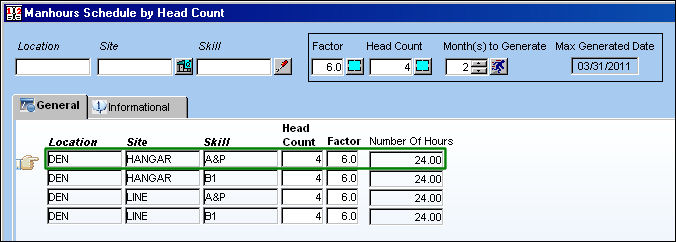
Place the Hand  pointer next to a Head Count record via the Man Hours Schedule by Head Count. Select the Override button to be able to edit the Head Count and/or Factors for the selected Head Count record.
The following is the Man Hours Schedule by Head Count Override window. The listing begins with the current date and ends in the Max Generated Date of the detail window.
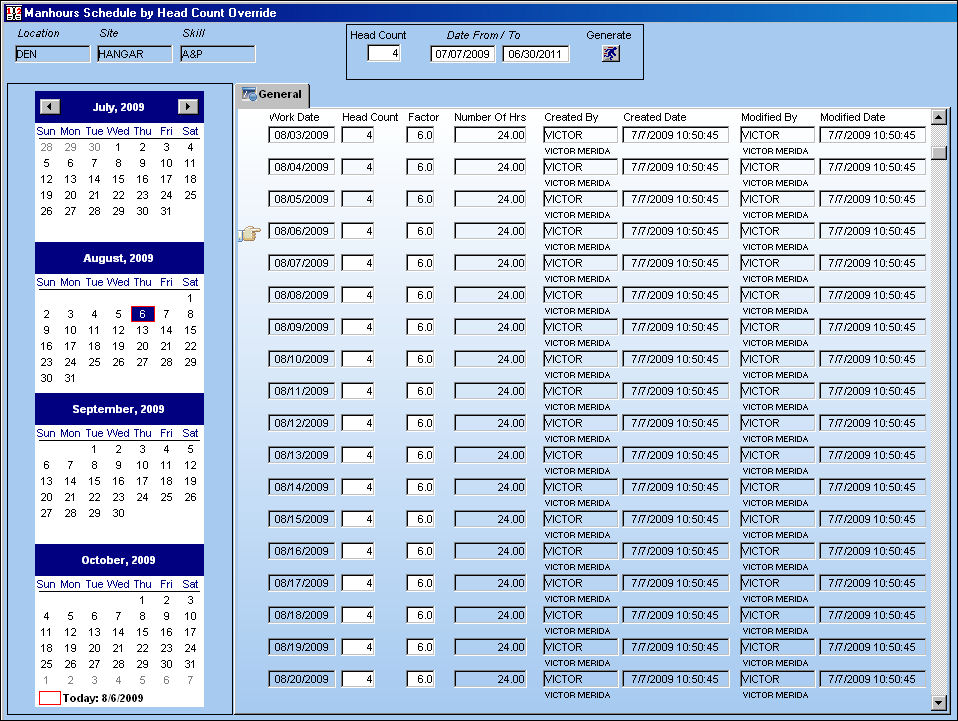
Users can view information for previous days by selecting the date in the calendar pane to the left of the window. This historical information is only available for dates with Head Count Schedule data and is informational only.
From this window users can edit the Head Count and/or Factor for any given date between the current date and the Max Generated Date.
For example, if there is a date on the calendar where there is fewer Head Count available for the Site/Skill, select the specific date on the calendar to the left of the window or scroll down to the date. Enter the Head Count that will be available for that date. Notice the Number of Hours field is automatically affected by the change to the calculation (Head Count 3 multiplied by Factor 6.0 equals 18.00 Number of Hours).
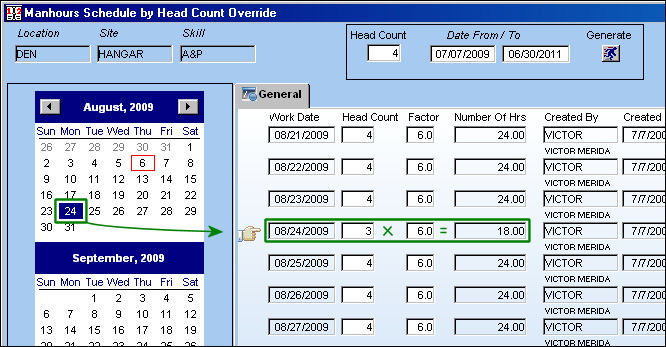
Select the Save button to save any changes made to the Man Hours Schedule.
Users also have the option of editing the Head Count for multiple dates between the current date and the Max Generated Date through the area at the top right of the window.

When this override window is accessed, the Date From/To fields will contain the current date. These dates can be changed manually.
For example, enter the available head count into the Head Count field and the date range they will be available into the Date From/To fields.
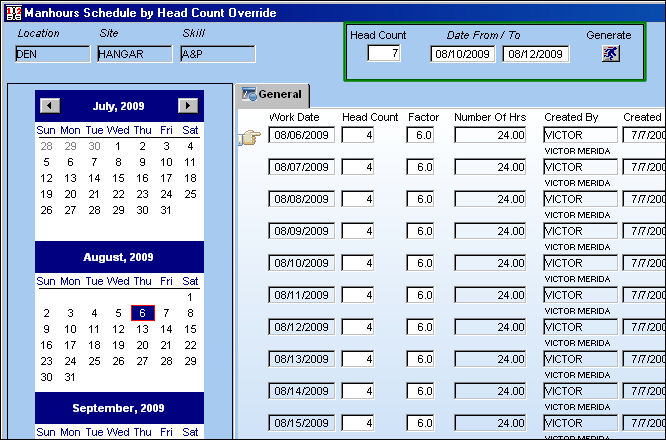
Once entered, select the Generate  button. Notice the date range entered will have the Head Count fields replaced and the Number of Hours adjusted. (In this case, a Head Count of 7 multiplied by a Factor of 6 hours equals a daily Number of Hours of 42.)
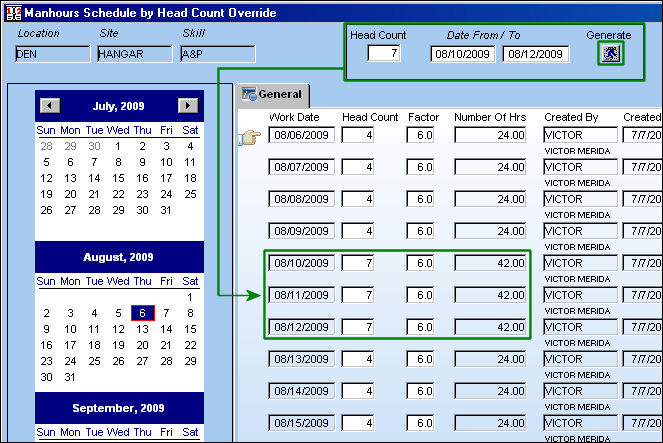
The Factor fields can be edited on a daily basis.
For more information refer to Man Hours Schedule by Head Count.
Share
Print
|
©1997-2026 Trax USA Corp. All rights reserved. This manual may not be copied, photocopied, reproduced, translated, or converted to any electronic or machine-readable form, in whole or in part, without prior written approval from Trax USA Corp. |
 |