
 Share
Share
 Print
Print
|
|
|
|
|


Manhours Schedule by Head Count
The Head Count functionality via Planning/Update/Man Hours Schedule by Head Count window allows users to assign available labor man hours by Skill type per Location and Site on a daily basis. This information is used to show available man hours against planned work. This is different from the other labor generation methods where man hours are comprised from the employee records and shifts.
This functionality is only available when Planning Switch  LBRBYHCNT is set to 'Yes.' When set to 'Yes,' man hour labor generation will be determined by the head count functionality and not by employees and shifts. When set to 'No,' this functionality is not available and the window cannot be accessed. For more information refer to Switch LBRBYHCNT via the Planning Switches Manual.
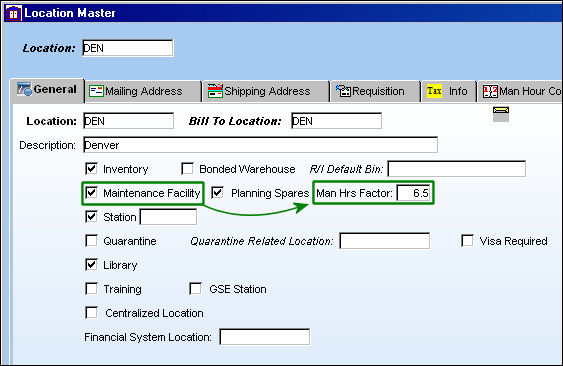
For this window to function properly the Man Hours Factor field must be populated via the Settings/Update/Location Master for any specific Location. The Man Hours Factor field will only appear when the Maintenance Location checkbox is selected and the above mentioned Planning Switch LBRBYHCNT is set to 'Yes.'
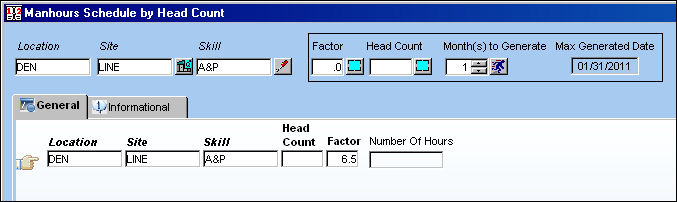
From the Man Hours Schedule by Head Count window enter a Location, Site and Skill then select the New  button.
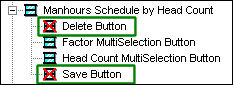
The New button, Save  button and Delete
  button are security enabled. When disabled this window will operate in query mode. Users will be allowed to search for information with the Find
  button but will not be allowed to create, edit or delete existing data. Both the New and the Save functionality are security enabled through the Save button:
Notice the Factor field displayed above is taken from the Man Hours Factor field from the Location Master window for the selected Location. The Factor however can be changed manually if needed.
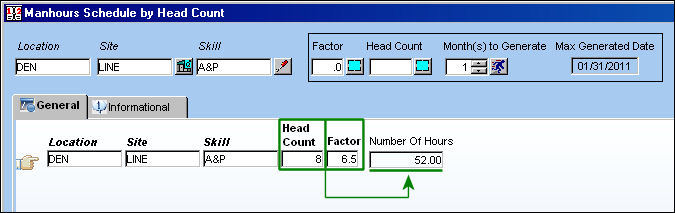
The Head Count can now be manually added for this specific Site and Skill. The entered Head Count is automatically multiplied by the hours listed in the Factor field. The total will auto-populate the Number of Hours field to the right, as displayed below:
Users can either enter line items one at a time by using the New button through the process described above or various line items through the Multiple New Records functionality.
To do so, select the Multiple Site  button to open a drop down window of available Sites. Select as many sites as needed by flagging the checkbox to the left of each. To choose all click the Select All
  button or the Deselect All
  button to remove all Sites. To exit the drop down window select an outside field of the Exit
  button.
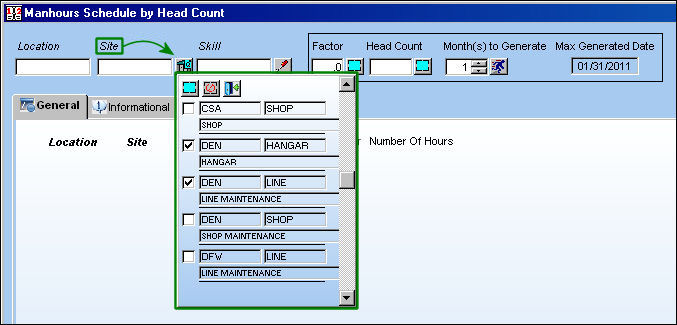
Select the Multiple Skill button to open a drop down window of the available Skills. Select as many as needed by flagging the checkbox to the left of each.
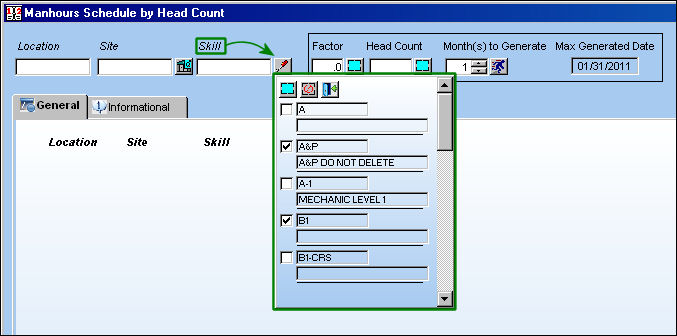
When the Site and Skill selections have been made select the Multiple New Records  button. All of the selections will be matched up to create individual line items for each Site/Skill scenario.
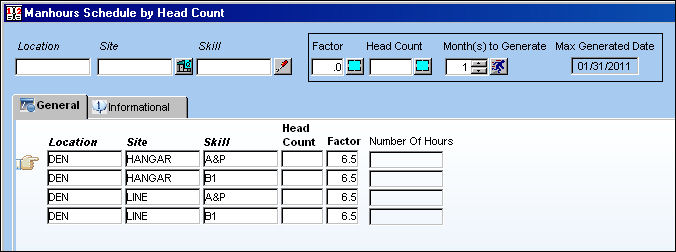
Notice the Factor fields are all defaulted from the Man Hours Factor of the Location Master.
The Multiple New Records button is also security enabled through the security for the Save Button.
The Head Count and Factor can be added or edited for each record individually by entering the values into each field or users can update all records at a time through the section at the top right of the window. To do so, enter a new Factor and/or Head Count value.
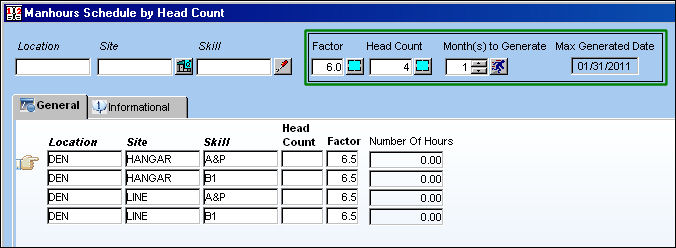
Then select the Apply Factor and Apply Head Count buttons to the right of each field. This will add the values to the appropriate fields.
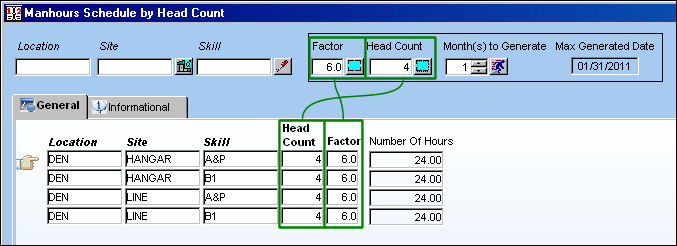
Notice that the Number of Hours fields will be updated to reflect the Head Count and the Factor fields for each record.
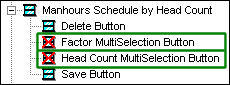
The Factor and Head Count fields are security enabled. When disabled users will not be able to update all records at a time as described above. This security also affects the Apply Factor and Apply Head Count buttons to the right of each field.
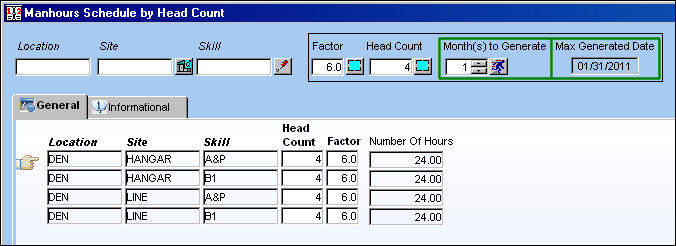
The Head Count records that are entered through this window will be implemented for the duration of time listed at the top right corner of the window in the Max Generated Date field. Any planned work scheduled within the current date until the Max Generated Date pertaining to the listed Site/Skills will be available. In order to accommodate any planned work that is scheduled for a date after the Max Generated Date, users are allowed to increase the date through the Month(s) to Generate field.
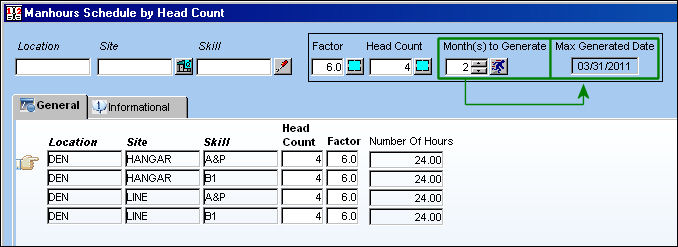
For example, if the Head Count records need to be available for 2 months after the Max Generated Date, enter '2' into the Month(s) to Generate field.
Select the Run Generation  button to update the Max Generated Date. Notice in the below example how the Max Generated Date has been updated compared to the above image by 2 months.
The following are available for additional functionality:
- Manhours Schedule by Head Count, Informational Tab
- Print button
- Multiple New Records button
- Override button
This update window is also available in query mode where users can view the records provided in this window but cannot create new records or edit existing data. Refer to this module's Query menu.
Share
Print
|
©1997-2026 Trax USA Corp. All rights reserved. This manual may not be copied, photocopied, reproduced, translated, or converted to any electronic or machine-readable form, in whole or in part, without prior written approval from Trax USA Corp. |
 |