
 Share
Share
 Print
Print
|
|
|
|
|


Absence Schedule
The Absence Schedule option allows the user to set up and track absence schedules for employees. Capacity Planning can then be accomplished to include this information.
This window is only available when Planning Switch  LBRBYHCNT is set to 'No'. When set to 'No', man hour labor generation will be determined by employee and shift and not by the head count functionality. When set to 'Yes', this functionality is not available and the window cannot be accessed. For more information refer to Switch LBRBYHCNT via the Planning Switches Manual.
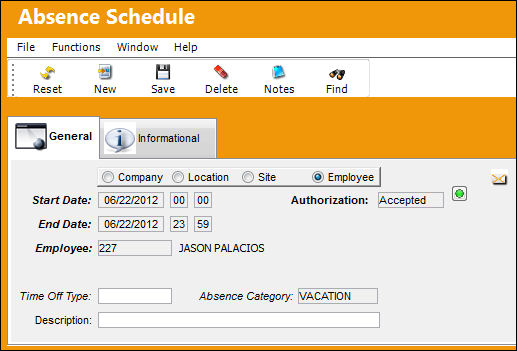
The following information/options are available in this window:
_____________________________________________________________________________________
Company radio button
Select this radio button to set up the absence schedule(s) by Company.
Location radio button
Select this radio button to set up the absence schedule(s) by Location.
When this radio button is selected, the Location field appears in the Absence Schedule window.
Site radio button
Select this radio button to set up the absence schedule(s) by Site.
When this radio button is selected, the Site field appears in the Absence Schedule window.
Employee radio button
Select this radio button to set up the absence schedule(s) by Employee.
When this radio button is selected, the Employee field appears in the Absence Schedule window.
This is the default radio button when a new record is being created.
Start Date
The Start Date of the absence period.
Now hours can be entered as well. An employee does not have to schedule an entire day off.
End Date
The End Date of the absence period.
Location
The Location for maintenance events, inventory stores, orders, transactions, or training events.
Site
Enter the site for the absence schedule.
Employee
Enter the name of the employee for whom the absence schedule is for.
Authorization
The authorization status of the absence scheduled.
Employee
Employee description (number).
Time Off type
Type of time off (i.e. personal, sick).
Absence Category
The Absence Category is used to determine the type of absence an employee will be submitting (i.e. vacation, training, sick leave, etc.). For additional information, refer to Absence Category Code via the Planning System Transaction Code manual.
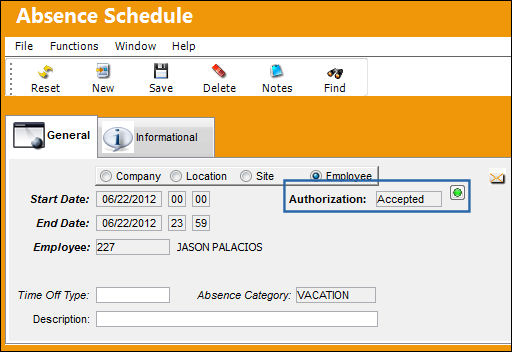
If the Absence Category selected does not require authorization, the status will default to 'Accepted,' as shown below:
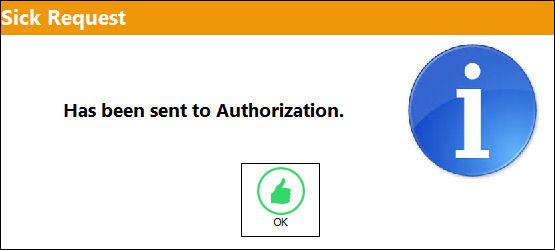
If the Absence Category selected does require authorization, the request will be sent to authorization and will appear in the Absence Schedule Authorization Explorer.
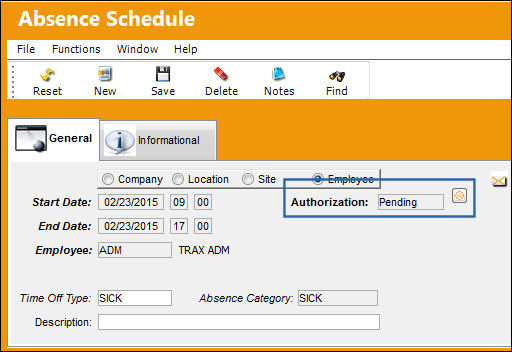
The status of the request will default to 'Pending' as shown below:
For information regarding the authorization process for vacation, refer to the Absence Schedule Authorization Explorer. Vacation Schedule's can also be authorized through Absence Schedule Authorization Group Explorer.
Description
A description of the absence (i.e. doctors appointment, sick day, etc.).
_____________________________________________________________________________________
Additionally, the Informational Tab and Notes  button are available to view and include information relevant to the record.
Share
Print
|
©1997-2026 Trax USA Corp. All rights reserved. This manual may not be copied, photocopied, reproduced, translated, or converted to any electronic or machine-readable form, in whole or in part, without prior written approval from Trax USA Corp. |
 |