
 Share
Share
 Print
Print
|
|
|
|
|


Once the vendor has received the request for quote and they reply with a quotation, the user may wish to enter and track the replies.
The first step is to find the specific request for quote (sent to the vendor) that the user wishes to enter the replies for.
Go to Requisition/Update/Quotes. Choose ‘Requested’ from the Status drop list along with other search criteria to find the desired quote.
Select the Find  button. When the desired quote appears, select the Quote
  button. Be sure the Hand
  pointer is pointing to the correct record.
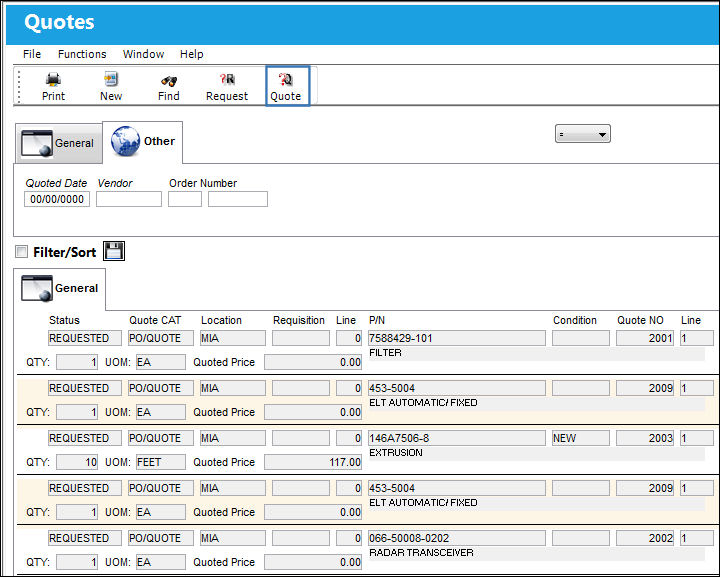
The following window allows for the entry of the information received from the vendor:
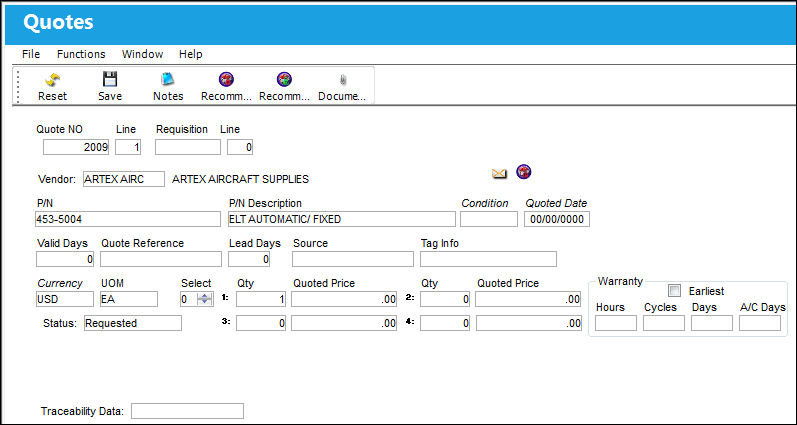
The following information/options are available in this window:
_____________________________________________________________________________________
Quote No
The system generated quote reference number.
Quote Line
The quote line number.
Requisition
The Requisition number associated with the Quote.
Line
The attached requisition line number.
Vendor
The vendor quoting the price.
P/N
The Part Number reference for the aircraft part.
P/N Description
The description of the part.
Condition
The part condition required for quotation.
Quoted Date
The date of the provided quote.
Valid Days
The number of days that the quote is valid for.
Quote reference
The vendors quote reference.
Lead Days
The number of lead days to be included in the delivery date. This number of days is added to the Order creation date to calculate the delivery date.
Source
Where the part is coming from (the source).
Tag Info
Tag information related to the quote.
Currency
The Currency type that the quote is provided in.
UOM
The Unit of Measurement for the part(s) required.
Select
If the Vendor offers “Price Breaks” depending on the quantity of parts ordered, you can enter those quantities and respective prices to create Quantity/ Price combinations. You can then select the number associated with the Quantity/ Price combination for the Quote. The selected number information will appear in red.
Qty - The quantity quoted.
Quoted Price - The Vendor's price for that quantity.
Status
The status of the entry (Requested/quoted/No Response).
Warranty
The Warranty for the part can be in the form of Hours, Cycles, Days, or A/C Days. The Default Warranty information for the part is set up via Settings/ Update/ Vendor/ Warranty Information tab; however, the user may also set up this information from the Quotes window.
 When the warranty information is set up via the Quotes window, it will auto populate in the Purchase Order Detail, Optional tab when creating a Purchase Order via the Quotes window.
These fields only appear in the Quotes window if their is a requisition associated to the P/O.
_____________________________________________________________________________________
For a Loan category quote, additional fields will appear for the initial, fixed and factor percentages. For additional information, please refer to the Order Training Manual.
The following buttons offer additional functionality:
- Notes Button
- Purchase Order Button
- Recommend a Preferred Vendor By Price Button
- Recommend a Preferred Vendor By Lead Days Button
- Spec2K Button
- Send To Vendor Button
- Document Control Button
Share
Print
|
©1997-2026 Trax USA Corp. All rights reserved. This manual may not be copied, photocopied, reproduced, translated, or converted to any electronic or machine-readable form, in whole or in part, without prior written approval from Trax USA Corp. |
 |