
 Share
Share
 Print
Print
|
|
|
|
|


TRAX Database Jobs, Failures Tab
The Failures tab of the TRAX Database Jobs window displays specific failure information for failed Planning jobs. The tab only appears when a Planning Query failure is generated.
When selected, the tab is displayed as follows:
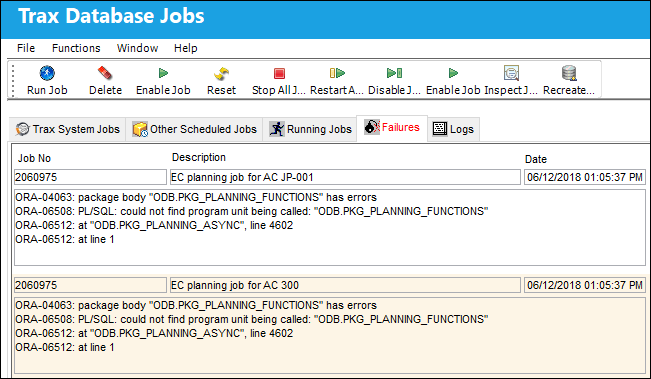
The information included is as follows:
_____________________________________________________________________________________
Job No
The Job number of the failure.
Description
A brief description of the failure.
Date
The date that the failure occurred.
Oracle Error
The specific Oracle error that was generated.
The information in this section can be copy and pasted if needed by highlighting the text and right-clicking in the field. For example:
ORA-01422: exact fetch returns more than requested number of rows
ORA-06512: at "ODB.PKG_PLANNING_FUNCTIONS", line 237
ORA-06512: at "ODB.PKG_PLANNING_ASYNC", line 2965
ORA-06512: at line 1
_____________________________________________________________________________________
The only buttons available for this tab are the Delete  button and the Inspect Job
  button. For more information refer to the Inspect Job Button window.
Additional Functionality:
Planning errors that can be found in the Failures tab are generated via the Planning/Query/A/C Planning Query. Once a query is run and the Planning Jobs are ready for retrieval, any failures are listed in the following pop-up. This failure is what can be found in the TRAX Database Jobs, Failure tab and is only available on the end user level.
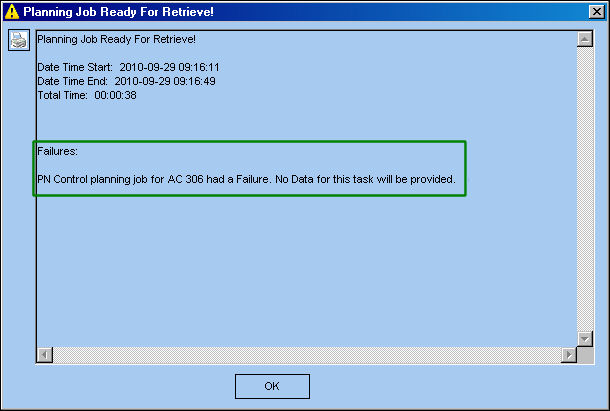
This pop-up window can be printed by selecting the Print  button.
From the A/C Planning Query, Planning From History tab, notice that the generated Planning Job contains Failures.
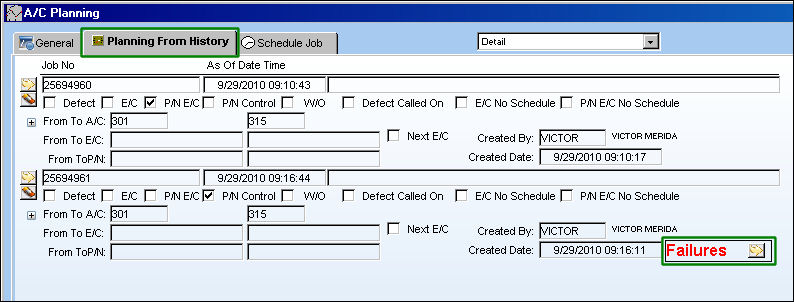
If the query results contains a failure(s), all other successful results will still be available in the Planning Query.
Select the Failures  button to view more information on the Planning Job.
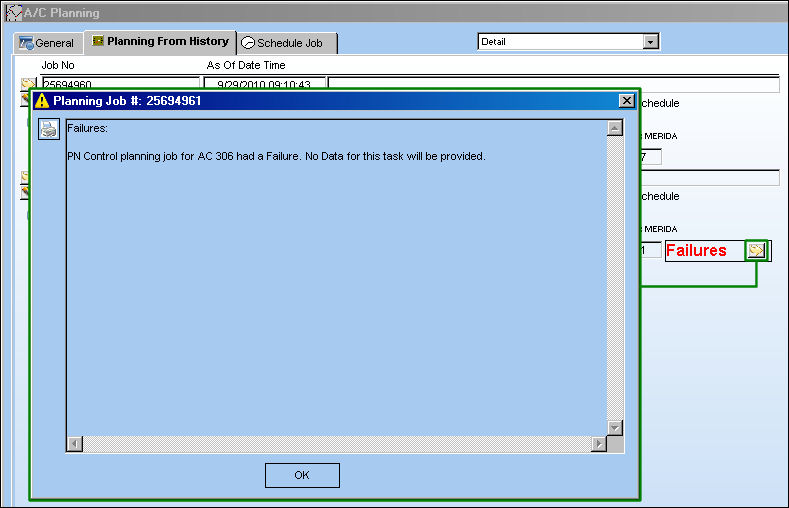
This pop-up window can be printed by selecting the Print button.
Share
Print
|
©1997-2026 Trax USA Corp. All rights reserved. This manual may not be copied, photocopied, reproduced, translated, or converted to any electronic or machine-readable form, in whole or in part, without prior written approval from Trax USA Corp. |
 |