
 Share
Share
 Print
Print
|
|
|
|
|


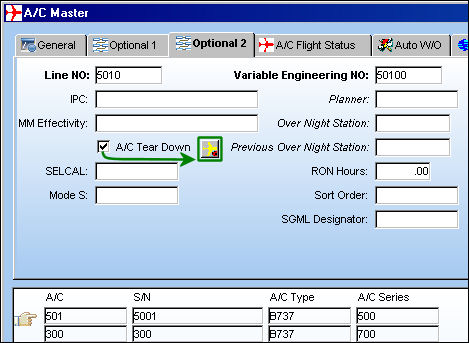
The A/C Tear Down P/N button of the A/C Master/ Optional 2 tab opens the A/C Tear Down window where users can specify the dates for the Tear Down and enter the total value for the Aircraft. From this window users can go on to specify costs for the parts so that when the parts are removed from the A/C, Fixed Assets are loaded for each part and Journal entries are created. See below for an example on how this functionality works.
The following examples contain amounts and figures that are intended to easily illustrate the functionality available and do not necessarily reflect real world situations.
For example, the following aircraft has four (4) parts installed.
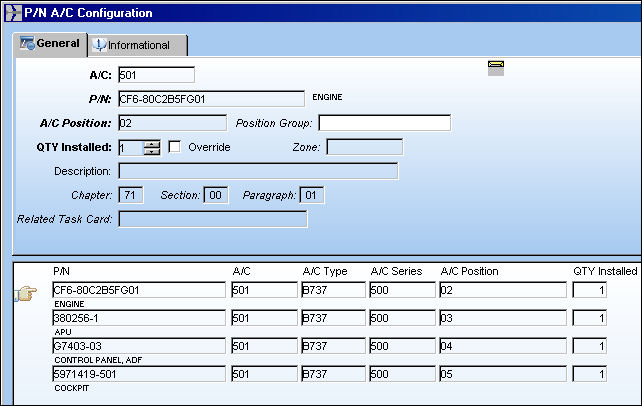
The Average Cost of each of the parts are as follows:
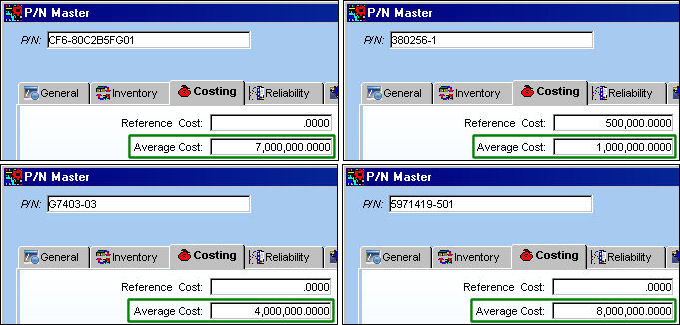
The total Average Cost of all of the parts installed in the aircraft is 20,000,000.
From the A/C Master, Optional 2 tab, select the A/C Tear Down checkbox. Select the A/C Tear Down P/N  button once it appears.
The A/C Tear Down window appears as follows where the Tear Down dates and the total value of the aircraft can be specified.
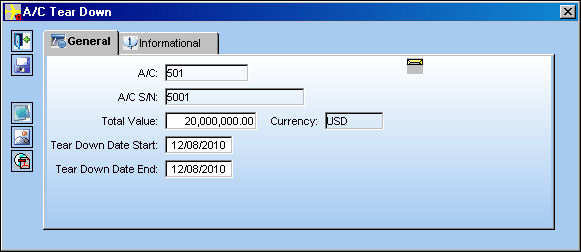
The following information/options are available in this window:
_____________________________________________________________________________________
A/C
The individual aircraft tail number. The aircraft going through the Tear Down process.
A/C S/N
The Aircraft's Serial Number which is provided by the manufacturer. This serial number is like a registration number, but it is not dependent on a country code and therefore never changes.
Total Value
The total value of the aircraft.
Currency
The currency of the Total Value of the A/C.
Tear Down Date Start
The date that the Tear Down period starts.
Tear Down Date End
The date that the Tear Down period ends.
_____________________________________________________________________________________
For the sake of this example, the Total Value of the A/C is exactly 20,000,000. Once the information is entered select the Save  button to proceed.
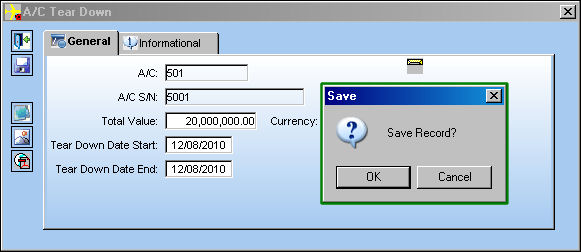
Once saved the following A/C Tear Down window appears with each of the installed parts including financial information for each part.
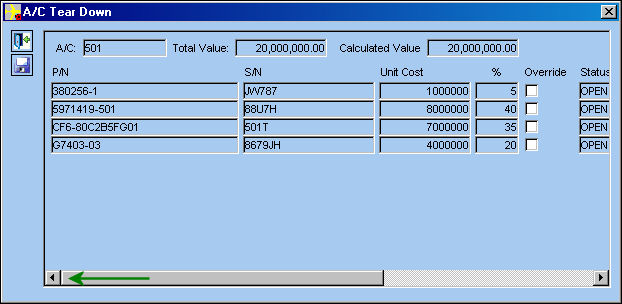
The following information/options are available in this window:
_____________________________________________________________________________________
A/C
The individual aircraft tail number. The aircraft going through the Tear Down process.
Total Value
The total value of the aircraft.
Calculated Value
The total value of all of the parts combined. This figure must be the same as the Total Value.
P/N
The Part Number reference for the aircraft part.
S/N
The Serial Number for the specific serialized part.
Unit Cost
The unit cost for each part. These parts are NOT drawn from the Average Cost of the part. They are based on percentages from the Aircraft's Total Value. (For this example, the Unit Costs and the Average Costs are the same for the parts because the aircraft has the same Total Value as the sum of all of its parts.)
%
The percentage that a part composes of the total of all Average Costs for all parts on an A/C. (For example, if the combined Average Cost for all parts on an A/C is $20 million, a part with an Average Cost of $4 million is 20% of that $20 million. The Percentage for the part is therefore 20%.)
Override checkbox
Select to override the Unit Cost field of the part. When this checkbox is selected and the Unit Cost is changed, the Unit Costs and percentages for all other parts are altered to reflect the new Unit Cost for the overridden part. The Percentage of the overridden part is not changed when its Unit Cost is changed. This override does not affect the part's Average Cost.
Status
The current status of the part as it relates to the Fixed Asset creation for the part. Once a part is removed from the A/C and the F/A is created, the status goes from "Open" to "Closed."
G/L
The General Ledger account(s) reference used for financial control throughout the system.
Average Cost
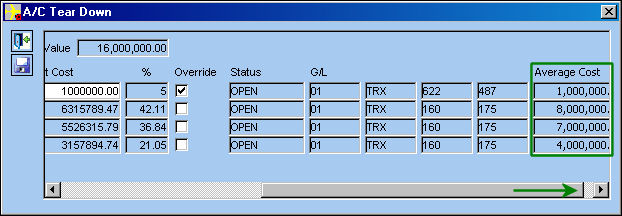
The Average Cost of the part as entered through the P/N Master, Costing tab. This field is not affected by the Unit Cost of the part nor is it changed when the Unit Cost is overridden.
_____________________________________________________________________________________
Scroll to the right to view all fields.
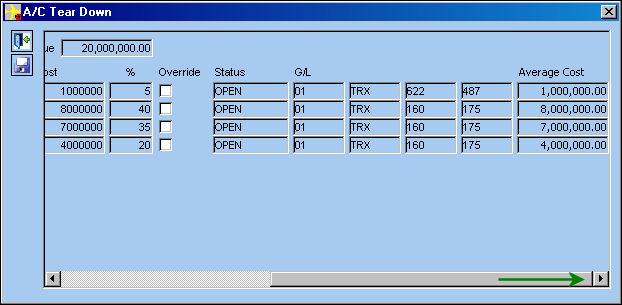
The above window is then exited without saving.
Most of the time, the purchase price of an aircraft is different from the total cost of all of its parts. So lets say the aircraft was purchased for 16,000,000.
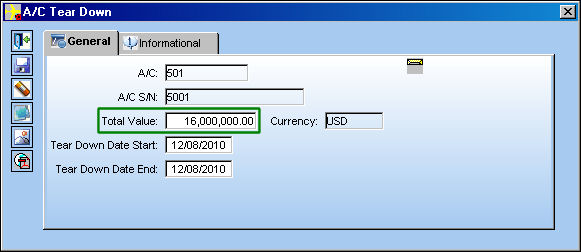
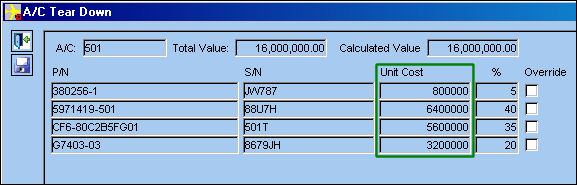
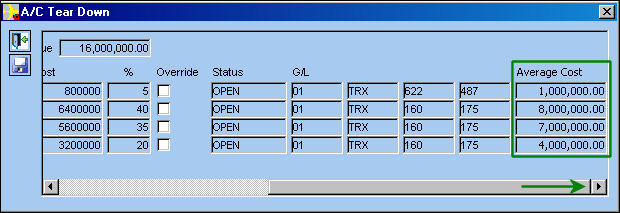
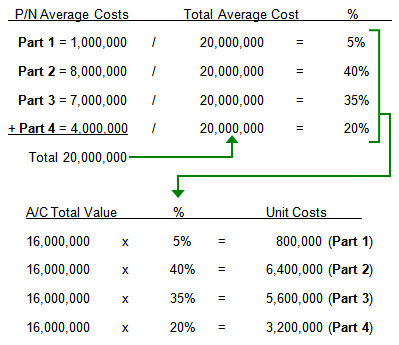
Notice that the Unit Costs below are now different while the percentages (%) remain the same. What the system is doing is assigning a percentage to each part based on the sum of all Average Costs. Then it is calculating that same percentage against the Total Value of the aircraft and putting that in the Unit Cost field for each part. For example, the Average Cost of the first part is 1,000,000, which is 5% of 20,000,000 (the sum of all Average Costs). But when 5% is taken from the Total Value of the A/C (16,000,000), the Unit Cost for the first part is 5% of the Total Value (16,000,000) which is 800,000.
Notice that the Average Costs have remained the same while the Unit Costs have changed.
The following graph can help explain the calculations taking place when the A/C Total Value does not match up with the total Average Cost of installed parts:
Override Checkbox:
Usually the purchaser of the aircraft does not know the exact value of each part. Therefore, the system takes the Average Cost to perform these calculations. However, sometimes the actual value for a part is known. In these cases the Override checkbox is used to edit the Unit Cost. Once the Unit Cost is overridden a recalculation will take place. A different percentage will be assigned based on the entries without the override checkbox selected. A different percentage and Unit Cost will be assigned to the other entries that do not have the override checkbox selected.
Let's say that in the above example (where the Total Value of the A/C is 16,000,000), the user knows the Unit Cost of the first part is not 800,000. The cost is actually 1,000,000 instead. The Override checkbox is then selected which makes the Unit Cost field open for editing.
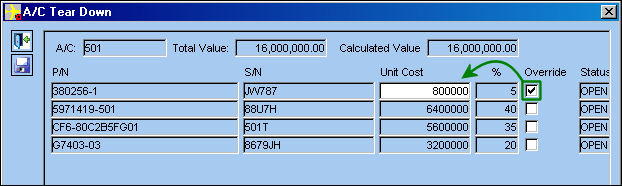
Once the Unit Cost is updated (to 1,000,000) and the user tabs out of the field, the Calculated Value is adjusted (from 16,000,000 to 16,200,000).
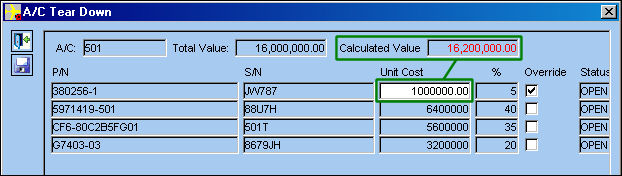
(The Calculated Value is adjusted to 16,200,000 because it is the updated sum of the Unit Costs.)
Now, when the Save button is selected, the Unit Costs and Percentages that were not overridden and the Calculated Value are recalculated.
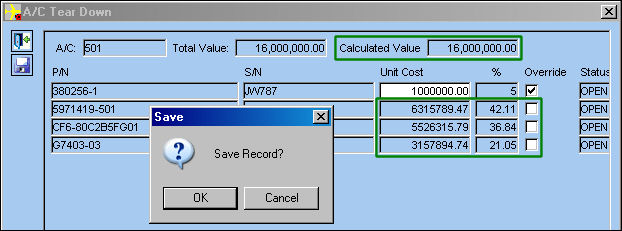
The new calculations are made because the system is subtracting the actual overridden Unit Cost (1,000,000) from the previous Calculated Value (16,200,000) which equals 15,200,000. The system then takes the Unit Cost for each of the other parts before the override was applied and divides each Unit Cost by 15,200,000 to get a new percentage. That new percentage for each part is then applied against the new total value for the non-overridden parts (15,000,000) to get new Unit Costs. For example, the Unit Cost for the 2nd part before the override was 6,400,000. That Unit Cost is then divided by the total of the non-overridden parts (15,200,000). The equation is as follows: 6,400,000 / 15,200,000 = 42.11%.
The non-overridden parts will always equal 100%. This helps proportionately recalculate the remaining parts' Unit Cost so that when they are added to the overridden Unit Costs the total of all Unit Costs (which equal the Calculated Value) is the same as the Total Value of the A/C.
Again, notice that while the Unit Costs are adjusted, the Average Costs remain the same.
Fixed Asset Creation:
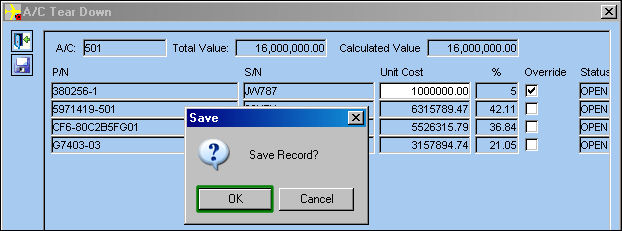
Once all Unit Costs have been viewed and/or updated, select the Save button and click "OK". Once these parts are removed from the aircraft, Fixed Assets and Journal Entries will be created for each part according to the costs calculated above.
For instance, the first part is removed from via the Technical Records/Update/A/C P/N Transaction window.
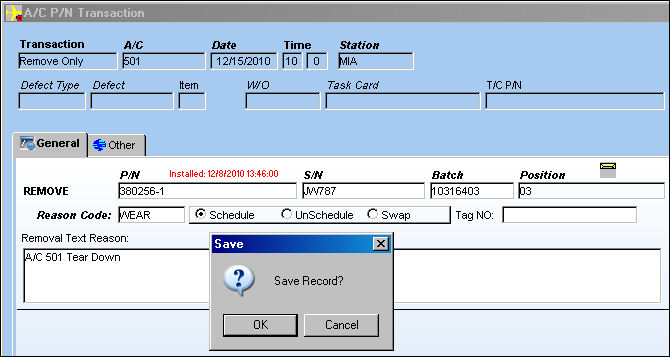
For more information refer to the A/C P/N Transaction via the Technical Records Training Manual.
Once the part is removed from the A/C, a Fixed Asset is automatically created for the part via the G/L Interface/Query/Fixed Asset Registry window.
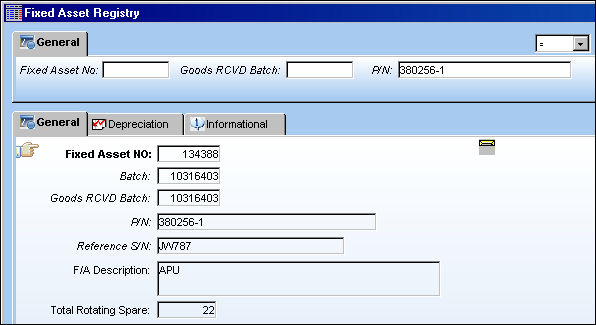
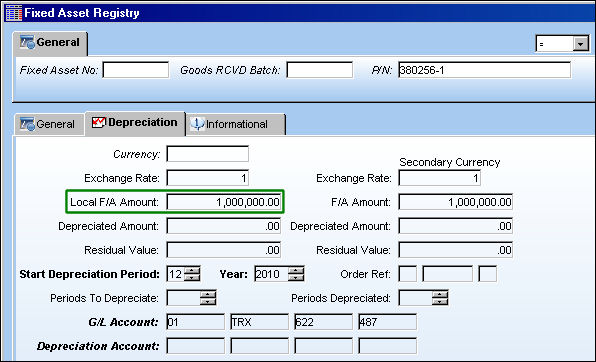
Notice from the Depreciation tab that the F/A Amount is the same as in the A/C Tear Down window (1,000,000).
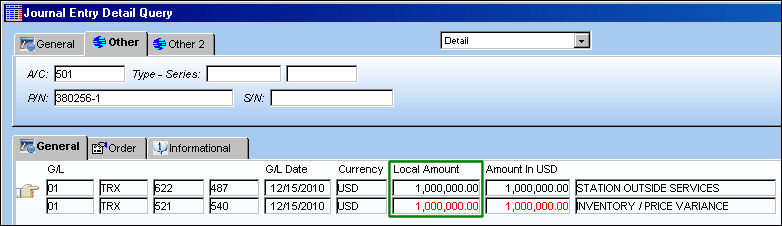
From the G/L Interface/Query/Journal Entry Detail Query window, notice that a Journal Entry has been created for the part as well.
Share
Print
|
©1997-2026 Trax USA Corp. All rights reserved. This manual may not be copied, photocopied, reproduced, translated, or converted to any electronic or machine-readable form, in whole or in part, without prior written approval from Trax USA Corp. |
 |