
 Share
Share
 Print
Print
|
|
|
|
|


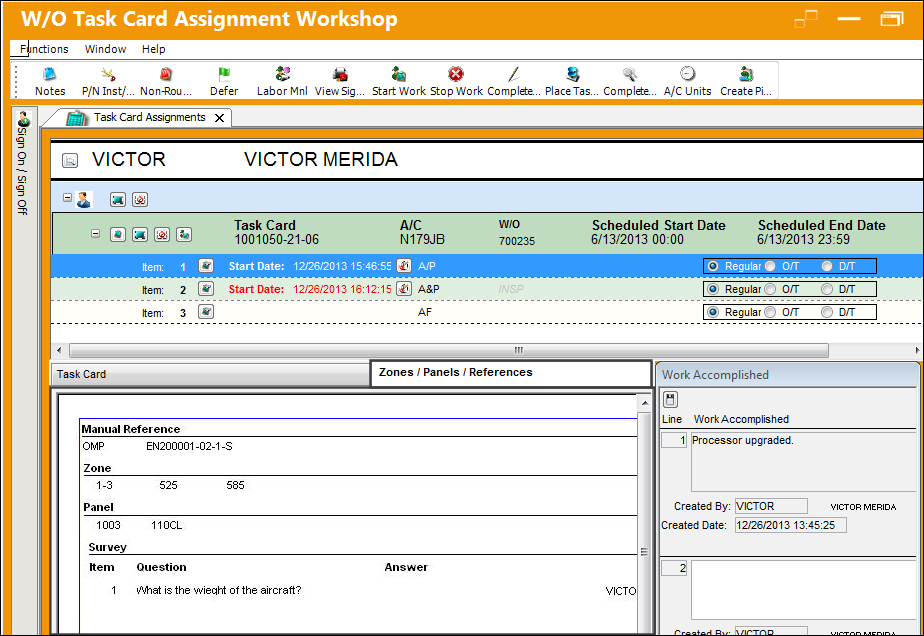
The Preview area of the Task Card Assignments section allows workers to view the Work Order and Task Card information within the same window. For Items that have been started, the Item's Work Accomplished field will be available to the right of the window. The preview screen can also be reached by double-clicking on a Task Card or Item.
The user will not be able to edit/update any information in the Work Accomplished field if switch  TCWORKACC is set to Yes.
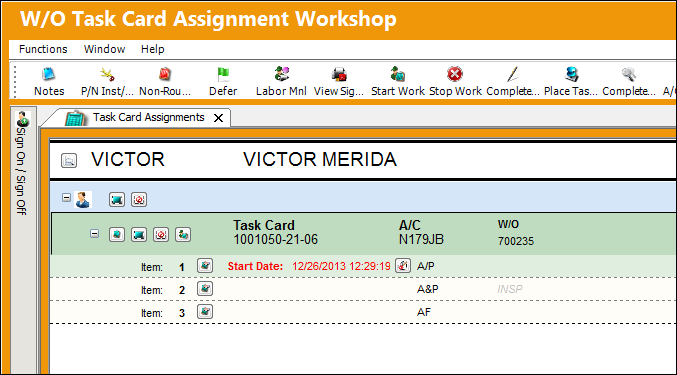
Users must enter their Wall Passwords to view the Task Card Assignment tab. All assigned T/Cs are displayed. Double-click on an Item to view the Preview tabs.
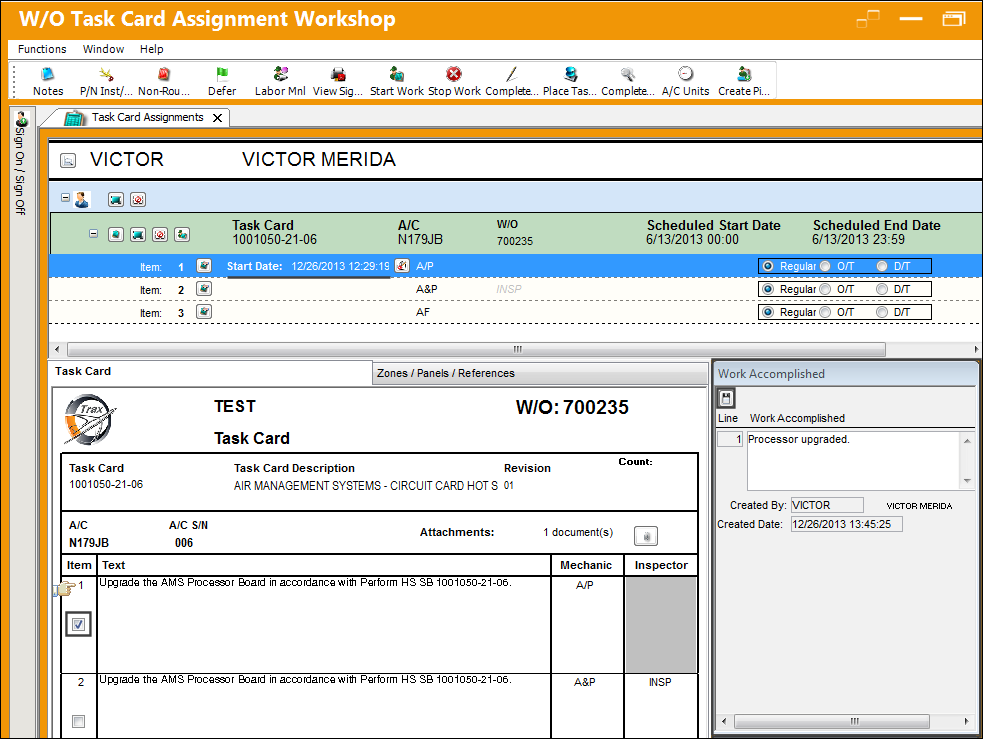
When selected, the Preview tabs appear at the bottom on the window, as displayed below. The Preview tabs consist of the Task Card tab (as described in the following) and the Zones / Panels / References tab.
When an Item that has been started is selected, the Work Accomplished field for the Item will appear at the right of the window. Items that have been started have their Start Date listed. To save information, enter the text then select the Save  button.
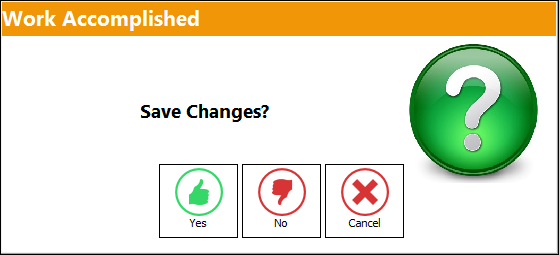
A prompt appears to save the Work Accomplished once the button is selected.
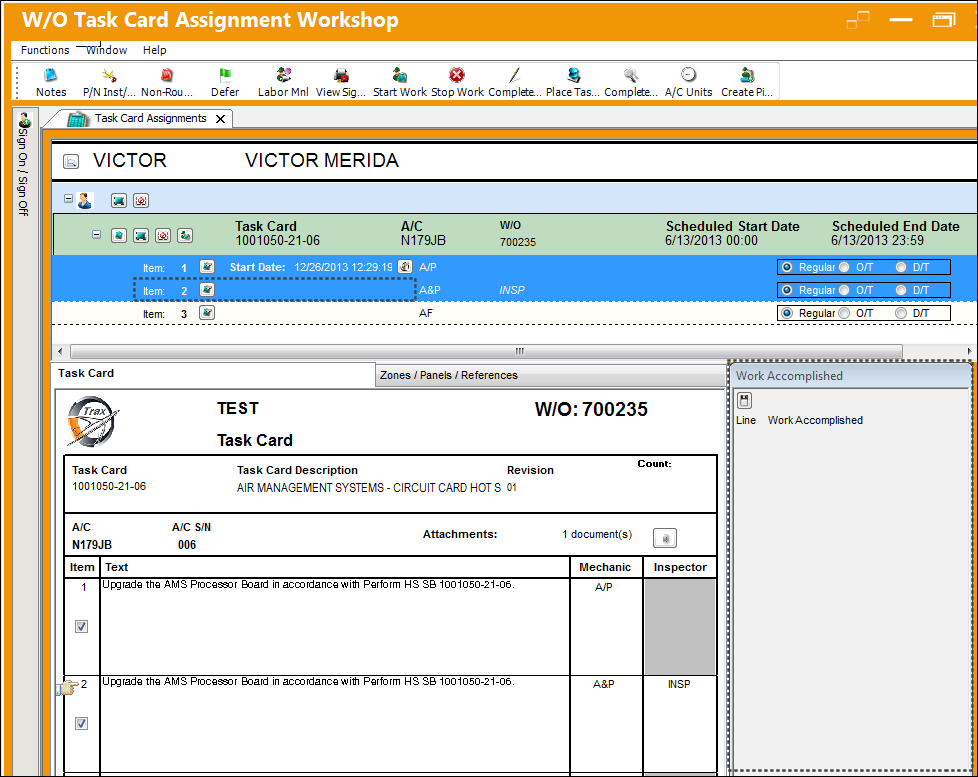
Once saved, a new Work Accomplished line item is added in case there is more Work Accomplished to be detailed against the Item.
All previous Work Accomplished entries entered by other users are not editable; they are displayed in gray indicating that they are informational only.
When an Item that has not been started is selected, the Work Accomplished field does not appear.
If the Task Card contains a Survey, users can answer the Survey question(s) by selecting the Survey  button.
The Zone / Panels / References tab displays any Zones, Panels, References and Surveys associated to the Task Card.
Share
Print
|
©1997-2026 Trax USA Corp. All rights reserved. This manual may not be copied, photocopied, reproduced, translated, or converted to any electronic or machine-readable form, in whole or in part, without prior written approval from Trax USA Corp. |
 |