
 Share
Share
 Print
Print
|
|
|
|
|


W/O Task Card Assignment Workshop, Task Card Assignments Section
The Task Card Assignments section can be found in the center of the Work Order Task Card Assignment Workshop. This window allows users to view and manage their workload as assigned by their planners.
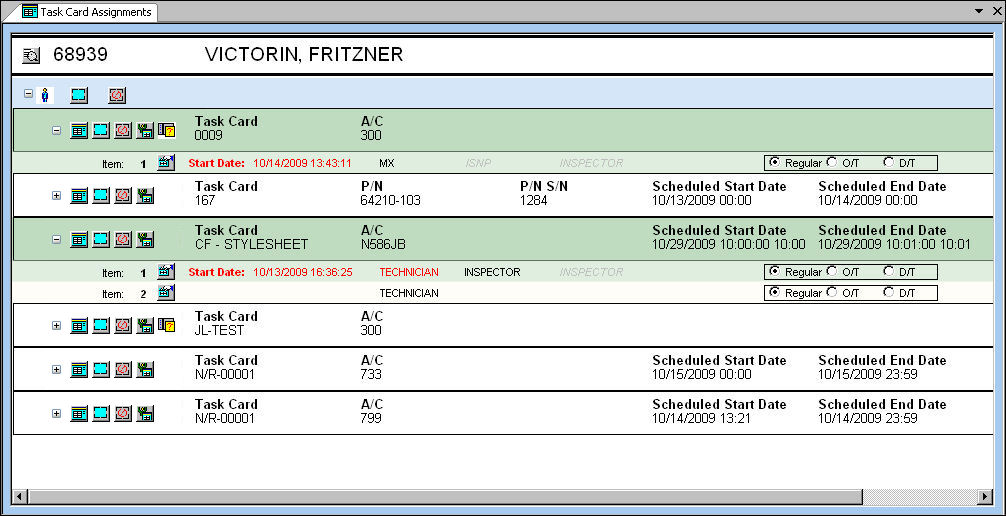
This can be broken down into different portions to better explain its functionality. The available options are as follows:
User Information / Preview:

_____________________________________________________________________________________
Preview  button
Select to view the Work Order and Task Card information within the same window. For Items that have been started, the Items Work Accomplished field will be available to the right of the window. The preview screen can also be seen by double-clicking on a Task Card or Item. For more information, refer to the Work Detail View.
Username / ID Number
The username or ID number of the currently logged in worker.
Employee Name
The employee name of the currently logged in worker.
_____________________________________________________________________________________
Task Card Selection:

_____________________________________________________________________________________
Expand  / Collapse
  button (T/C)
Select to access or hide all Task Cards assigned to the employee.
Select All  button
Selects all Task Card Items.
Deselect All  button
Deselects all Task Card Items and hides all Task Cards.
_____________________________________________________________________________________
Task Card Information:

_____________________________________________________________________________________
Expand / Collapse button (Items)
Select to access or hide all Items within a Task Card.
Task Card  button
Select this button to access the W/O Task Card window. For more information refer to the Task Card Button.
 Selecting the Task Card button will take the user to the correct Task Card in the W/O Task Card window.
Select All button
Selects all of the Items for a specific Task Card.
Deselect All button
Deselects all of the Items for a specific Task Card.
Start Work  button
Select to start working on all of a Task Cards' Items. Individual Items can be selected by clicking on the Item itself then selecting the Start Work button.
Survey  icon
icon
This icon is displayed when the Task Card contains a mandatory Survey that must be filled out once the T/C work is completed.
Task Card
The Task Card / Job Card that details the scheduled maintenance work.
A/C
The individual aircraft tail number.
P/N
The Part Number reference for the aircraft part.
P/N S/N
The Serial Number for the specific serialized part.
Schedule Start / End Date
The scheduled start/end date and time of the Task Card. This can be added to a Task Card via the Schedule tab of the W/O Task Card window.
_____________________________________________________________________________________
Item Information:

_____________________________________________________________________________________
Item Number
The sequential Item number.
Task Card Item  button
Select to access the Task Card Item window.
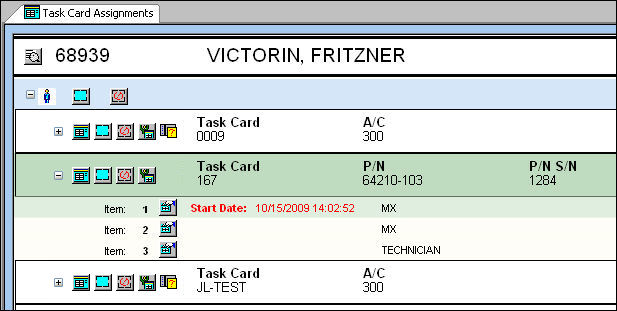
Start Date
The date and time that the work was started on the specific Item.
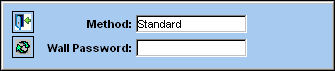
Assigned User  button
Because multiple Users may be assigned to a particular Task Card, this button indicates which user is assigned to the selected Task Card Item. This button is only available for Items that have been started. When selected, the following informational window pops up:

Required Skill
The Skill(s) required for the Item.
Type of Shift radio buttons
Select the type of shift currently being applied to the work. The options are:
Regular - Basic daily work schedule.
O/T - Overtime work schedule.
D/T - Double Time work schedule.
_____________________________________________________________________________________
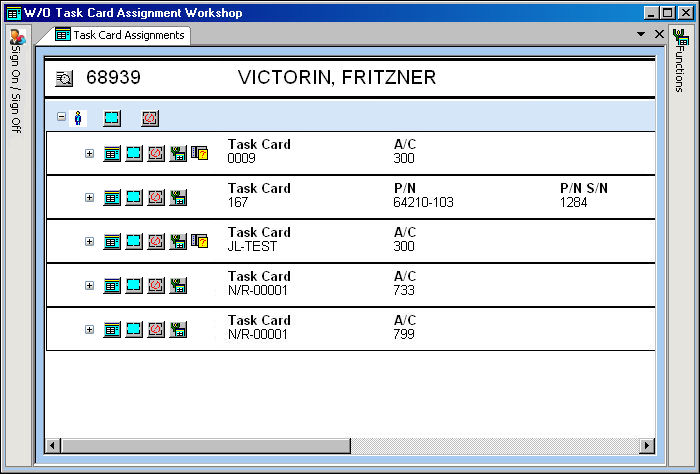
To access the Task Card Assignments section, users must enter their Wall Passwords just after entering the W/O T/C Assignment Workshop window.
Once entered, all assigned Task Cards are displayed by default.
Multiple Items can be selected by utilizing the different Select All buttons.
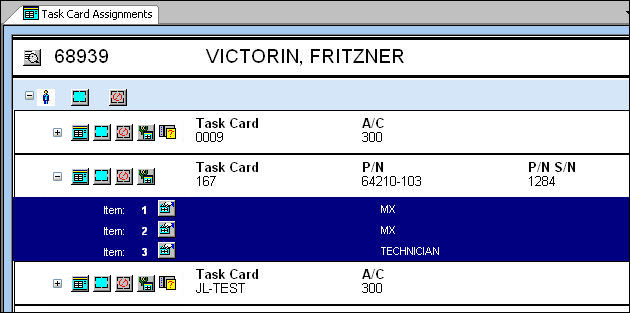
Items can be selected individually by selecting the Expand button and clicking on specific Items.
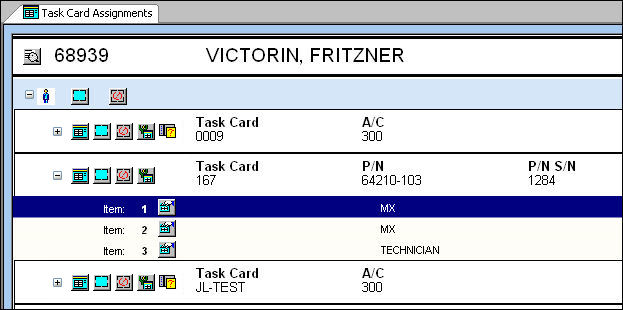
Once selected, users can perform multiple functions. One basic function is the Start Work button located in the Functions tab or by right-clicking over the Item. When selected, the user must enter their Wall Password. After starting the work the Task Card specific Item informational fields turn green. The Item also lists the Start Date and time.
Many more functions can be found by right-clicking in the Task Card Assignments section.
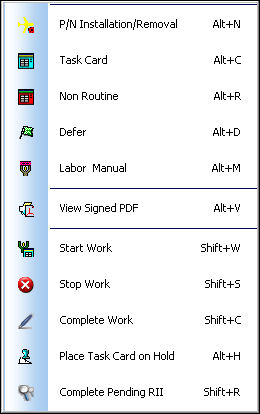
Many of these functions are also available at the top within the same window.
Share
Print
|
©1997-2026 Trax USA Corp. All rights reserved. This manual may not be copied, photocopied, reproduced, translated, or converted to any electronic or machine-readable form, in whole or in part, without prior written approval from Trax USA Corp. |
 |