
 Share
Share
 Print
Print
|
|
|
|
|


Complete Work Button, via W/O Task Card Assignment Workshop
The Complete Work  button allows workers to complete Task Card Items that have been previously worked on. Once all Task Card Items have been completed, the Task Card is automatically closed.
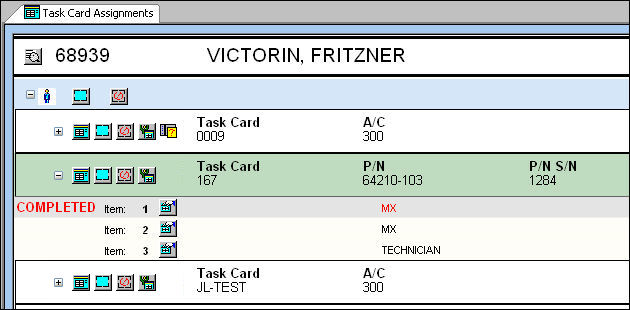
For example, notice the following Task Card (167) has three Items, the first Item having been started.
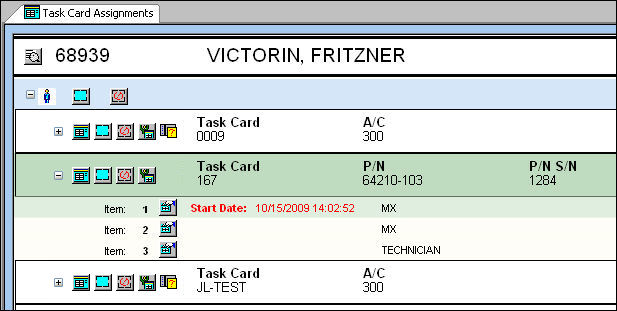
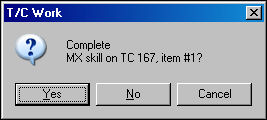
With the Item selected, select the Complete Work button. The following prompt appears. Select Yes.
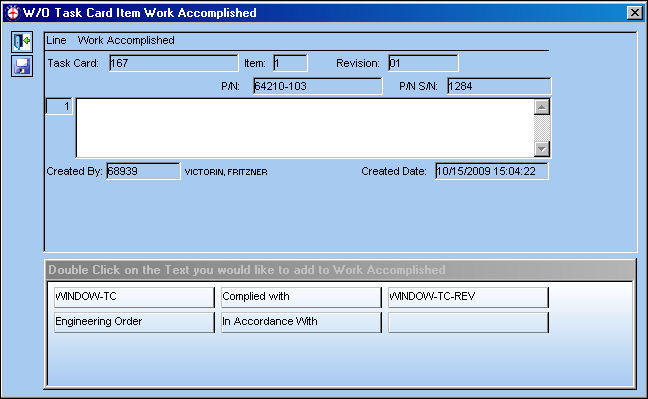
The W/O Task Card Item Work Accomplished field pops up. Enter any Work Accomplished then select the Save  button.
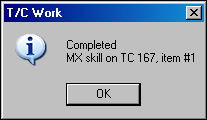
The following confirmation appears:
Notice Item 1 states 'COMPLETED' in red.
To close the entire Task Card, all Items must be completed. Follow the same steps described above for all Items. Once the final Item is completed, the following window pops up where users can defer the Task Card. The Status is Closed by default. Enter the time (HR/MN) then select the Save button.
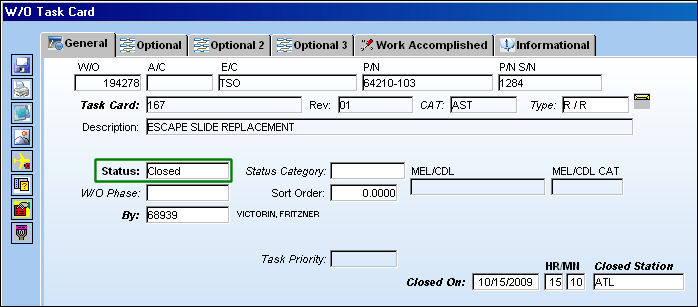
Task Cards cannot be re-Opened once the associated W/O Engineering Control has been reset. However, Non-Routine Task Cards can be re-opened if the W/O E/C has been reset.
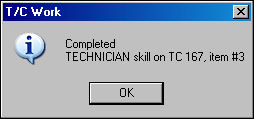
The following confirmation appears stating that the Task Card has been closed:
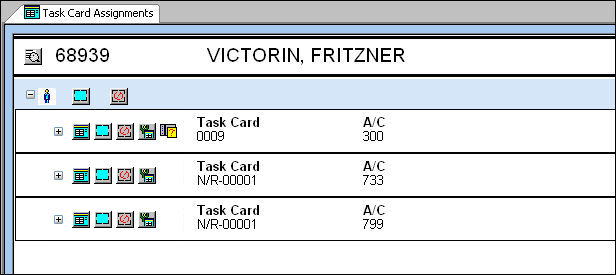
Notice the Task Card has been removed automatically from the Task Card Assignments tab for the worker.
If the Task Card contains a Survey, users can answer the Survey question(s) by selecting the Survey  button of the Functions Tab. For more information refer to the W/O Task Card Survey (via the W/O T/C Assignment Workshop) via the Production Training Manual.
When Production Switch  WOTCESIGN is set to Yes, an electronically signed PDF document is automatically created when a Work Order Task Card is closed. When set to No, the electronic signature PDF is not created during Task Card closing. For more information refer to Switch WOTCESIGN via the Production Switches Manual.
Share
Print
|
©1997-2026 Trax USA Corp. All rights reserved. This manual may not be copied, photocopied, reproduced, translated, or converted to any electronic or machine-readable form, in whole or in part, without prior written approval from Trax USA Corp. |
 |