
 Share
Share
 Print
Print
|
|
|
|
|


W/O Task Card Assignment Workshop, Sign On / Sign Off
The Sign On / Sign Off can be found to the left of the Work Order Task Card Assignment Workshop window. From here workers are able to sign-in with their Wall Passwords to access their own workload. When finished managing their accounts, they can sign out.
When selected, the following appears:
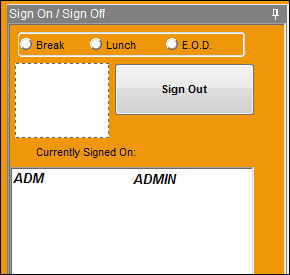
The following information/options are available in this window:
_____________________________________________________________________________________
Time Off radio buttons
Select the type of time off when signing off of the window. Users are required to select one of the following when signing out:

Break - Indicates a short amount of time taken off with the intention of returning to work by signing back in.
Lunch - Select for a lunch break.
E.O.D. - Indicates the End of the Day of shift.
Employee Picture
An image of the signed-in employee. This is optional and can be entered through the Photo Button, Via the Employee Master. For more information refer to the Settings Training Manual.
Sign On / Sign Out button
Use this button to sign into the Workshop. Once selected, users signing in will need to enter their Wall Password. When signing out, users are required to select a Time Off radio button followed by the Wall Password. Also note that when signing on, the screen flashes green, when signing out, the screen flashes red. This functionality is the same as found in the Employee Sign-On/Sign-Off window. For more information refer to that window.
Currently Signed On field
Displays the signed in employees by usernames/ID numbers and their full names. For a user to view their workload they must select their user name then enter the Wall Password to view their assignments. The user who is currently viewing/managing their workload is listed at the top of the list in bold font. Once a user signs off, their name is removed from the field.
_____________________________________________________________________________________
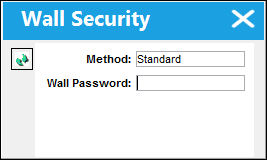
To access, users must enter their Wall Passwords just after entering the W/O T/C Assignment Workshop window.
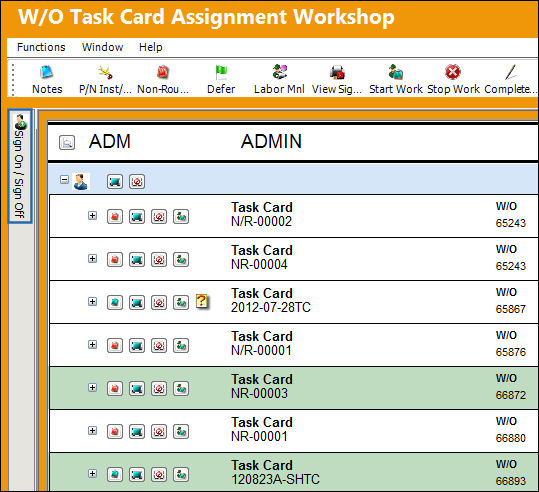
Once entered, notice the Sign On / Sign Off  button is displayed to the left of the window. This field is kept minimized by default in order to preserve space for employees to view the entire display of work. Hover over the button to view the Sign In / Sign Off.
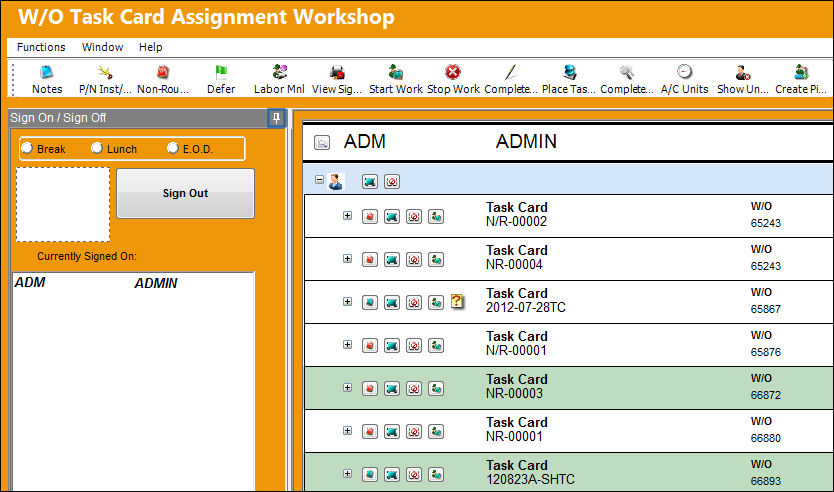
Once displayed, this will remain displayed as long as the cursor continues hovering over within the tab. Users can keep the tab open by selecting the Post  button. When selected, the Task Card Assignments tab (center) is compressed to fit in a smaller amount of space. This will remain displayed until the window is exited. Users can also deselect this button to collapse it back to the left of the window therefore displaying the Task Card Assignments section in a greater amount of space.
Share
Print
|
©1997-2026 Trax USA Corp. All rights reserved. This manual may not be copied, photocopied, reproduced, translated, or converted to any electronic or machine-readable form, in whole or in part, without prior written approval from Trax USA Corp. |
 |