
 Share
Share
 Print
Print
|
|
|
|
|


The Photo  button is used to add a photo of an employee to their employee record.
 This button is security controlled via Settings/ Update/ Employee Master/ Photo Button.
From the Employee Master, find the name of the employee whose photo is to be pasted/uploaded to their employee record.
Select the Photo button.
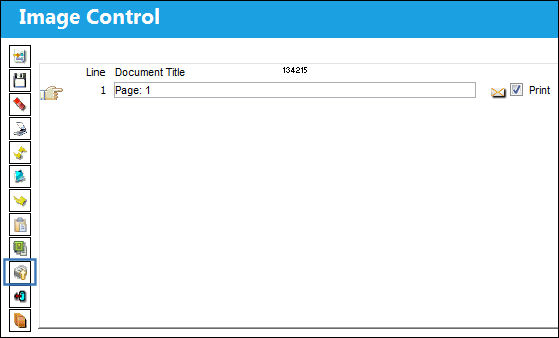
TRAX displays the Image Control window.
Select the New  button. The following line item appears.
Select the Paste  button. (The user may also select the Upload
  button to access the Select Image File pop-up)
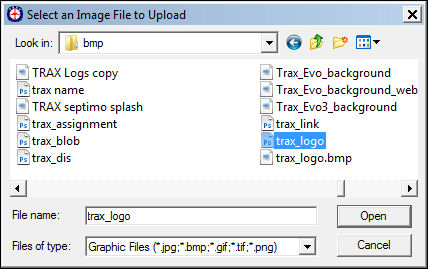
The Select Image File pop up appears. Select the file (photo) to be uploaded and select 'Open'.
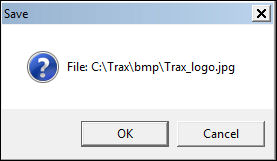
The following Save prompt appears. Select 'OK'.
The file is now attached to the record.
Click on the Select  button.
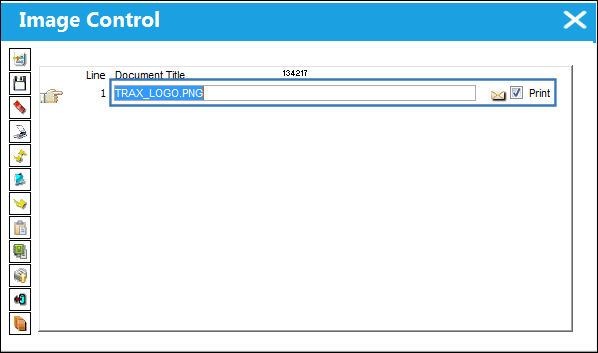
The image is shown below. Select the Save  button. The Save prompt will appear. Select 'OK' and exit the window.
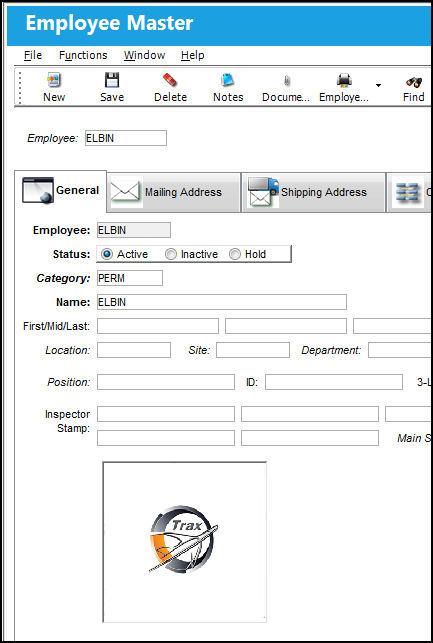
From the Employee Master window, select the Save button. Select the Find  button.
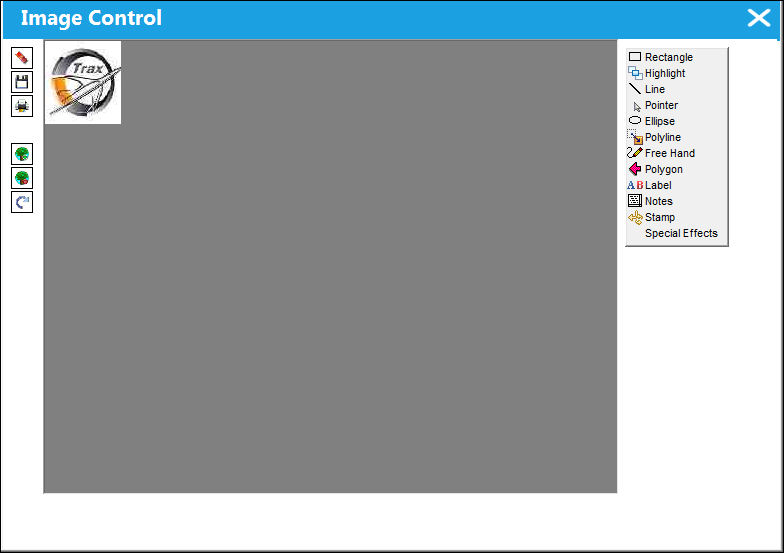
The image is shown below:
Share
Print
|
©1997-2026 Trax USA Corp. All rights reserved. This manual may not be copied, photocopied, reproduced, translated, or converted to any electronic or machine-readable form, in whole or in part, without prior written approval from Trax USA Corp. |
 |