
 Share
Share
 Print
Print
|
|
|
|
|


From the Employee Master window, users can register the barcode number printed on their employee ID cards. The barcode number can be used as an alternative to the Prox Card when performing "Issue To" tasks, such as the "Picklist Issue" function.
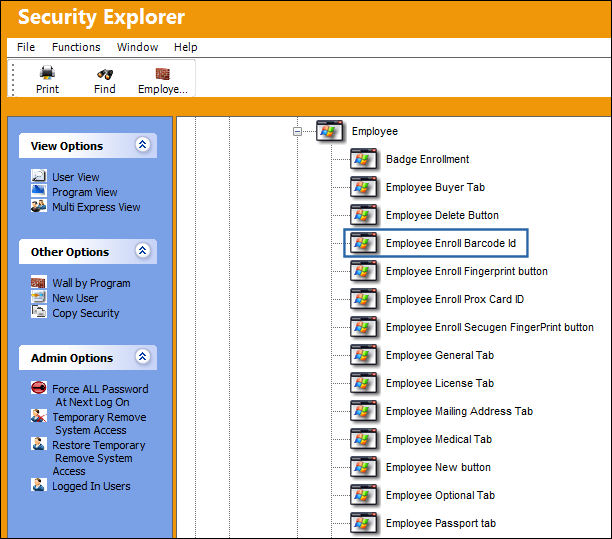
 This button is security controlled via Settings/ Update/ Employee Master/ Enroll Barcode Button.
The user must have security to use the Enroll Barcode ID function in the Employee Master via Settings. If needed, right-click over the Employee Enroll Barcode ID then select "Change Security Status".
Go to Settings/Update/Employee Master.
TRAX displays the Employee Master window. Find an already existing employee or create a new one.
For additional information on how to enter a new employee, refer to the Employee Master, General Tab.
Select the Enroll Barcode  button as displayed below:
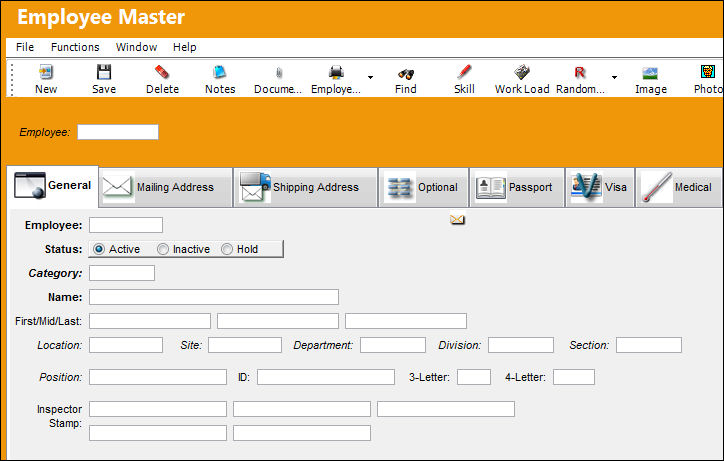
When the Employee Barcode Enrollment window appears, enter an employee then enter or scan the barcode ID.
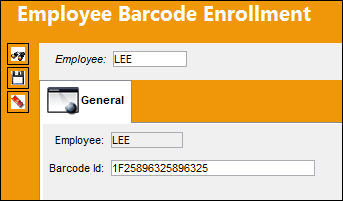
Once entered, select the Save  button.
Share
Print
|
©1997-2026 Trax USA Corp. All rights reserved. This manual may not be copied, photocopied, reproduced, translated, or converted to any electronic or machine-readable form, in whole or in part, without prior written approval from Trax USA Corp. |
 |