
 Share
Share
 Print
Print
|
|
|
|
|


Employee Master, General Tab
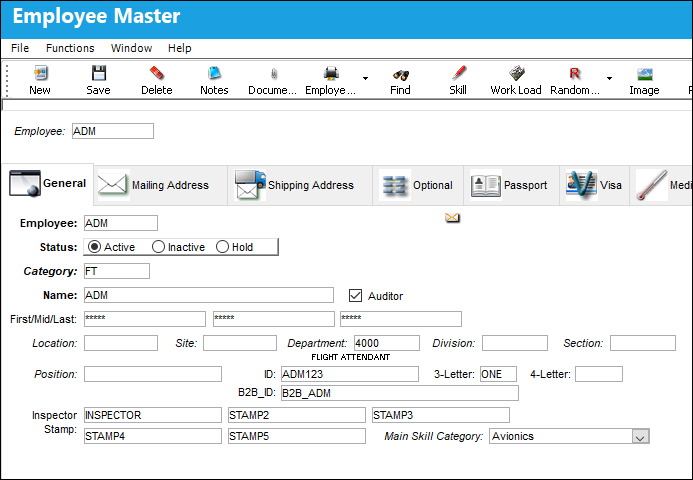
Enter a new employee by clicking on the New  button or change an existing employee by using the Find
  button or the pop-up selection.
 Note: All employee Personal Identification Information (PII) is encrypted throughout the system to ensure this sensitive information remains secure.
The following information/options are available in this window:
_____________________________________________________________________________________
Employee
The Employee number or code representing the employee.
Status
The current status of the employee. Select one of the following radio buttons (that best describes the status):
Active - Indicates that the Employee is currently an active employee in a company and throughout the system.
Inactive - Indicates that the employee no longer works for the company. Employees should not be deleted but places on Inactive Status because their employee information may be important for keeping system records.
Hold - Indicates that a person is temporarily not active but will be returning to the company. (Like people on maternity leave, for example.)

 Note: The Status Radio buttons are security-controlled via Settings/ Update/ Employee/ Employee Status Radio Buttons. For more information, refer to the Security Explorer via the System Administration Training Manual.
Category
The category of employee as defined in the Employee category Table.
Name
The name of the employee. This is the name that will accompany the Employee field, which occasionally consists of an Employee number. This name field can be searched for throughout the system instead of the Employee name/number since that name/number may not be as recognizable by other company employees. First/Last names can be entered in any order.
Auditor check box
The Auditor checkbox enables the user to create audits through the Quality Assurance, Audit Creation window.
Note: The Auditor check box functionality replaces the functionality of switch  AUDITDPT entirely.
First/Last/Middle
The first, last, and middle name of the employee. These fields are primarily useful for filtering employee data in prints/reports.
Location
The Location for maintenance events, inventory stores, orders, transactions, or training events. The Location where the Employee is stationed (e.g., MIA, JFK, etc.).
Site
The Site where the work is to be carried out (if applicable).
Department
The employee's normal department.
Note: When the switch I_EMPDEPARTMENT is set to Yes, the System API interface for importing employees will add the employee Department passed to the Transaction Codes for possible departments, if it does not already exist.
Division
The division of the employee.
Note: The character limit for this field is 10.
Note: When the switch I_EMPDEPDIVISION is set to Yes, the System API interface for importing employees will add the employee Department Division passed to the Transaction Codes for possible employee division, if it does not already exist.
Section
The employee's section.
Note: When the switch I_EMPDEPSECTION is set to Yes, the System API interface for importing employees will add the employee Department Section passed to the Transaction Codes for possible employee section, if it does not already exist.
Position
The employee's position.
ID
Employee Identification number. This number may be different from the Employee field.
3-Letter
The three letter code to identify the employee record.
4-Letter
The four letter code to identify the employee record.
B2B ID
The business-to-business user identification number in Aeroxchange. With the B2B ID, Orders created by the user will be under the user’s account in the AEX portal, and users can receive emails on their Orders, etc. This field acts as the sender in Spec2000, EOS, and ROS configurations. The tables involved are the RELATION_MASTER, ORDER_HEADER, and the Trax AEX Interface to hold AEX messages. The B2B ID must be an alphanumeric string between 4 and 30 characters.
Note: When a P/O is created for AeroBuy, the Issue To field will store the Employee Master record's name, which contains the B2B ID field. This will send the Buyer's name in the P/O to the Seller through an interface.
Note: When switch ONEB2BID is set to yes, the same B2B ID can be assigned to more than one Employee. When set to no, the B2B ID can only be assigned to a single Employee.
Inspector Stamp
The employee's inspector stamp (as many as five).
 In order for an inspector to be able to see the Inspector View in the TaskControl iOS app, 'INSPECTOR' must be input in this field. This functionality is only applicable for eMobility users.
Note: The nameless fields in this section are used for customer specific eMobility functionality.

Main Skill Category drop down 
Select from one of the following main skills to add to the employee profile:
- Mechanical
- Avionics
- Structures
- Propulsion
- Interiors
- Composites
- NDT
- Material Treatment/Coatings
_____________________________________________________________________________________
The Vendor Master, Owner Master, Customer Master and Employee Master are all part of the same relationship master table, therefore cannot have the same code entered. If the same code is entered the user will receive the following message in the Employee Master: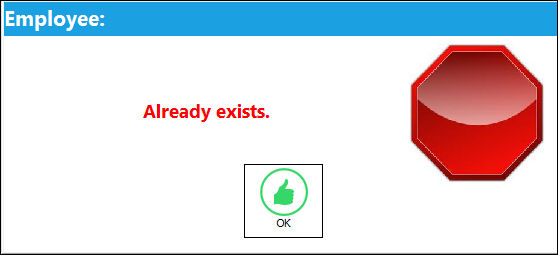
Select OK to acknowledge the message and exit the prompt.
Share
Print
|
©1997-2026 Trax USA Corp. All rights reserved. This manual may not be copied, photocopied, reproduced, translated, or converted to any electronic or machine-readable form, in whole or in part, without prior written approval from Trax USA Corp. |
 |